Optikam Integration
The optician takes eyewear-fitting measurements on the OptikamPad (an iPad supplied by
Optikam). Those measurements live in the practice's own Optikam Cloud. SightHub pulls them
from there using the practice's API key — nothing is pushed from the pad, so the key is the whole
setup. Once it's in, measurements come across on their own.
This page is the one-time setup (usually done by a manager): generate the key in the Optikam
Cloud Portal, then paste it into SightHub.
Before you start
- An active Optikam Cloud subscription — the key only exists while the subscription is active. No subscription → no key → no integration.
- Access to the Optikam Cloud Portal (
portal.optikam.com) for the practice. - A SightHub account that can manage integrations (the Setting permission).
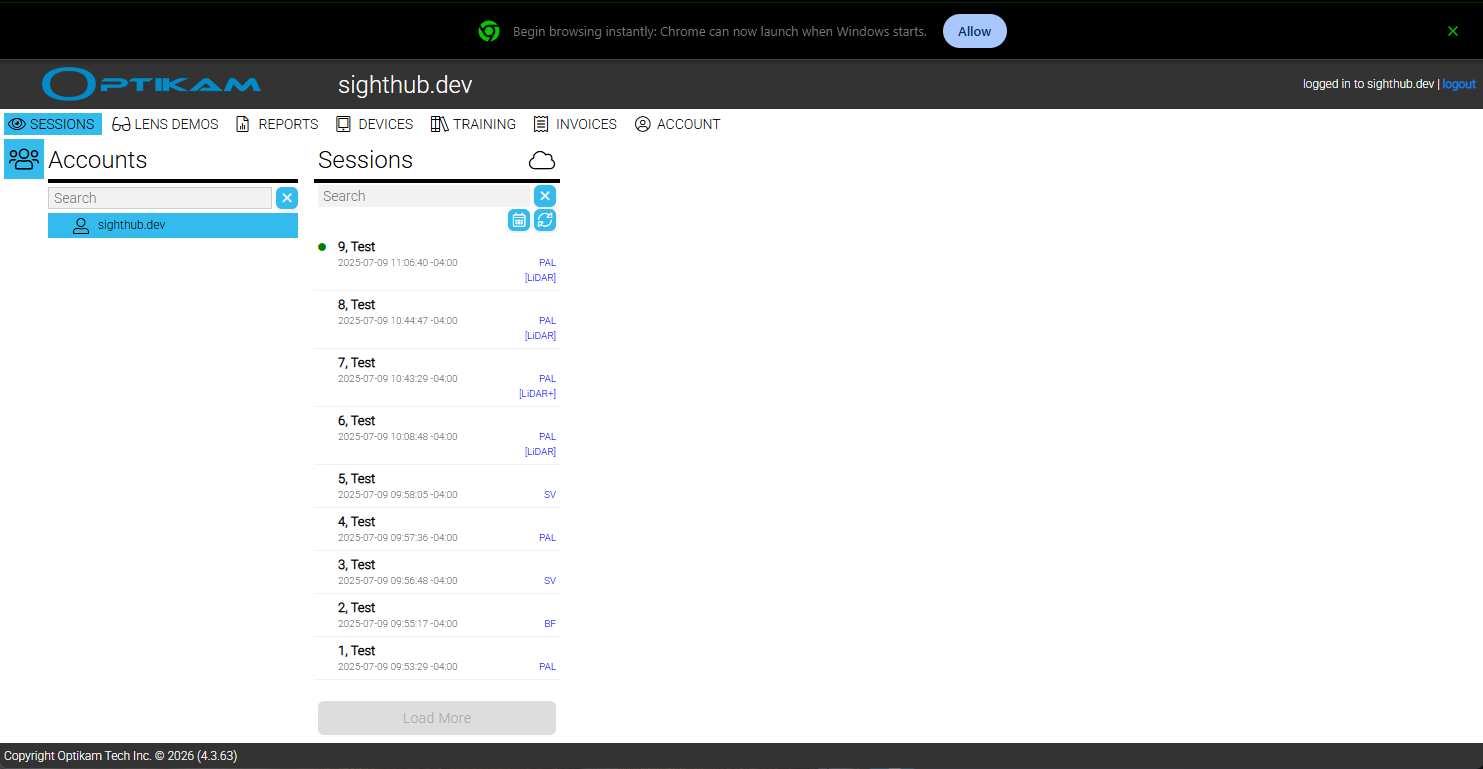
1. Generate your API key (Optikam Cloud Portal)
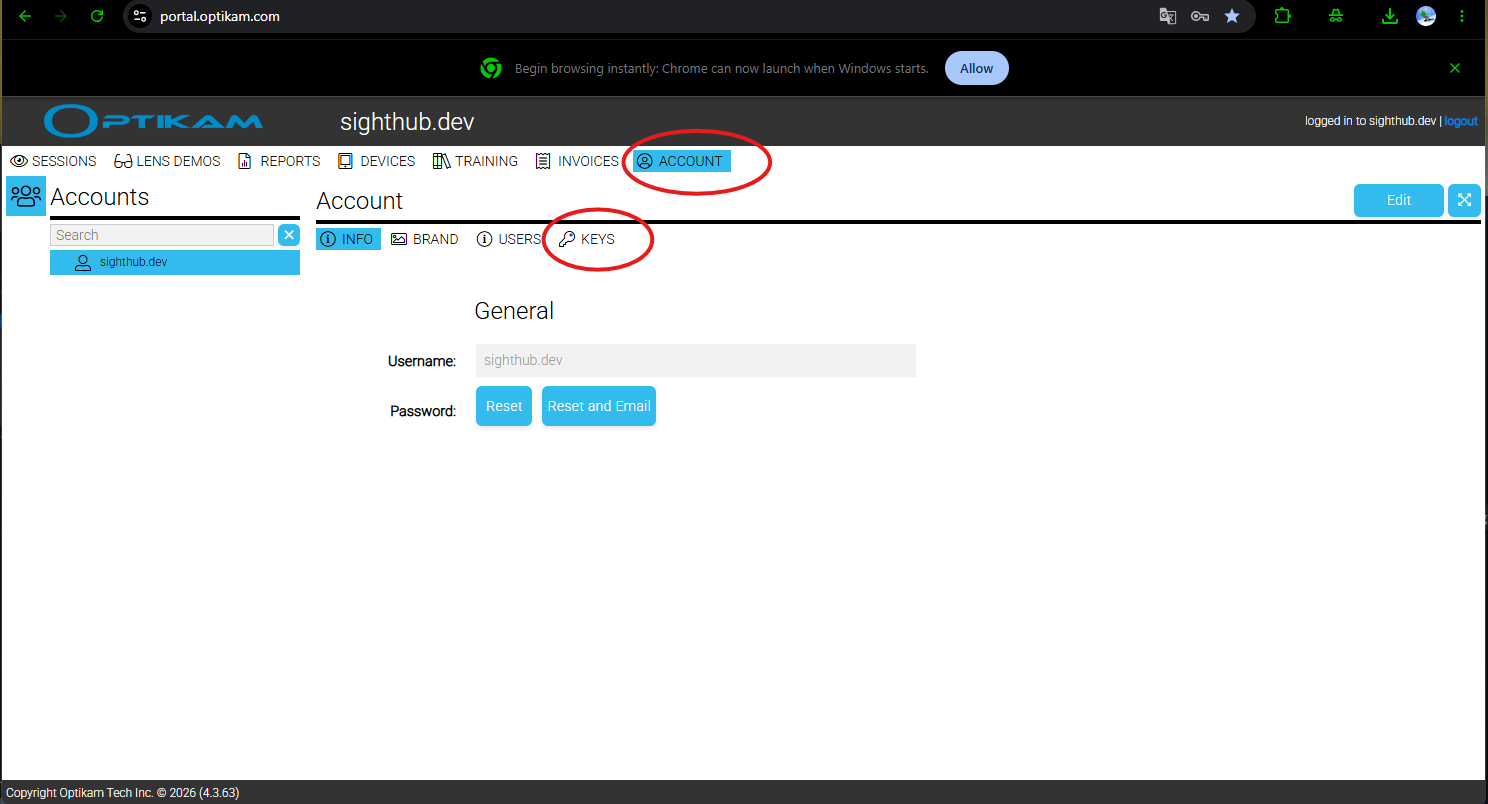
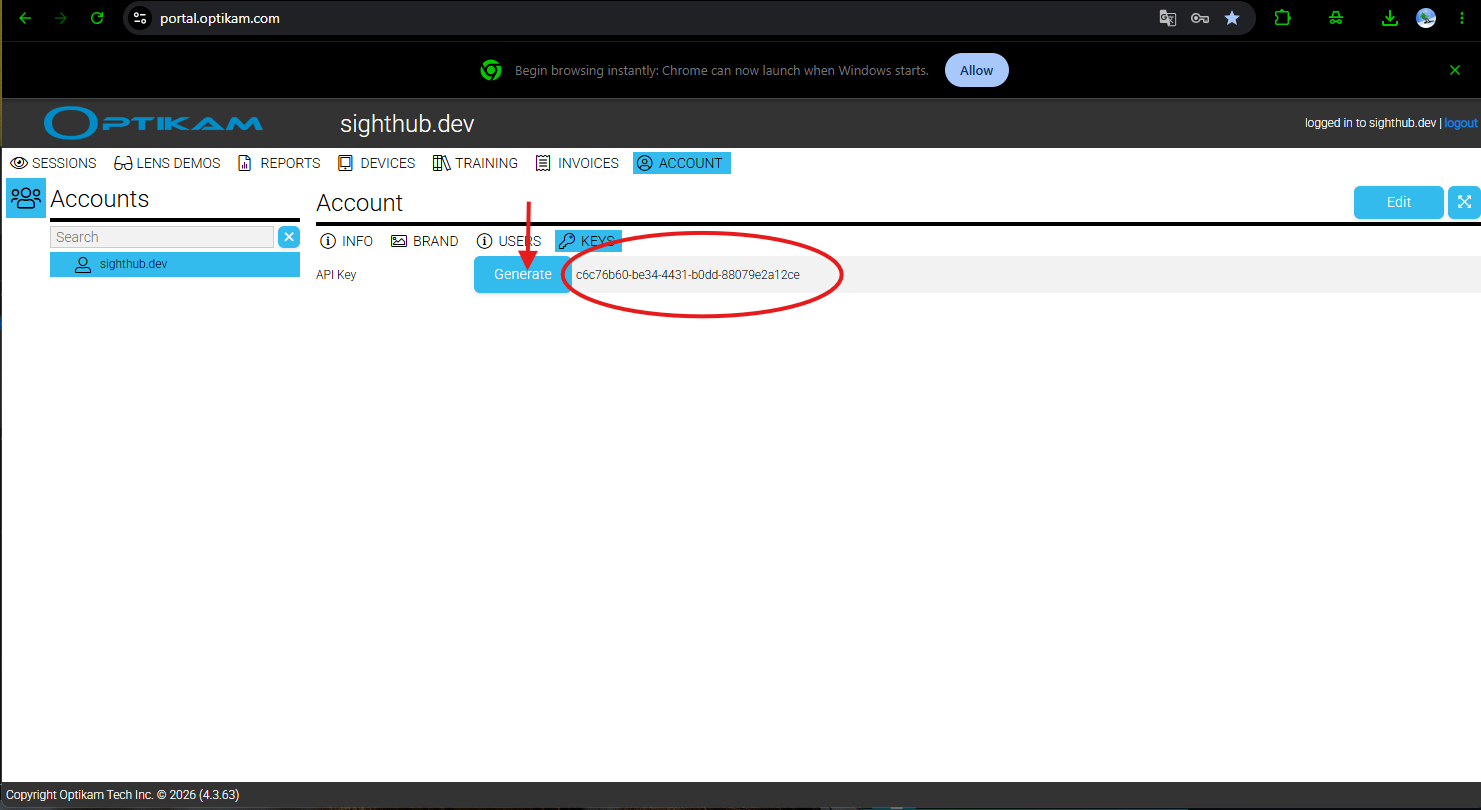
Log in to portal.optikam.com, open ACCOUNT in the top menu, then the KEYS tab. Press
Generate — a key appears next to API Key (a string like xxxxxxxx-xxxx-xxxx-xxxx-xxxxxxxxxxxx).
Copy it.
You can come back here any time to generate a fresh key. Username / password are not used by
SightHub — only this key.
2. Open the OptikamPad integration in SightHub
Go to General → Integrations and open the OptikamPad card.
3. Pick the store and enter the key
On OptikamPad Account Details:
- Store — choose the store (location) from the dropdown. The key is per store, so a practice with several stores enters each store's key separately.
- Optikam Cloud API key — paste the key you copied from the portal.
- Press Enable.
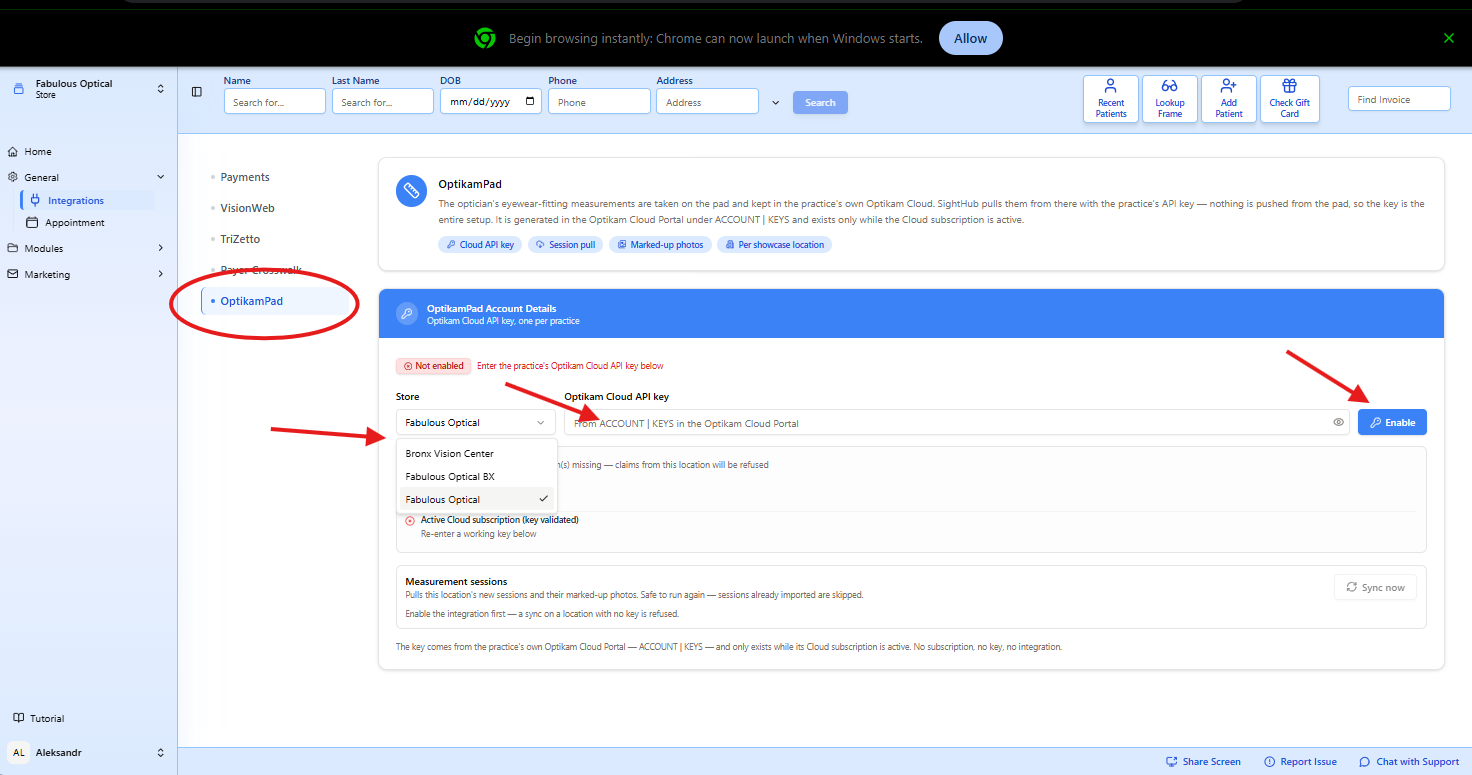
SightHub checks the key live. When it validates, the integration shows as enabled (key valid +
subscription active). If the key is wrong or the subscription isn't active, it stays Not enabled with
a short message — re-enter a working key.
Repeat for each store that uses OptikamPad.
4. That's it — measurements come in on their own
Once a store is enabled, SightHub pulls new measurement sessions automatically every few minutes —
nobody has to press anything. There's a Sync now button if you ever want to pull immediately (a sync
on a store with no key is refused).
How a measurement lands on the right order
On the pad, the optician enters the SightHub lab ticket number as the order / customer number.
When the session comes in, SightHub links the measurement to that lab ticket (and its patient)
automatically — no manual matching. You then apply the measurement on the lab ticket.
If something's not right
- Still "Not enabled" after pressing Enable — the key is wrong or the Cloud subscription isn't active. Generate a fresh key in the portal (ACCOUNT | KEYS) and paste it again.
- Key went on the wrong store — the key is saved to the Store selected in the dropdown; make sure the right store is picked before you Enable.
- "Sync refused" / "not configured" — that store has no key yet. Enter it first, then sync.
- A measurement didn't show up on the ticket — check the optician entered the correct lab ticket number as the order number on the pad.