Mailing — the mailbox the practice sends from
Every email the system sends a patient — the birthday greeting, the paid-invoice receipt, the appointment change — leaves from a real mailbox. Settings → Marketing → Mailing is where you tell the system which mailbox that is, and what the letters look like.
Two halves to the page: the connections on top, the designs below.
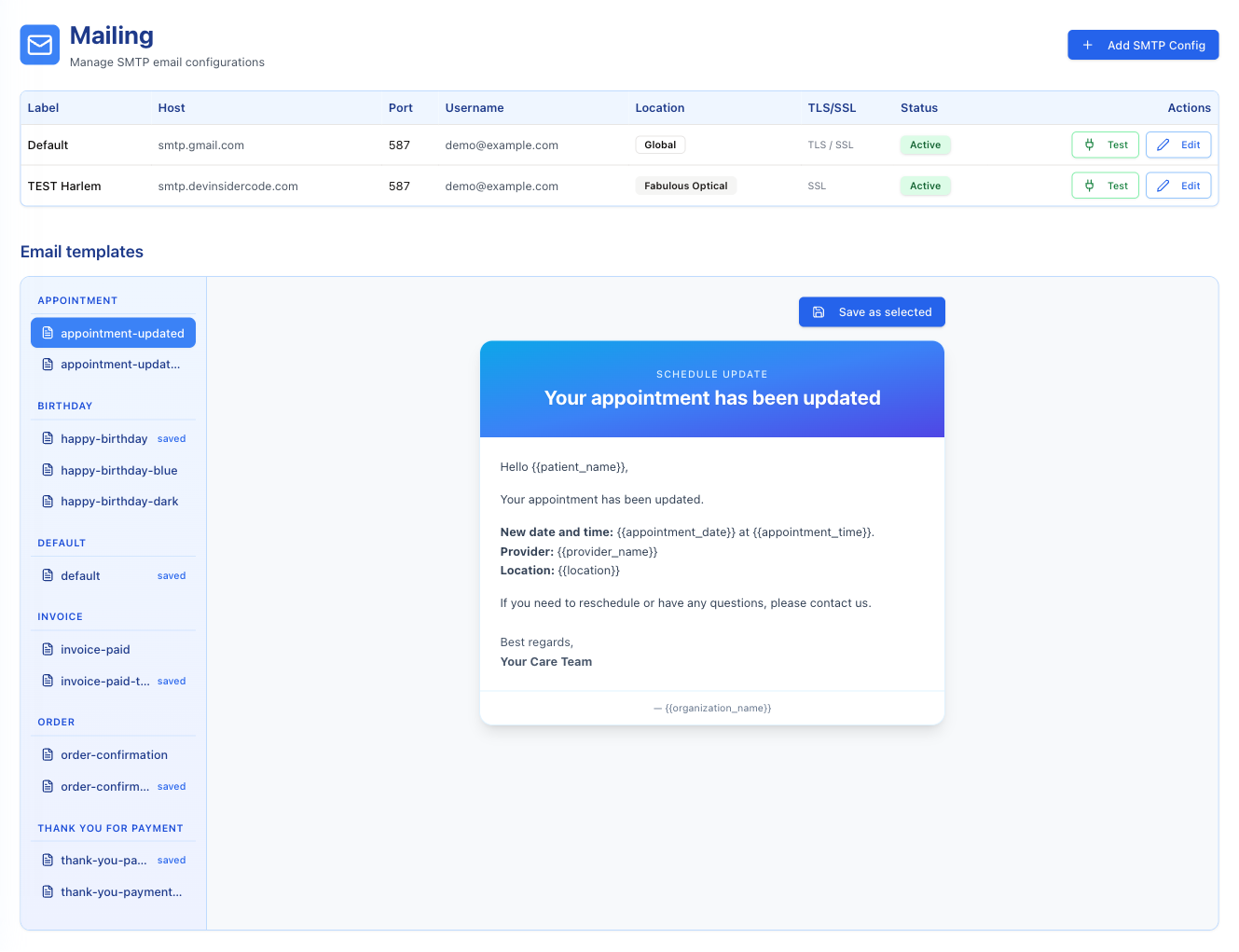
SMTP configurations
Each row is one mailbox: its Label, the Host and Port it connects to, the Username it signs in with, the Location it serves, whether it uses TLS/SSL, and its Status — Active or Inactive.
The Location column is the important one. A config marked Global is used by every location that has no mailbox of its own. A config tied to one store is used only by that store — so Fabulous Optical can write to patients from its own address while the rest of the practice writes from the general one.
Test sends a trial connection and tells you straight away whether the credentials work. Do it after every change; a wrong password is otherwise discovered only when a patient does not receive their letter.
Edit reopens the row. The password is never shown back to you — leave the field empty to keep the existing one, or type a new one to replace it.
There is no Delete button. To stop using a mailbox, edit it and switch Active off.
Adding a mailbox
Add SMTP Config opens the form.
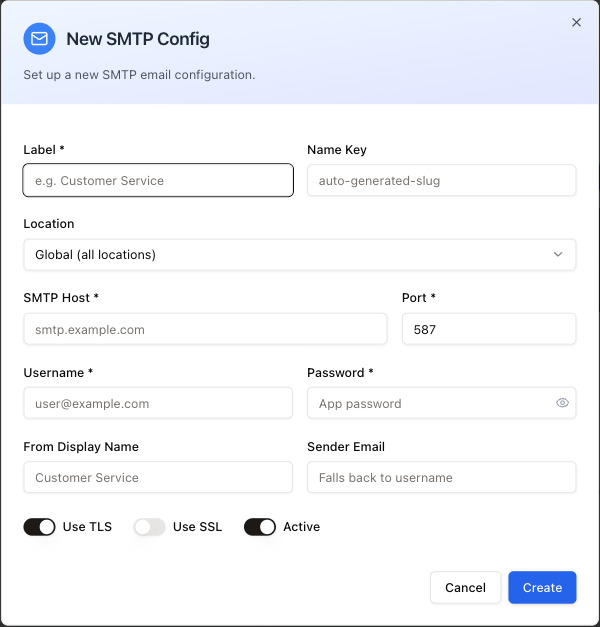
| Field | What to put in it |
|---|---|
| Label | A name for people, e.g. Customer Service. Required. |
| Name Key | The system's own id. It fills itself in from the label; leave it alone. |
| Location | Global (all locations), or one store. |
| SMTP Host / Port | From your mail provider. Both required. The port starts at 587, the usual one. |
| Username / Password | The mailbox login. Both required (the password only for a new mailbox). For Gmail and most providers this must be an app password, not the account password. |
| From Display Name | The name the patient sees as the sender. |
| Sender Email | The address the patient sees. Leave empty and the username is used. |
| Use TLS / Use SSL / Active | TLS on with port 587 is the normal combination. A new mailbox starts with TLS and Active on, SSL off. |
Email templates
The lower half is a picker, not an editor. Each category of letter has its ready designs (two or three each; Default has one), and you choose the one the practice sends.
Categories: Appointment, Birthday, Default, Invoice, Order, Thank you for payment.
Click a design on the left and a preview of the letter appears on the right — with {{patient_name}}, {{appointment_date}}, {{invoice_number}} and the rest still showing as placeholders. Those are filled in at the moment of sending.
The small saved mark next to a design name shows which design a category is using. The design you are currently looking at is highlighted instead, and the mark is hidden on it. When the page opens, it highlights the saved design of the first category that has one, so that category shows no saved mark until you click elsewhere. To switch, click another design and press Save as selected.
Designs within a category differ only in look — happy-birthday, happy-birthday-blue, happy-birthday-dark say the same thing in three colour schemes. Default is the plain fallback used for anything that has no design of its own.