Installing Print Label App
Print Label App is a small program that runs on the computer you print from. The
browser cannot talk to a USB printer on its own, so SightHub sends the label to
this app and the app sends it to the Zebra printer.
You install it once per computer. After that it starts by itself every time
the computer boots, and it updates itself — you will not need this page again on
that machine.
Before you start: the Zebra label printer, its USB cable and power adapter, a
roll of labels, and the computer you print from.
1. Connect the printer
Plug the USB cable into the computer and the power adapter into a wall outlet.
Turn the printer on — the indicator on the top panel lights up green.
2. Load the label roll
Open the printer cover, drop the roll in so the labels feed out toward the front,
and close the cover until it clicks.
3. Feed and calibrate the roll
Press the middle button on the top panel. The printer pulls a few labels
through and measures the gaps between them — this is how it learns where each
label starts and ends. Skipping this step is why labels come out shifted or
half-printed.
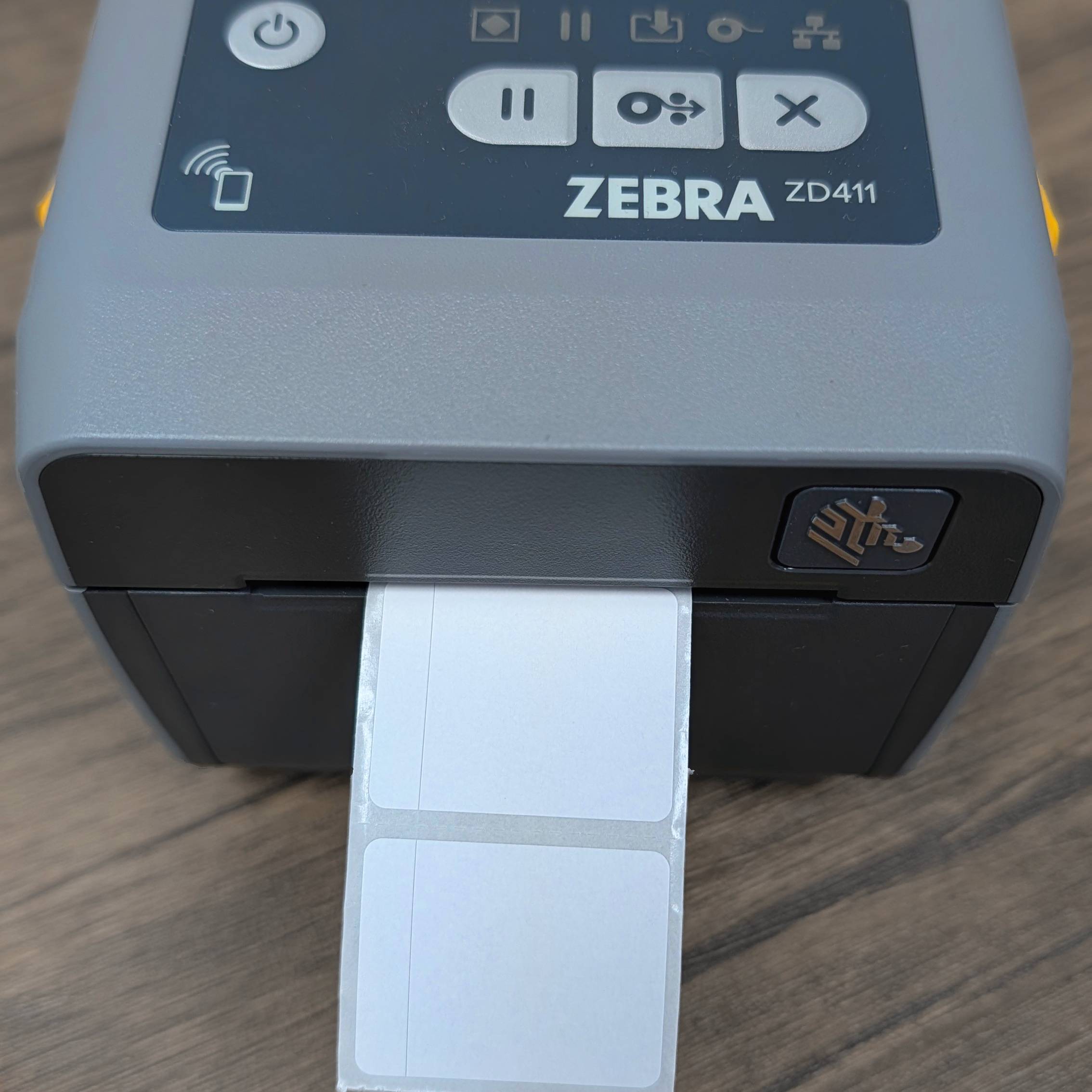
Both steps are shown in The Zebra ZD411 below.
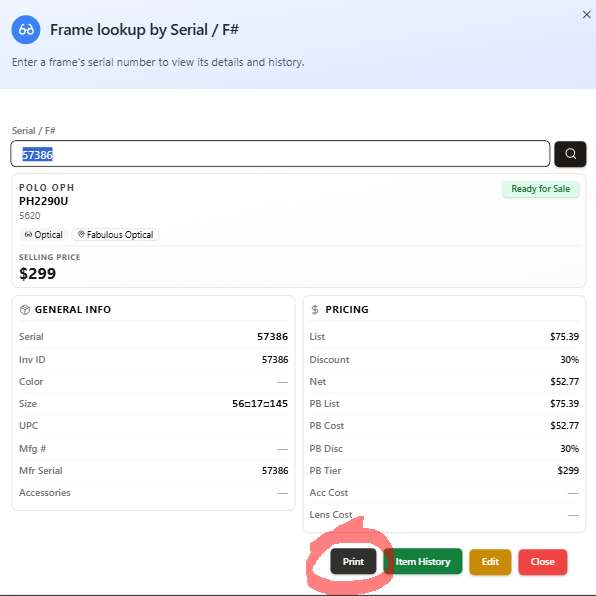
4. Press Print in SightHub
Open the item you want a label for and press Print.
5. If the app is not installed yet, you will see this
SightHub cannot reach the app on this computer and offers to install it. The
window also lists the cable checks worth doing first.
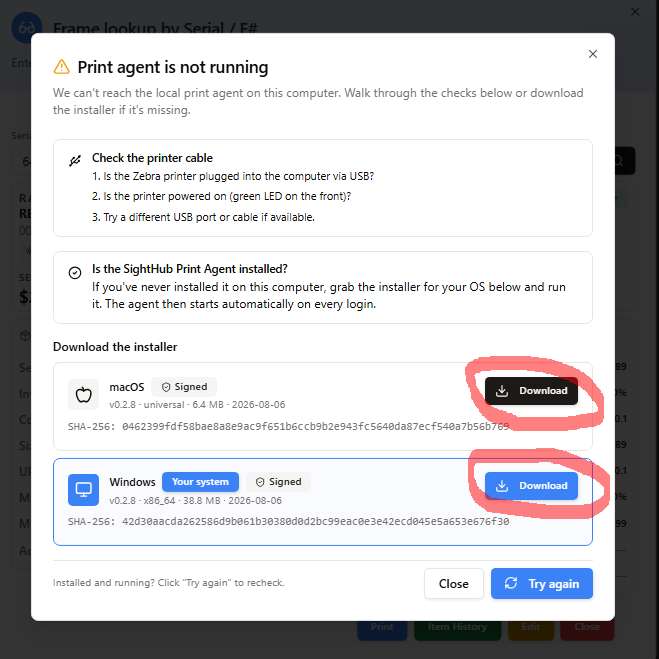
6. Download the installer for your system
The window shows both versions and marks the one that matches this computer with
a Your system badge — Windows or macOS. Press Download next to it.
You can also download it directly, outside SightHub. These links always give the
current version:
- Windows: https://manage.sighthub.cloud/api/v1/public/print-agent/releases/latest/windows
- macOS: https://manage.sighthub.cloud/api/v1/public/print-agent/releases/latest/macos
7. Run the installer from your downloads
Open the downloaded file and confirm the system prompt. There is no wizard to
click through — the installer finishes on its own.
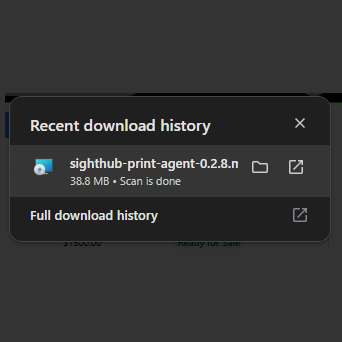
The browser may check the file for a minute before letting you open it. That is
normal for a large installer; wait for the scan to finish.
8. Restart the browser completely
Close every browser window, then open the browser again. Not just the
SightHub tab — all windows. Browser security policies are only re-read when the
browser starts, so until you do this SightHub still will not see the app.
9. Print again
Press Print on the item once more. The label comes out of the Zebra.
The Zebra ZD411
Open the cover and the roll sits on the spindle. The buttons on the top panel are
power on the left, and pause / feed / cancel in the middle row — feed is the
one used for calibration in step 3.
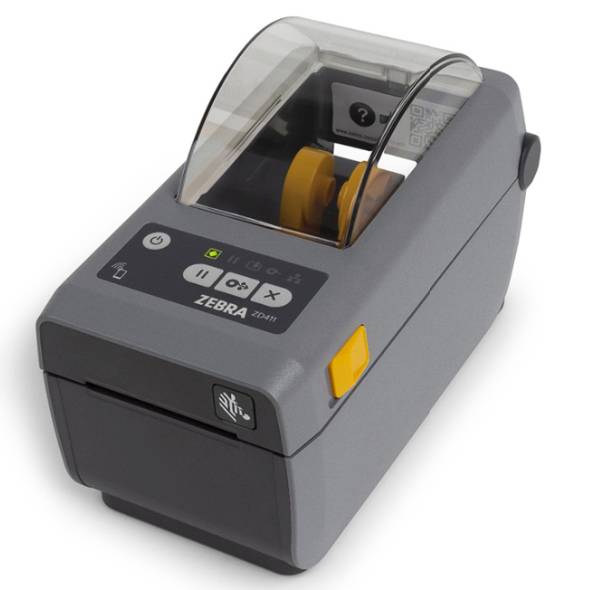
After a feed the labels come out of the front slot and stop at the tear-off edge.
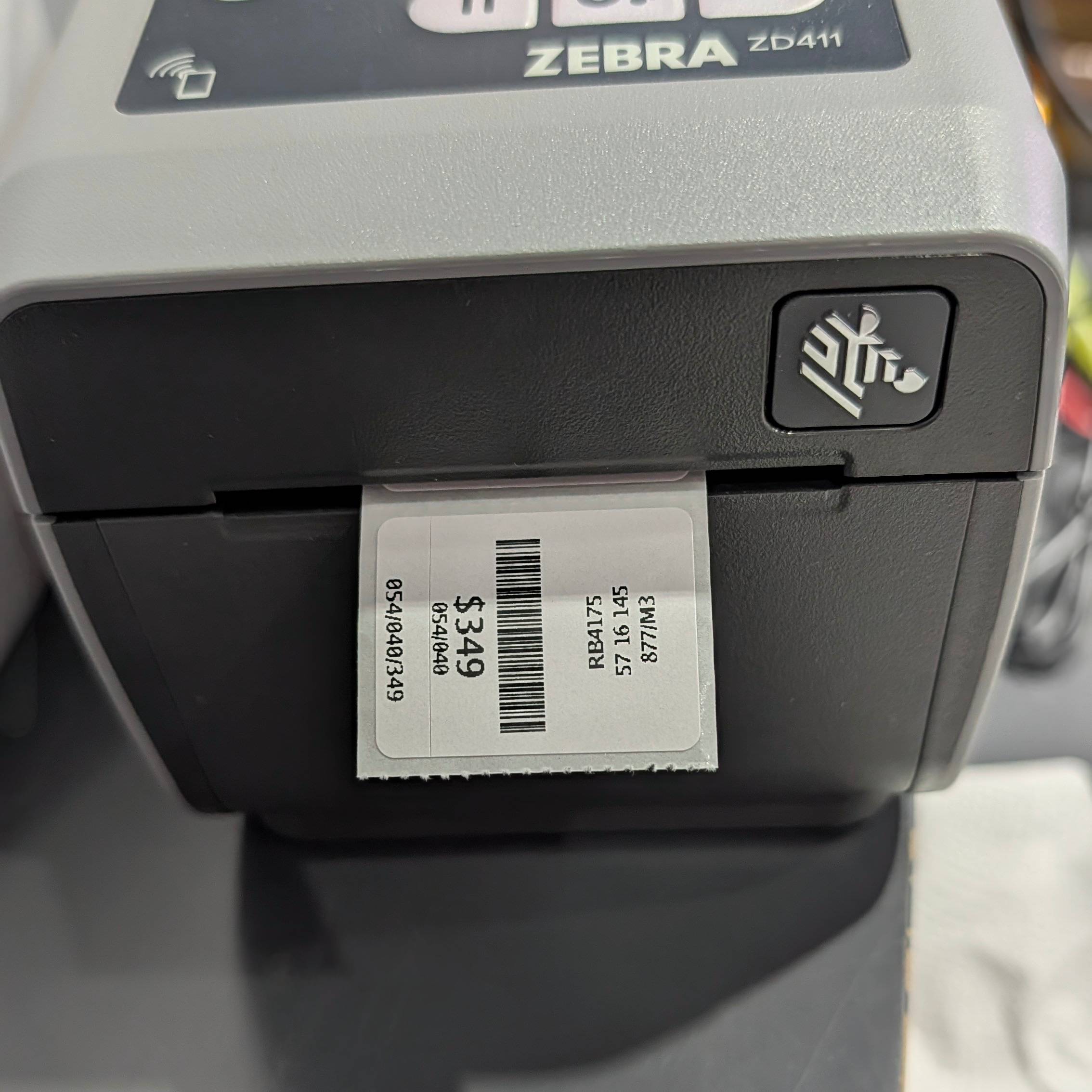
A finished label from SightHub — price, barcode and item code:
If it still does not print
Work down this list in order:
- Is the printer on? The indicator on the top panel should be green, not
red, amber, or off. - Is the cable in? Both ends — the computer and the printer. Try a different
USB port, and a different cable if you have one. - Did you restart the whole browser? This is the step people skip. Every
window closed, then opened again. - Press Try again in the SightHub window — it re-checks for the app without
reloading the page. - Is the roll calibrated? If labels come out blank, shifted, or one and a
half at a time, press the middle button again with the cover closed.
Still nothing — contact SightHub support and mention which of these you already
tried.