Patient search results
The search bar sits above every screen. Fill in what you know — Name, Last Name, DOB, Phone, Address — and press Search (it stays greyed out until at least one field has something in it). The results open on their own page, whatever screen you started from. The chevron next to the fields opens more of them — see The expanded search below.
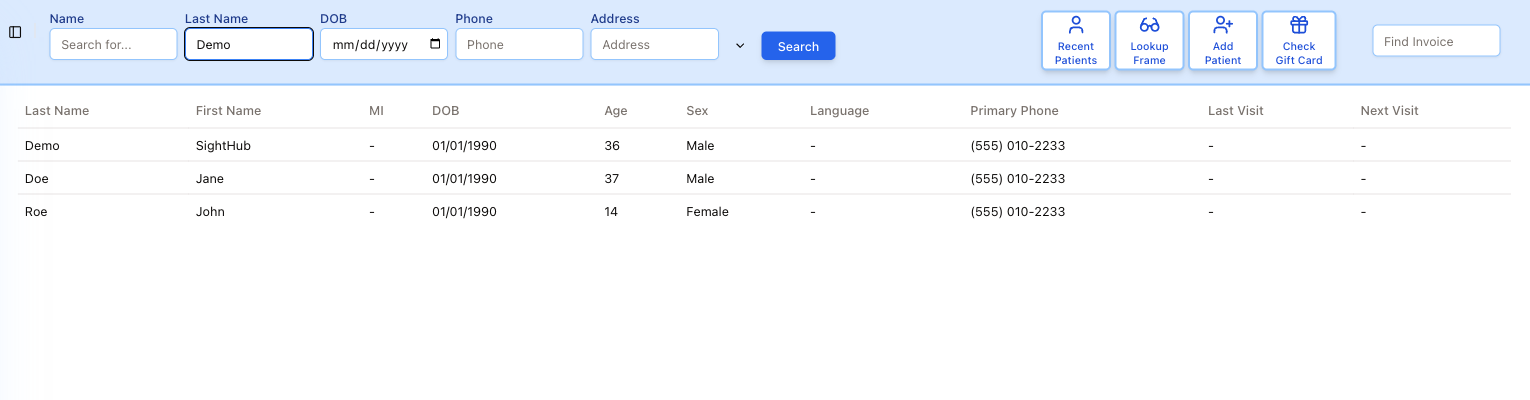
Results come back as a table: Last Name, First Name, MI, DOB, Age, Sex, Language, Primary Phone, Last Visit and Next Visit. Click a row to open that patient.
Last Visit and Next Visit are the two columns worth reading before you pick up the phone — they tell you whether the person in front of you is overdue or already booked.
When nothing matches, the table says No patients found — try adjusting your search criteria. Fewer fields find more: a last name alone beats a last name plus a misremembered date of birth.
The buttons on the right of the bar are shortcuts rather than search: Recent Patients, Lookup Frame, Add Patient, Check Gift Card, and Find Invoice.
The expanded search
The chevron next to the primary fields opens the rest: State, City, ZIP, Group Number, Insurance Company, Insurance Type (the coverage — Vision, Medical, Dental), Last Exam and Exam/Invoice Location. The Priority box in the same panel is not used by the search yet — whatever you pick there, the results are the same.