The patient card
Click a patient in any search result. You land on their patient card — a single dashboard with nine widgets showing everything about that patient at a glance.
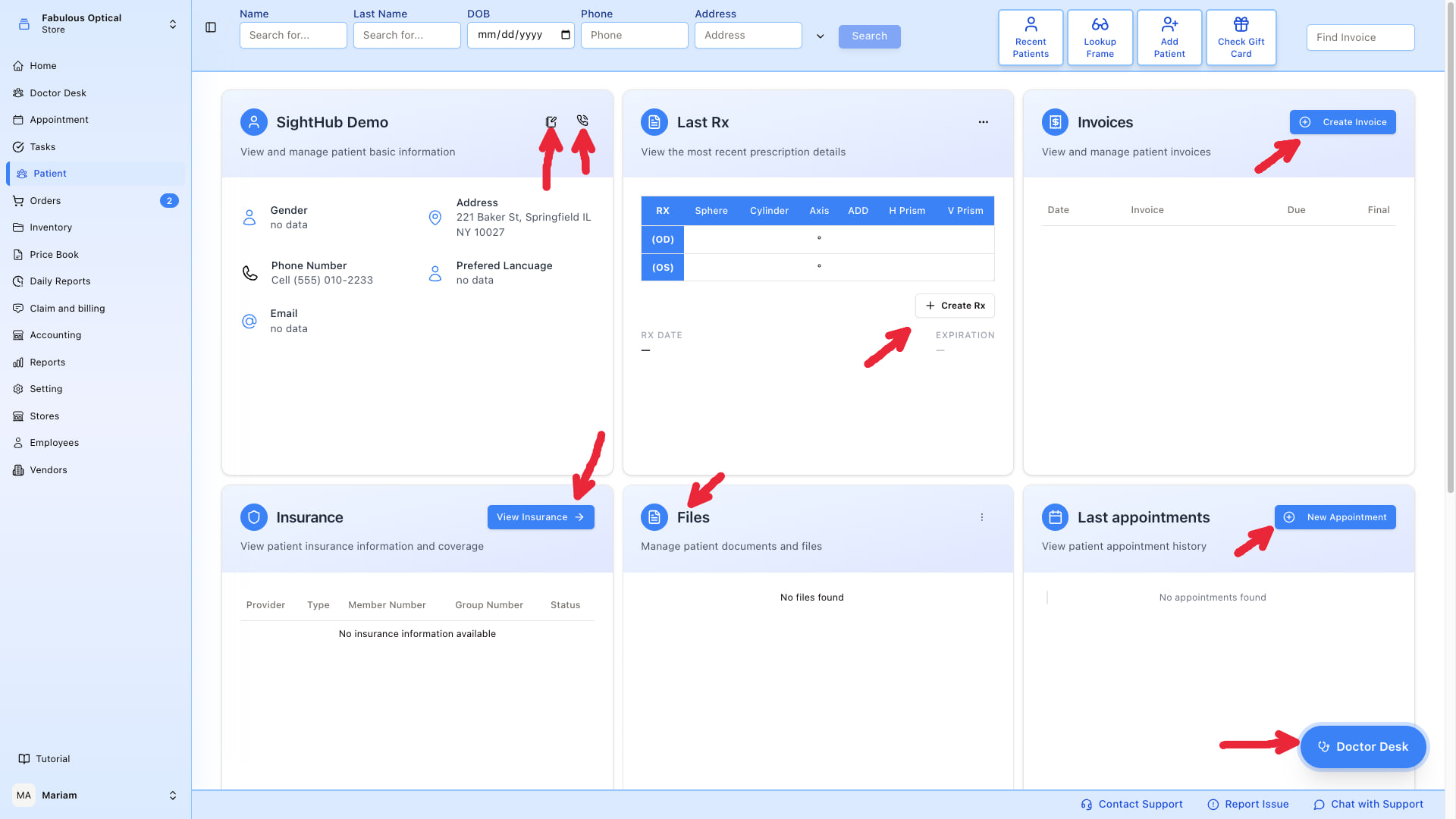
The three rows, nine widgets
Row 1 — the essentials
- Basic Information — name and date of birth, then gender, address, phone numbers (cell, home, work), email and preferred language. A notebook-and-pen icon opens an edit dialog; a phone icon opens the Recalls dialog.
- Last Rx — the latest eyeglass prescription (OD/OS with Sphere/Cylinder/Axis/ADD/Prism, plus Rx Date and Expiration — the expiry is coloured and labelled Valid, Expiring soon — schedule renewal (within 60 days) or Expired — renewal required). When the patient has no prescription yet the button reads Create Rx; once one exists it becomes Open Prescription, and a further prescription is started from the widget's three-dot menu → Add Rx.
- Invoices — table of the patient's invoices with date, invoice number, amount due (red when money is still owed) and final; an invoice waiting for a manager to approve its deletion carries an amber Pending deletion tag. Create Invoice creates a new, empty invoice straight away and opens it. For a patient's very first invoice a short question comes first — How did you hear about us? — answer it and press Create invoice, or press Skip Questions.
Row 2 — coverage, documents, history
- Insurance — provider, type, member/group number, status. View Insurance → opens the full insurance page with the last policy in the list already selected; clicking a row opens the same page.
- Files — patient documents (Rx scans, ID cards, referrals). Three-dot menu → Upload, Scan (flatbed scanner), or Phone Scan (photograph it with your own phone through the SightHub app) — see Files.
- Last appointments — the patient's appointment history. New Appointment opens the appointment calendar with the Create appointment window already open and this patient already picked — no searching. The start time is today, now, rounded up to the next slot (it does not check whether the doctor is free); you choose the doctor, adjust the day and time, and save. See Booking from the patient card.
Row 3 — communications
- SMS — text messages exchanged. Send SMS sends a real text to the patient.
- Emails — emails exchanged. Send Email sends a real email to the patient (subject and body are both required).
- Calls — log of phone calls. Add Call to log a manual call.
What clicking things does
- Open Prescription under Last Rx → opens that Rx's detail page. The table itself is not clickable.
- A row in Invoices → opens that invoice.
- A row in Files → opens the file viewer.
- Rows in Last appointments are read-only. To change an appointment, open it from the calendar.
- The blue Doctor Desk floating button (bottom right of the card) → opens this patient's medical chart in Doctor Desk, useful when the doctor is ready to see them. It only appears for accounts that have Doctor Desk in their own menu, so front-desk staff may not see it at all.