Reporting an issue
Report an Issue is the way to tell support something is wrong and keep it on record. It is reachable from the Report Issue button in the bar at the bottom of every screen; it opens in a new browser tab, so the screen you were on stays as it was.
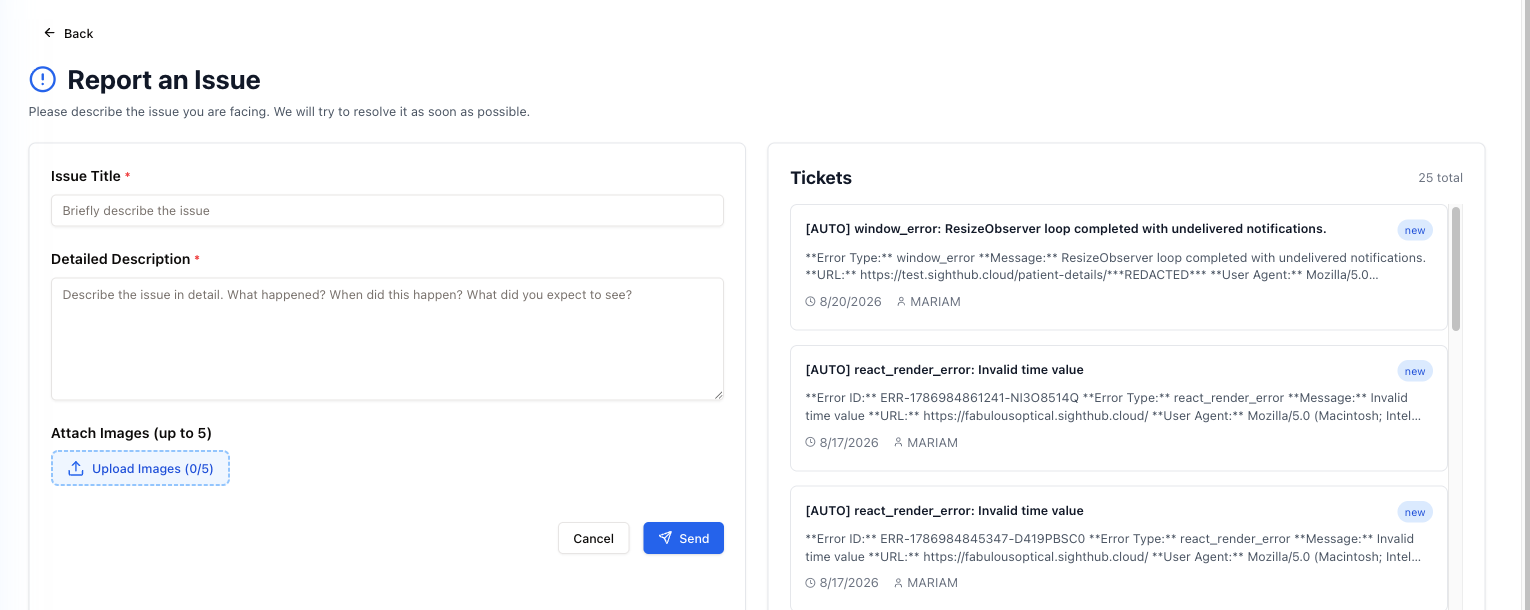
Sending a report
- Issue Title — one line saying what broke. Required, at least 5 characters.
- Detailed Description — required, at least 20 characters, and the prompt spells out what helps: what happened, when it happened, and what you expected to see instead.
- Attach Images (up to 5) — up to five screenshots; only picture files are accepted. A picture of the actual screen usually saves a round of questions.
Press Send. You see Thank you! Your message has been sent. We will contact you soon. and the ticket appears in the list on the right.
Because the page opens in its own tab, Back and Cancel usually have nowhere to go back to, and the form is not cleared after sending. When you are done, simply close the tab — and do not press Send a second time, or support gets the report twice.
The ticket list
The right-hand column, Tickets, shows the tickets already raised for this practice (the latest 50, with the total count at the top). Each one has a status chip — new (blue) for the ones nobody has picked up yet, in_progress (yellow), and green once it is dealt with — plus the date, who reported it and how many screenshots it has.
Older entries marked [AUTO] were not typed by anyone — the application used to send them itself when it hit an error, with the error type, the message, the page and the browser. That automatic sending is switched off now, so a crash is on record only if someone reports it. If something breaks, send a report and say what you were trying to do.
Replies
The ticket list is not write-only. Replies from support appear under the ticket's text as Support Replies, each with who wrote it and when — so check back here rather than waiting for an email. Click a ticket to see its full description and its screenshots; click it again to fold it.
Report, chat or share your screen?
The bottom bar has two more ways to reach support, next to Report Issue:
- Chat with Support — a live chat, for a question you want answered now. You can attach screenshots there too.
- Share Screen — a support person watches your SightHub screen and points at things, for when it is easier to show than to explain.
Use a report when the problem should be on file and followed up; use the chat or Share Screen when you need help in the moment. Both are explained in Support chat and Share Screen.