Accounting — what the practice owes its vendors
Accounting answers one question: what does the practice still owe, and to whom.
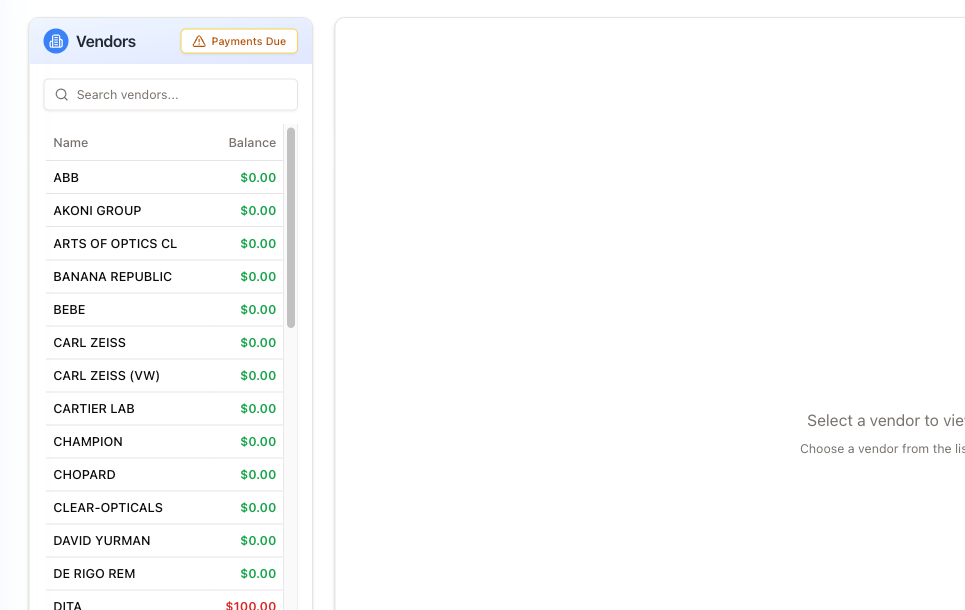
The left column lists every vendor with a Balance. An outstanding amount is red; zero is green, and so is a negative figure, which means the vendor owes you — an overpayment or a credit. Vendors with bills coming due or overdue are shaded blue with a blue bar on the left. The Search vendors... box narrows the list by name.
Payments Due at the top opens a window, not a filter. It lists the bill payments falling due within the Window (days before due) (5 days to start with), plus anything already overdue, grouped by vendor: the bill number, the Period (for bills paid in parts), the Due date, Days left, To pay now and an Overdue tag. A Vendor filter and the Total remaining to pay now sit at the top. Click a line and that vendor opens with the Add Payment window ready.
A store's warehouse keeps the same books as its showcase: working at either, you see the same balances, bills, payments, credits and account numbers.
A vendor's ledger
Click a vendor to open it.
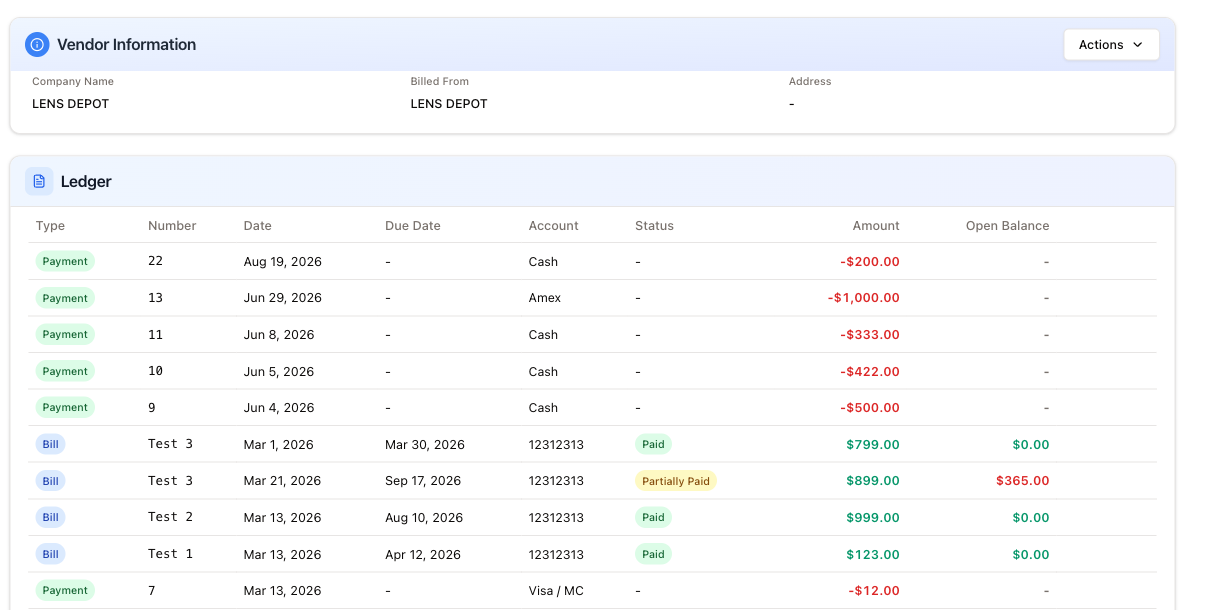
Vendor Information carries the company name, who the bill comes from, the address and the vendor's contacts. The Actions button beside it holds what you can do with the vendor.
Ledger is the account itself, newest first, with a Type badge on every row. Six types appear — Bill, Payment, Credit, Return, ReturnCredit and Adjustment — and statuses run beyond Paid and Partially Paid to Open, Overdue and Pending.
Click a row to see that bill, payment or return in full. Credit and Adjustment rows do not open; instead a Credit row has a pencil (edit the credit) and a bin (delete it, after a Delete this credit? check — deleting a credit puts the vendor balance back up and cannot be undone). A row that came from a return to the vendor has an arrow button that opens the return itself.
The two you meet most:
- Bill — what the vendor invoiced. It has a Number, a Date and a Due Date, an Account, a Status and an Amount, plus the Open Balance still to pay. A bill made from a receipt is for the receipt's total — its frames' net cost, less its discount — plus the vendor's S/H and tax, not the Sub total typed on the vendor's paperwork.
- Payment — what you paid. Shown as a negative amount, with the method in the Account column (Cash, Amex, Visa / MC …). Payments have no due date and no open balance.
The Status chip is where the eye goes: Paid with a zero open balance is done; Partially Paid in yellow with a figure in red is the money still owed on that bill. The vendor's balance in the left-hand list is the sum of those open balances, less the credit you still have with the vendor (from returns, and credits not yet used on a bill).
Doing something about it
The Actions button on the vendor's page is where the changes are made. It has four choices:
- Add Payment — enter the Amount, Date and Payment Method (all required), then tick the vendor's open bills the money goes to and set the Amount to Pay on each. The amounts on the bills cannot add up to more than the payment — you get Total amount to pay exceeds payment amount. Paid with Vendor Credit, the payment spends the vendor's credit, so the vendor's balance stays where it was, and it cannot be more than the credit left — you get not enough vendor credit: X left, the payment is Y.
- Create Invoice — record a bill from the vendor: Invoice Number, Invoice Date, Invoice Amount, Due Date and Account Number are required, with the payment terms, status, the invoice file and (optionally) item lines alongside. Recent Invoices beside the form lists the vendor's invoices from the store's receipts, newest first and the ones with no date yet last; click one to fill in its number, date and amount. Its amount is what that receipt bills, as above.
- Add Credit — opens Add Vendor Credit: Amount, Credit Date and Reason are required; the vendor's own credit document (number, date, file) is optional.
- Create Return — opens Create Accountant Return, for a return that is not stock (for example contact lens boxes): a Status, the Credit Expecting, one line per item (Description, Qty, Cost each) and, optionally, the vendor's document. A line is worth its Cost each times its Qty. Leave Credit Expecting empty and the credit is the return's Purchase Total, the cost of its lines; a figure you type stays.
Everything else on the page is a read-out of what those have produced.