Appointments — overview
The Appointments page is where the front desk plans the day: who is coming in, at what time, to which doctor, and in which store.
Open it from the left sidebar → Appointment.
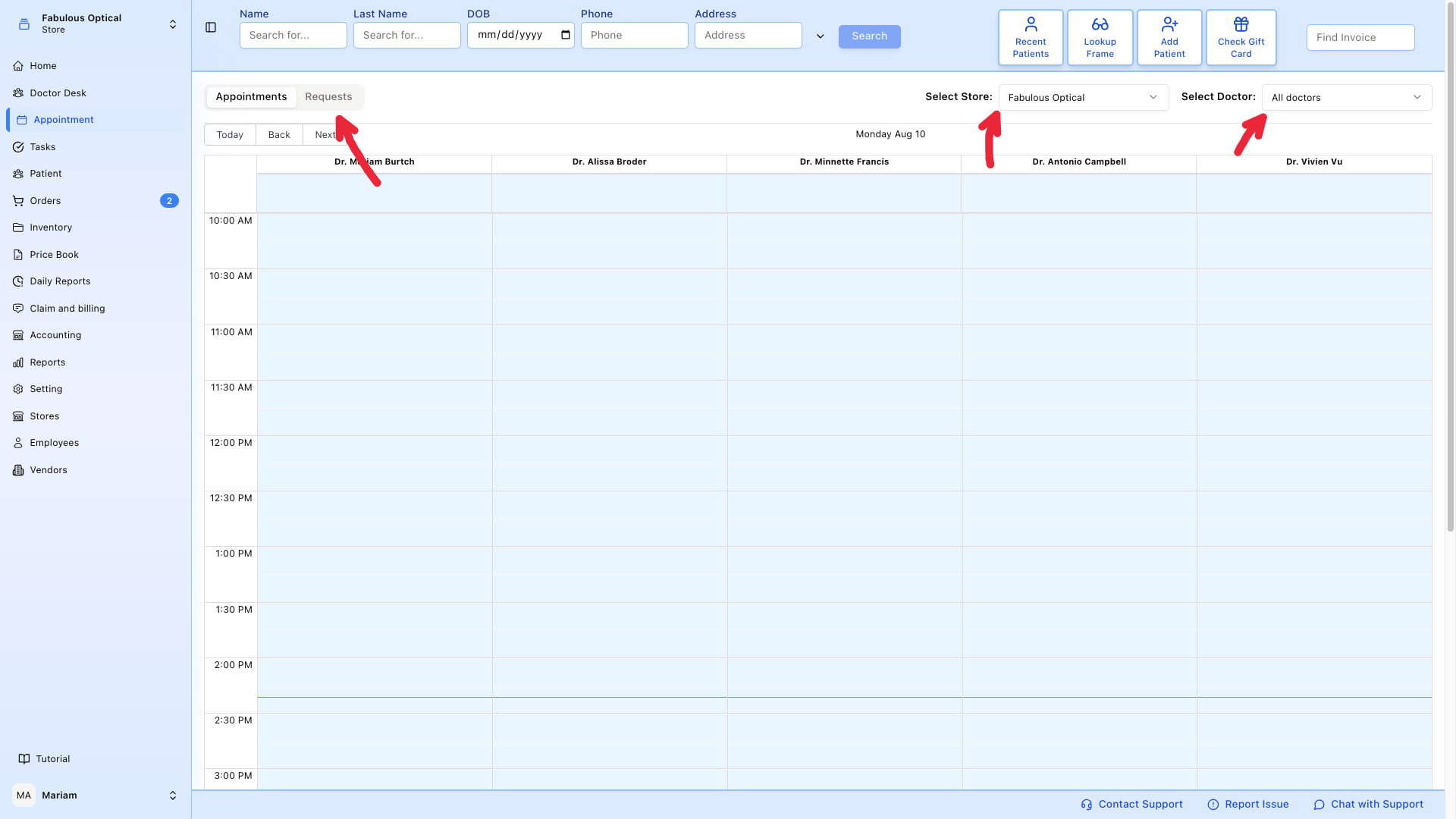
The page has two tabs at the top left (Appointments and Requests), the day's date in the middle, and two dropdowns on the right (Select Store, Select Doctor). Doctors run across the top as columns, time runs down the side.
- Appointments — the calendar. This is where you actually book, edit, cancel, or check in a visit.
- Requests — the inbox of appointment requests that patients sent from outside (for example from your website). You review each one and either turn it into a real appointment or cancel it.
Two filters at the top
On the Appointments tab, two dropdowns at the top right control what you see:
- Select Store — which location's schedule you're looking at. By default it opens on your own store.
- Select Doctor — filter the calendar to one doctor, or leave on All doctors to see everyone side by side.
The Requests tab has only Select Store.
The calendar day
On the Appointments tab you see one day at a time. Today, Back and Next above the grid move between days. Pick a single doctor in Select Doctor and a Week view becomes available as well; with All doctors it is day-only. Each doctor is a column; time runs down the page.
- The visible hours match the store's working hours. If the store has no hours set for that day, the grid falls back to 07:00–23:59.
- Each slot is the length of one appointment duration (set in Settings — 15 minutes is the default). If you drag across two slots, a 30-minute visit is created, and so on.
- Colours tell you the status at a glance:
- 🟢 Scheduled — booked, not yet confirmed
- 🔵 Confirmed — patient confirmed they're coming
- 🟠 Checked In — patient has arrived at the front desk
- 🔴 Cancelled
- ⚪ No Show (grey) — patient didn't come and didn't cancel
- Completed (and any other status) — a muted steel blue
What you can do from here
- Click an empty slot — start booking a new appointment (slots in the past are refused). See Book an appointment.
- Click an existing appointment — edit it, change the status, update the insurance, send the intake form, or delete it. See Edit an appointment.
- Switch to the Requests tab — deal with patient-submitted requests. See Appointment requests.
What to check first if something looks wrong
- Empty calendar / no doctors — the wrong Store is selected, or that store has no doctors assigned. Try switching store, or check the store's staff in Settings.
- Cannot pick a time in the morning / evening — the store's working hours in Settings are narrower than you expect.
- Slots are the wrong size — appointment duration is set in Settings → General → Appointment.