Add a new patient during booking
A patient calls to book and isn't in your system yet. You don't have to close everything and go to Patients — you can add them right from the appointment window and keep booking.
Where the button is
In the Create appointment window, in the patient-search row, immediately after the blue Patient search button, there's a green Create button.
Click Create — the Add New Patient form opens on top.
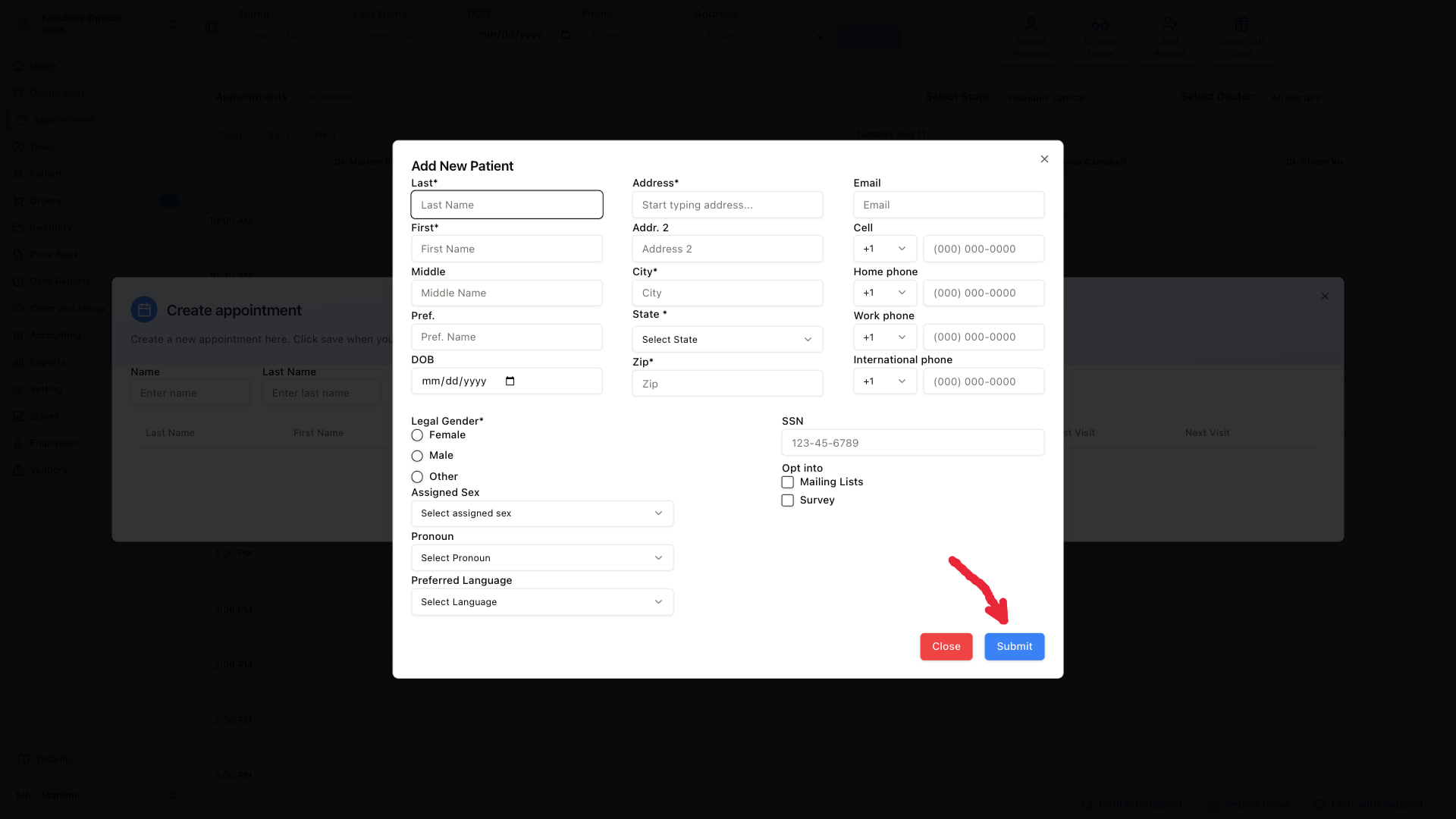
Required fields (marked with *)
- Last name
- First name
- Address (Address line 1, City, State, Zip)
- Legal Gender (Female / Male / Other)
The form itself only stops you when Last or First is empty ("This field is required"). The other starred fields will not block Submit, but fill them in anyway — the address matters for claims.
Everything else is optional but usually worth filling in on the first call:
- Middle / Pref. Name — middle name; a preferred/nickname to use at the front desk.
- DOB — date of birth. Not required by the form, but patient search uses it to tell apart people with the same name.
- Email / Cell / Home phone / Work phone / International phone — how you'll contact them.
- Assigned Sex / Pronoun / Preferred Language — for the doctor and correspondence.
- SSN — Social Security Number, kept on the record.
- Opt into Mailing Lists / Survey — marketing and survey consent.
Save
Click Submit. The window closes and the patient is created.
The patient isn't auto-selected in the appointment window — go back to the search form, type their name and click Patient. They'll show in the results table; click their row to continue with the appointment.
Tip: use address autocomplete
The Address field starts typing and suggests real addresses. Pick a suggestion instead of typing the whole thing — it fills in City, State and Zip in one go and avoids typos in ZIP codes, which matter for claims.
What this creates
A full patient record — the same one you'd get from the Add Patient button in the bar across the top of every page. From now on they'll appear in searches, in reports, and can be booked without going through this flow again.