Signing in
Everything in SightHub starts here. The screen does three jobs at once: a normal sign-in, a short PIN sign-in for the front desk, and a Clock In/Out panel for staff who are only coming in to register their hours.
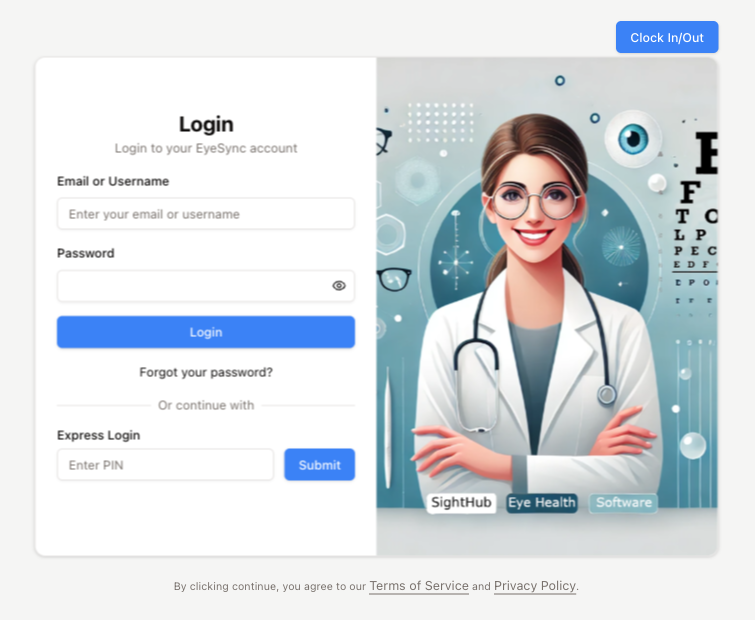
Signing in normally
- Type your Email or Username — either works, whichever the practice set up for you.
- Type your Password. The eye at the end of the field shows what you have typed, which saves a lot of guessing when a capital letter goes astray.
- Press Login.
The heading says Login to your EyeSync account. EyeSync is the older name for the same product — it is the same account you use everywhere else in SightHub.
What happens next depends on your account:
- Most people go straight to Home.
- If your account uses two-factor sign-in, the card changes to Enter your code and asks for the 6-digit code from the authenticator app on your phone. If two-factor is required for you but you have never set it up, it shows Set up two-factor sign-in with a QR code instead. Both are explained in Two-factor sign-in.
- If you were given a temporary password, you land on the Change your password screen first — see below.
If the password is wrong, the reason appears in a red box above the fields.
When the account locks
The lock is kept by the server, on your account — not by the browser.
Five failed attempts in a row lock the account for five minutes. The red box shows the server's message, and the Login button greys out and counts down — Try again in 4m 59s — until the time is up. Wrong two-factor codes count too: five wrong codes send you back to the password and start the same countdown.
Reloading the page or moving to another computer does not help — the account itself is locked, so the next attempt is refused until the time runs out.
If you cannot wait, ask a manager to use Reset password on your employee record. That clears the lock and gives you a new temporary password (see the next section).
Forgot your password
Forgot your password? under the button is plain text, not a link — it does nothing. The Or continue with divider below it simply leads into the Express Login box (see below).
If you have forgotten your password, someone with access to Employees opens your record and presses Reset password. SightHub makes up a new temporary password and shows it to them once. They give it to you, and you sign in with it.
Temporary passwords — the Change your password screen
A brand-new account, or an account whose password a manager has just reset, has a temporary password. After you sign in with it, SightHub opens Change your password and lets you do nothing else until you have set your own: Your account is using a temporary password. Set a new one to continue.
- Current password — the temporary one you were given.
- New password — your own.
- Confirm new password — the same again.
- Press Submit. You go straight into SightHub.
The new password must:
- be 10 to 128 characters long;
- not contain your username;
- not be an easy-to-guess password;
- be different from the current one.
A passphrase like correct horse battery is fine. If the server refuses the password, its reason appears in red right under New password — read it, it tells you which rule was broken.
Logout is the only other way off this screen. More on how managers create accounts and reset passwords is in Employees.
Express Login — the PIN
Underneath the password form sits Express Login: one numeric field and Submit. It signs you in with a PIN instead of a password, which is what you want on a shared front-desk machine where several people take turns at the till.
A wrong PIN answers Incorrect PIN. Please try again. It has its own short lockout: three failed tries and the field is disabled for 60 seconds, with the button counting down from Wait 60s. A successful PIN sign-in resets the count. If the button still reads Wait 0s after the minute is up, reload the page.
Two things to know:
- If you use two-factor sign-in, the PIN only works on a browser SightHub remembers. On any other browser it answers PIN sign-in needs a trusted device. Sign in with your password and the app code once, and tick "Remember this device". Do exactly that once on the front-desk computer, and the PIN works there for the next 30 days.
- The PIN is hidden while the two-factor code step is on screen. Back to password brings it back.
You do not choose your PIN — SightHub makes it up for you. To get a new one, see Changing your password or PIN later below.
Signed out because you stepped away
SightHub signs you out if you do nothing for a while. How long is set on the server for your practice.
Only real activity counts — clicking, typing, scrolling, touching the screen. A page that refreshes on its own (a list that updates itself, a waiting timer) does not keep you signed in.
Two minutes before the end, a window appears:
Still there? You have been away for a while. We will sign you out in about 2 min.
Press Keep me signed in — or simply close the window — and you carry on where you were.
If nobody answers, you are taken to the login page, which says Your session ended because you were away. Sign in again to carry on. Nothing is wrong with your account; sign in again.
Changing your password or PIN later
Click your name at the bottom of the sidebar and choose Account. The Security tab opens with three cards:
- Change Password — Current Password, New Password, Confirm New Password, then Update Password. The same rules apply as on the temporary-password screen: at least 10 characters, no username inside, nothing easy to guess. Unlike that screen, this card does not tell you which rule was broken — a refused password only shows Failed to change password, so check it against the rules above.
- Change Express Login — type your Current Password and press Update Express Login. SightHub makes up a new PIN and shows it in a blue box: Your Express Pass — write it down. It is not shown again once you close the window, so note it straight away.
- Two-factor sign-in — turning the code on or off, recovery codes and remembered browsers. See Two-factor sign-in.
To sign out on purpose, click your name at the bottom of the sidebar and choose Log out.
Clock In/Out
The blue Clock In/Out button above the card flips it over. This side does not sign you into SightHub at all — it is for registering working hours.
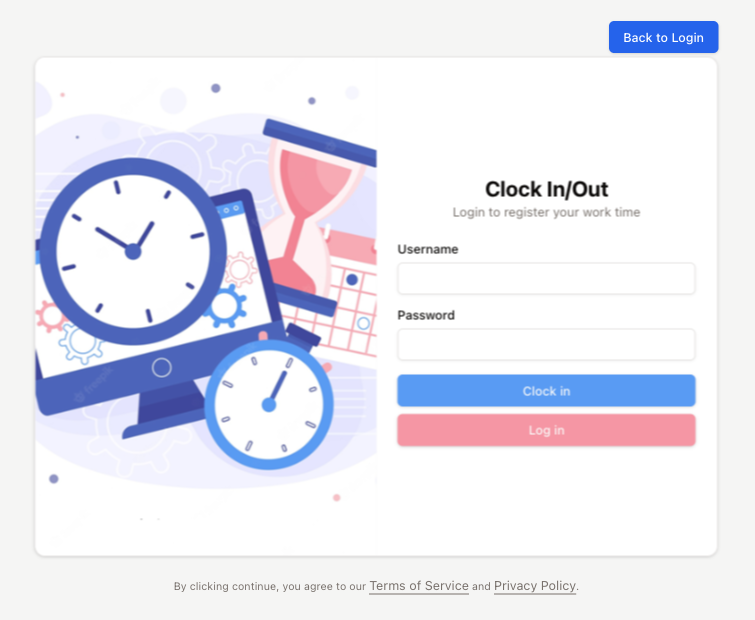
Type your Username and click out of the field. SightHub checks your current state straight away and tells you what it found: You have clocked in, User was found but not clocked in, or You are not clocked in. If you are currently clocked in, a live counter appears — Total work time: 02:14:37 — ticking up while you look at it.
The top button changes with that state. Blue Clock in when you are out, pink Clock Out when you are in. Add your password and press it.
- Wrong username or password answers Credentials are incorrect — nothing is recorded.
- Clocking out answers You have clocked out successfully.
The second button, Log in, is different: it opens your Time Card — the history of your own hours — rather than clocking you anywhere.
Back to Login flips the card back.
The small print
Under the card, Terms of Service and Privacy Policy open the public sighthub.cloud pages in a new tab.
Good to know
- Do not keep guessing. Five wrong passwords lock the account for five minutes, and so do five wrong two-factor codes. After two or three misses, stop and ask a manager for a reset.
- A manager's reset signs you out everywhere. If you were signed in on another computer when your password was reset, that session ends too.
- The two-factor step has a time limit. If you leave the code screen for more than a few minutes, it says The sign-in took too long. Enter the password again. — just start over.
- Working in two tabs? The Still there? window can appear in a tab you have not touched for a while even though you are busy in another one. Press Keep me signed in and carry on.