Time Card — your own hours
Time Card is the small screen a member of staff gets to look at their own hours. It is not part of the main SightHub interface — no sidebar, no patient search, just a header with two links and a table. The manager's view of everybody's hours lives elsewhere, in Employees.
Getting to it
Only one way in: on the login screen, press Clock In/Out, type your username and password, and click the second button, Log in.
There is no link to it from inside SightHub, and it does not survive a page refresh — reload the tab and you land back on the login screen and have to go through Clock In/Out again. So do not bookmark it; bookmark the login page.
If you have no clock in/out account, or the username or password is wrong, Log in only says Login failed. Clock in/out accounts are created by a manager on Employees → Time Card — see Employees.
Clocking in only from the store
Your practice may limit clocking in and out to the store's own internet connection. When it does, a punch from anywhere else — a phone at home, a coffee shop — is refused, and the Clock In/Out panel shows the same Credentials are incorrect message as a wrong password. If you are sure of your password, you are probably not on the store's network. Managers set this up on Time Card Networks.
The table
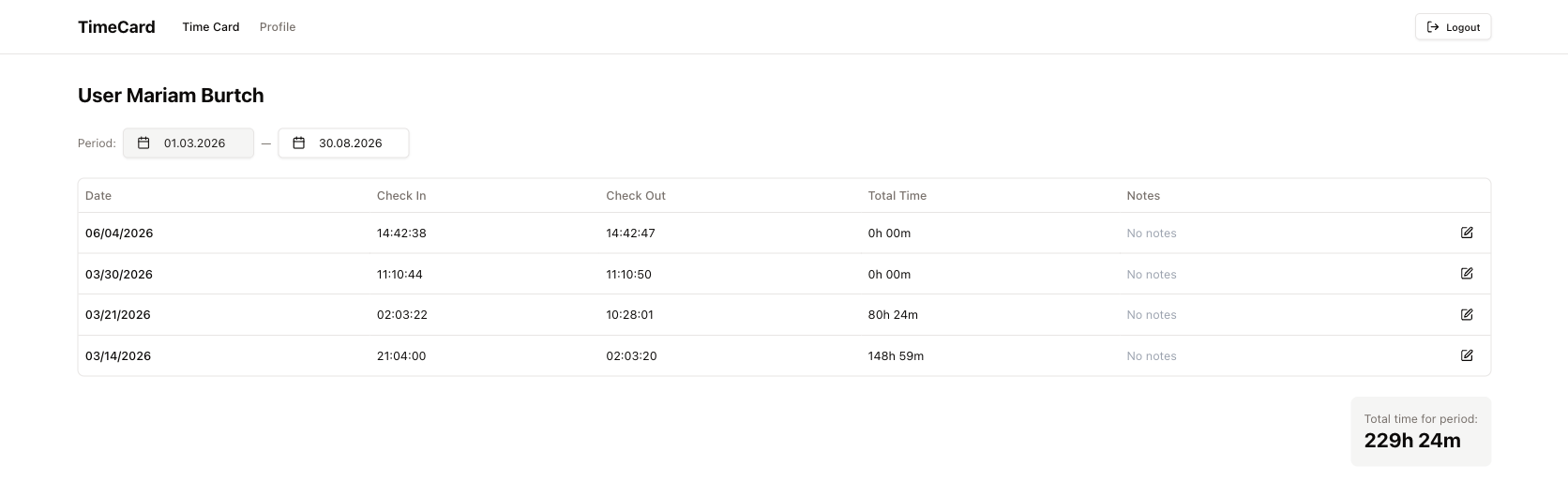
One row per shift, newest first, over the period you choose:
- Date — the day the shift started.
- Check In and Check Out — the clock times.
- Total Time — how long that shift ran, as 0h 00m.
- Notes — your note on that shift, in blue when there is one and a grey No notes when there is not.
Period at the top is two dates and defaults to the current week, Monday to Sunday. Click either date to open a small calendar; the table reloads as soon as you pick. Total time for period in the bottom right adds up every row on screen.
A shift where somebody forgot to clock out does not disappear — it keeps counting until the next check-out, which is why a stray 148h 59m row means a forgotten Clock Out rather than a very long day. Worth scanning for before the hours go to payroll.
Adding a note to a shift
The pencil at the end of a row opens Edit note — a text box and Save. Use it for the things the clock cannot know: a late start agreed in advance, a shift covered for somebody else, time spent off-site.
The box opens empty even on a row that already has a note, so type the whole note rather than expecting to edit the old one. Cancel does not close the window — press Esc or click outside it.
Profile — changing your password
The Profile link in the header holds one thing: a password change.
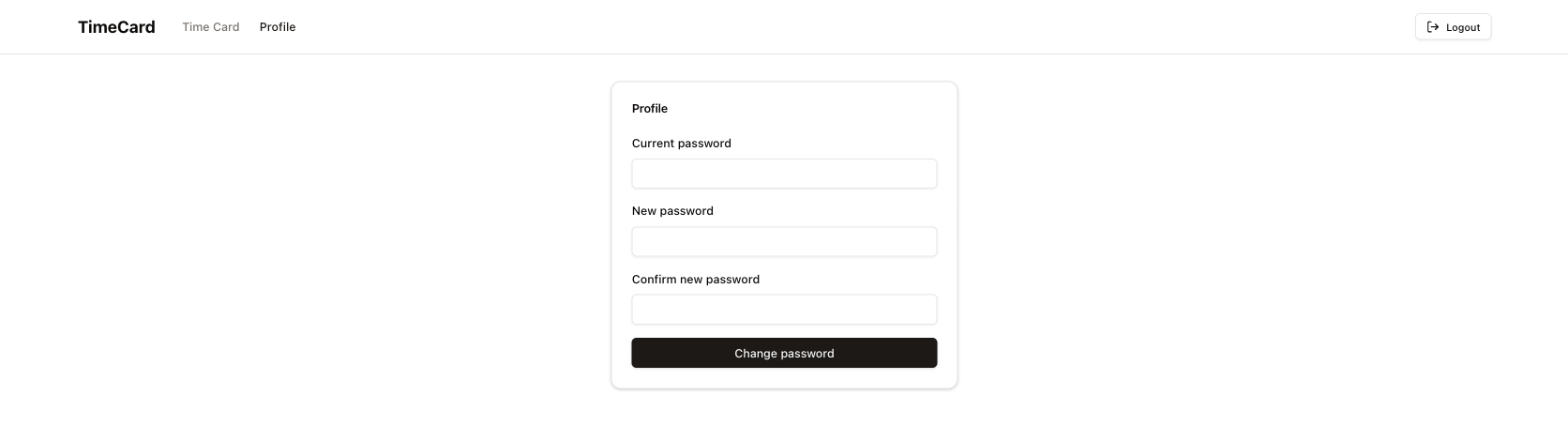
Current password, New password, Confirm new password, then Change password. Success gives a Password changed successfully toast; if the server refuses, you see Error changing password.
Type carefully. If the two new fields do not match, or the new password is the same as the current one, a warning flashes up — but the page then reloads and drops you back on the login screen, and nothing is changed. Go through Clock In/Out → Log in again and retry.
This password is the one you use on the Clock In/Out panel.
Logout
Logout in the top right ends the time card session and returns you to the login screen.