Employees — accounts, time cards and schedule
Employees is the staff side of the system. Four tabs: Employee, Time Card, Time Card Networks, Schedule.
Employee
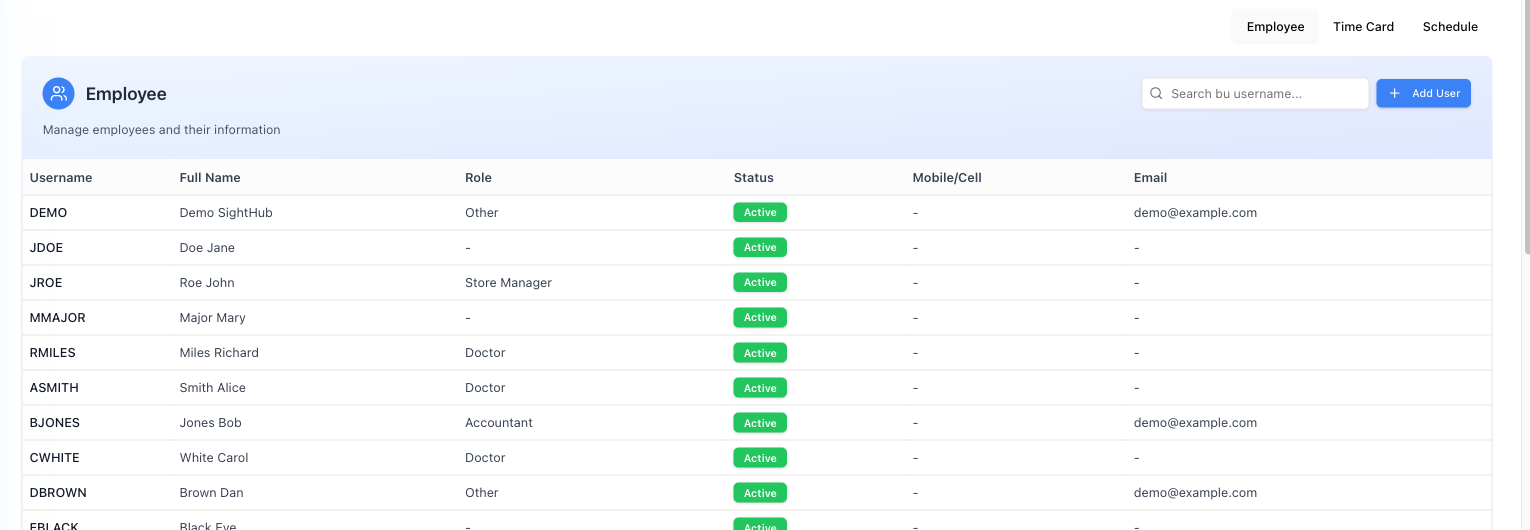
The account list. Per person: Username (what they sign in with), Full Name (last name first), Job Title, Doctor, Status, Mobile/Cell and Email.
Job Title is a label — Doctor, Store Manager, Accountant and so on — not a permission. What someone can actually do is set on their own card, on the Permissions tab. The Doctor column shows a blue Doctor badge for anyone whose job title is marked as a doctor in Settings → Job Titles.
Status shows Active in green or Inactive in red. An account that is no longer used should be deactivated rather than deleted, so their past work keeps its author.
Finding someone
- Search by name or username... — matches first name, last name or username as you type.
- Doctor filter — All staff, Doctors or Non-doctors.
- Status filter — Active (the default), Inactive or All statuses. Someone who has left will not show until you switch this to Inactive or All statuses.
- Job title filter — All job titles or one title.
The line under the title counts how many people are shown.
Click a row to open that person's employee card. + Add User opens an empty card for a new account.
Time Card
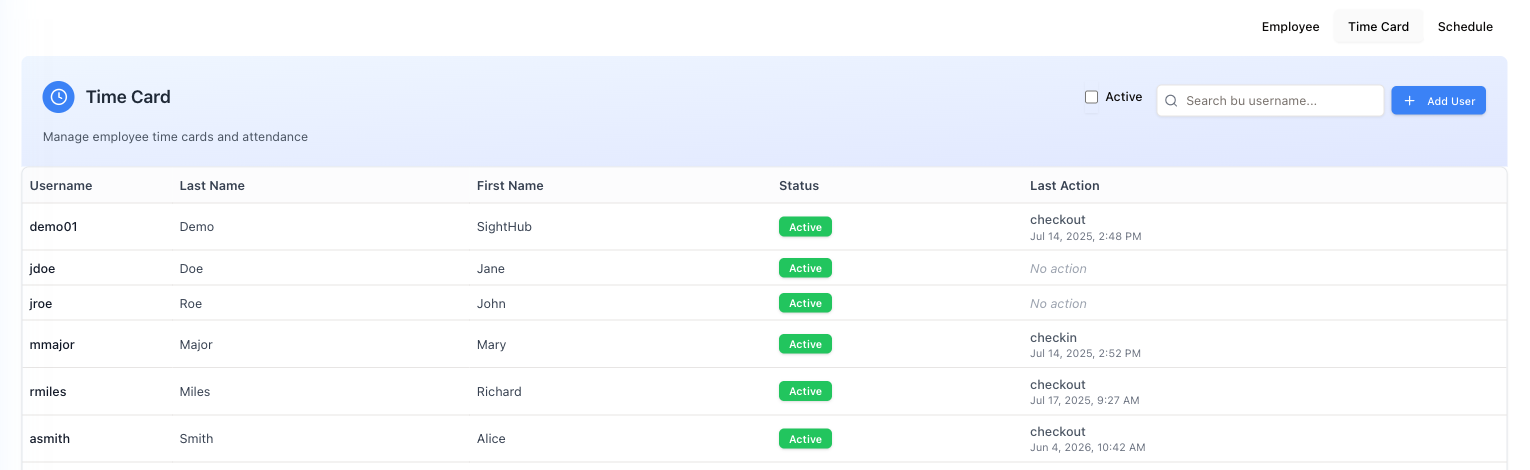
Attendance. Per person: Username, Last Name, First Name, Status, Last Action — whether they are currently checked in or out, with the date and time of that action (No action for someone who has never clocked in) — and Actions.
The Active tick filters to active accounts. The search box filters by name (its hint says username, but it matches the person's name).
This is where you look when a shift is in question: the last action tells you whether someone is on the clock right now, and when they last were. Click a row to open that person's full record — every check-in and check-out over the Period you pick, with Total time for period.
This tab is the manager's view. Staff clock in and out from the Clock In/Out panel on the login screen, and see their own hours on their Time Card — including a note they can leave against a shift.
Clock in/out accounts
Clocking in uses its own small account, separate from the SightHub sign-in. To create one, press Add User on this tab. The Add Time Card window:
- User already exists in system ticked (the default) — pick the Employee from the list. Use this for anyone who has a SightHub account.
- Unticked — type First Name and Last Name. Use this for people who only clock in and never use SightHub, such as cleaners.
- Then the Username and Password they will type on the Clock In/Out panel, and Submit.
Opening the Clock In/Out tab on the card of someone with no such account brings you to this tab with This employee has no clock in/out account yet — opening Time Cards.
Freeze — stopping someone from clocking in
Freeze in the Actions column (active rows only) stops that person clocking in or out. Hours already recorded are kept.
- Press Freeze on the person's row.
- Read the confirmation and press Freeze.
- For someone with a SightHub account you normally do not need it: setting the Date Terminated on their employee card freezes the time card by itself, and reinstating them brings it back.
- For someone without a SightHub account, Freeze is the only way to stop them punching.
There is no unfreeze button on this tab.
Time Card Networks
Limits clock in/out to each store's own internet connection, so nobody punches in from home, and records each punch against the right store. See Time Card Networks.
Schedule
The staff rota — who works at which store on which day. Shifts can be added, swapped, removed, and people moved between stores; past days are read-only. Each person's regular week comes from Work Hours on their employee card. Full guide: Staff schedule — shifts per store.
This is a different screen from the appointment grid. (The doctor columns on the appointment grid come from the store's doctors, not from this tab, so a doctor with no hours still gets a column.)
The first sign-in — changing a temporary password
A new account starts with a temporary password. By default SightHub makes it up itself and shows it to the manager once, with a copy button, right after Create Employee. Reset password on the employee card makes a new one the same way — for a forgotten password, or to unlock someone locked out. The first time the person signs in with a temporary password, SightHub does not let them go anywhere else until they have changed it.
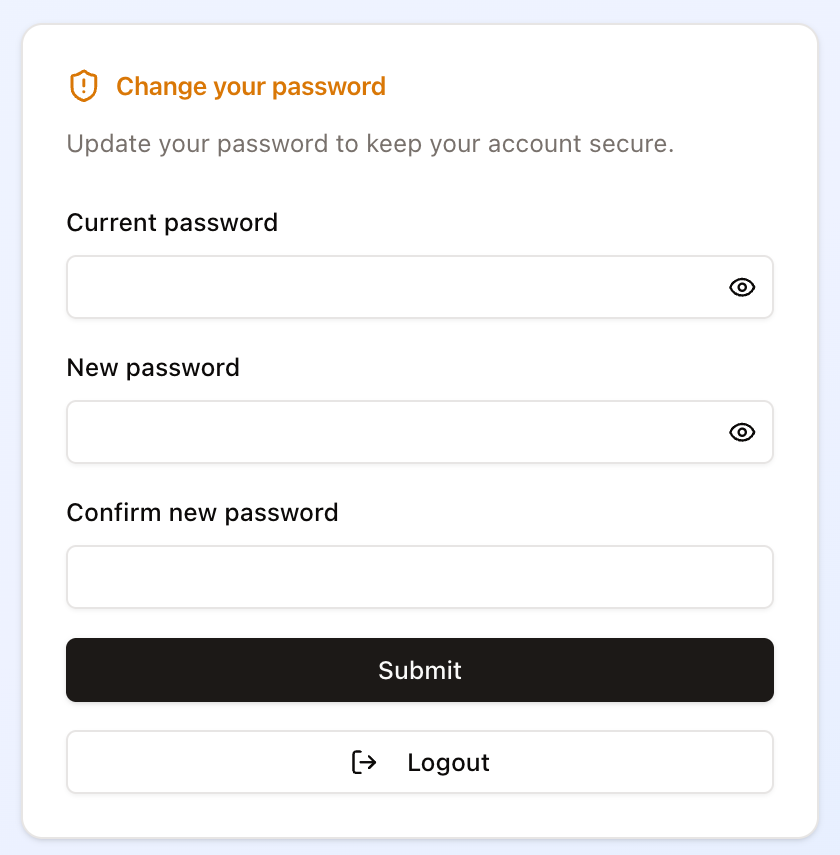
Three fields — Current password (the temporary one they were given), New password, Confirm new password — then Submit. The new password must be 10 to 128 characters, must not contain the username, must not be easy to guess, and must not be the same as the current one. If the server rejects it, the reason is shown under the field. The eye at the end of the first two fields reveals what has been typed, which saves a lot of failed attempts. Full rules: Signing in.
Warn them not to guess repeatedly: five wrong attempts lock the account for five minutes, with a countdown. A manager's Reset password clears the lock straight away.
There is no way past it. The screen appears at sign-in, and if the account somehow gets into the app before changing the password, the next action bounces it straight back here. Logout is the only other way out.
Tell new staff this is coming, and that the temporary password goes in the top field, not the middle one — that is the mistake nearly everybody makes.
If the practice uses two-factor sign-in, the person may also be asked to set up an authenticator app — see Two-factor sign-in.