e-Prescribing
e-Prescribing sends a prescription straight to a pharmacy instead of handing the patient a paper slip. It works on the doctor's medical chart of the patient, and opens two ways:
- the eRx button next to the patient's name;
- + New on the Prescriptions (eRx) card further down the same page.
The window is a four-step wizard: Medication → Prescription → Pharmacy → Review & Send.
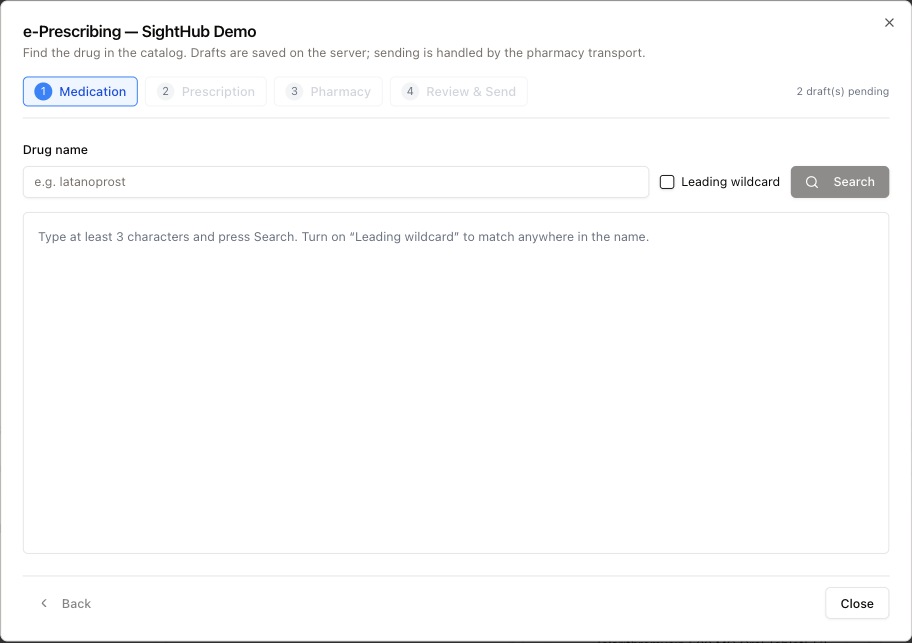
Nothing goes to the pharmacy until you send it in the last step. Each prescription you save is kept on the server as a draft, and the counter in the header — 2 draft(s) pending — shows how many are waiting. Drafts survive closing the window, so a prescription started earlier is still there when you come back.
The step buttons at the top let you jump back to a step you have already reached. Review & Send can always be opened, even before you write anything — it doubles as the log of everything already sent for this patient and what the pharmacy answered.
1 · Medication
- Type at least three letters of the drug in Drug name (for example latanoprost).
- Press Search or Enter.
- Click the drug in the list. The wizard moves to step 2.
Good to know:
- The search matches the start of the name first. Brand names sit at the end of a catalogue entry, in brackets, so if nothing starts with what you typed the search widens by itself and says so: Nothing starts with "…" — showing names that contain it, like brand names. You can also turn that on yourself with Leading wildcard.
- Results come 25 at a time; use the arrows under the list for the next page.
- The small code on the right of each row is the kind of catalogue entry (generic, branded and so on).
2 · Prescription
The top of the step shows the drug you picked. Below it, SightHub compares the drug with the patient's recorded allergies — Checking patient allergies... — and, if something matches, shows a yellow Possible allergy conflict box listing the allergy and what it matched. This is a warning only; it does not stop you. Entries such as "none" or "NKDA", and matches inside another word, are ignored, so the box only appears for a real match.
Directions and amount
- Direction (SIG) * — the instructions as the patient will read them, e.g. Instill 1 drop into the right eye 4 times daily for 7 days.
- Quantity * — how much is dispensed. Up to 3 decimal places (2.5, 0.375). More decimals are refused — SightHub never rounds the amount for you.
- Unit * — the unit for the quantity, from the list.
- Refills — starts at 0.
- Days supply — optional.
Product (NDC)
Once a drug is picked, SightHub looks up the exact packages it is sold in (Looking up packages...) and preselects the recommended one. Open the list to choose another. Each line shows the package code and the maker; some are marked:
- recommended — the one SightHub suggests for this drug, quantity and unit.
- do not use — the pharmacy network may refuse it. The line under the list says why: repackaged — pharmacies may refuse it, unit-dose package, or no longer marketed.
The list updates when you change the quantity or unit. If no packages are found, the field is not shown and the server picks the package itself.
Diagnoses (ICD-10)
Optional. Put the diagnosis code in the left box and, if needed, its description in the right one.
- The first row is the primary diagnosis. All of them go to the pharmacy with the prescription.
- Add diagnosis adds another row, up to 10. The × removes a row.
- For eye-care codes leave the description empty — SightHub fills it in. For a code outside the eye-care list you must type the description, otherwise you get Diagnosis … is not in our eye-care list — type its description next to the code.
- A description without a code is not allowed: Add the code the description belongs to.
Height and weight
Optional. Height (in or cm), Weight (lb or kg) and Measured on. The pharmacy uses them for dosing, for example for children. Numbers only, up to 2 decimals. If you leave the date empty, today's date is used.
Structured SIG (optional)
A fold-out block that breaks the same instruction into parts the pharmacy system can read: Dose quantity, Dose unit, Route, Site (OD — right eye, OS — left eye, OU — both eyes), Frequency, Duration, and PRN (as needed) with its PRN reason. It does not replace the Direction (SIG) — write both.
Note, substitution and saving
- Note to pharmacist — free text for anything the SIG cannot say.
- Allow substitutions — ticked by default. Untick it for dispense as written.
Then:
- Save & continue — saves the draft and moves to step 3.
- Save & add another — saves the draft and returns to step 1 for the next drug.
Either way you see Prescription saved as draft.
Long text gets cut
The pharmacy only receives the first 1,000 characters of the Direction and of the Note (and the first 105 of the drug name). If you go over, a yellow line under the field says so — … characters — the pharmacy only gets the first 1000. Shorten it before you save. On Review & Send an over-long draft (including a drug name over 105 characters) also gets a yellow box: The pharmacy will not get all of this text.
My phrases
The small note icon next to Direction (SIG) (My direction phrases) and next to Note to pharmacist (My note phrases) opens your own list of saved wording.
- Write the text in the field.
- Open the list and press + Add — your text is already in the box. Press Save.
- Next time, click a phrase in the list and it replaces the field's text.
The bin next to a phrase deletes it. Escape closes only the phrase list, not the prescription window. The note phrases are the same ones you see when you answer a pharmacy request.
3 · Pharmacy
The left side searches the pharmacy directory; the right side, Prior pharmacies, is the patient's own saved list. The preferred one has a star.
- Fill in what you know: Pharmacy name, Street address, Phone, City, State, ZIP, Service level (Retail, Mail, Specialty, Both, or the default Any service level).
- Press Search pharmacies (or Enter in the name or address box).
- Press Select on the right pharmacy, or Use on one from Prior pharmacies.
What happens when you choose a pharmacy:
- It becomes the patient's preferred pharmacy (Pharmacy set as preferred) and is added to their list.
- It is attached to all of this patient's drafts at once — write three prescriptions, choose the pharmacy once.
- Next time the wizard opens, the preferred pharmacy is already chosen.
Good to know:
- Each row shows the address, phone, the pharmacy's NCPDP number and service level, and the message version it accepts — current version in green, or older version, not for certification in amber.
- The search returns at most 100 pharmacies. When it hits that limit it says Showing the first 100 matches — add the city, state or ZIP to narrow it down.
- The bin next to a prior pharmacy removes it from the patient's list.
Press Continue to review when done.
4 · Review & Send
What to check
Three panels at the top show exactly who the prescription is for, from whom and to where:
- Patient — name, date of birth, gender, address, phone, height and weight if given, and Allergies (sent to the pharmacy). Every allergy recorded in the patient's exam history goes with every prescription, with its details (type, reaction, severity, who reported it). If none are recorded it says so; when the latest exam has No Known Allergies ticked, the pharmacy is told that.
- Prescriber — the doctor's name, NPI and license, plus the clinic's name, address and phone. The pharmacy gets the clinic's address and phone, not the doctor's own.
- Pharmacy — the chosen pharmacy and its NCPDP number, or No pharmacy selected — go back to step 3.
Below, every prescription of this patient is listed as a card: drug, directions, quantity, refills, days supply, Substitutions allowed or Dispense as written, the note, all diagnoses (the first marked primary), height and weight, and the written and effective dates.
To record an allergy for e-prescribing, use Medications / Allergies in the exam's History. The fold-out Allergy details for e-prescribing (optional) adds who reported it, the type, reaction, severity and product code — fill it in before you press Add for that allergy.
Check, then send
- Press Check before sending. SightHub prepares each draft exactly as it will go out. Each card then shows either Checked — nothing blocks the pharmacy from receiving it in green, or a yellow Routing warnings list. Fix anything listed (delete the draft and write it again) before sending.
- Press Send Rx to pharmacy (with the count when there are several drafts). Drafts are sent one by one, so one failing does not hold up the rest.
Each draft card also has its own small buttons: the shield checks just that one, the paper plane sends just that one, the bin deletes the draft. Add another medication goes back to step 1.
What you may see after sending:
- Delivered to the pharmacy — the pharmacy network confirmed it.
- Rx sent to the pharmacy — sent.
- Not confirmed by the pharmacy network — press Send again — the paper plane turns into a circular arrow. Press it again: the same message is reused, so the pharmacy cannot get the prescription twice.
- Pharmacy routing failed — check the warnings, or the network's own reason in red — not sent. Read the reason on the card.
If you close the window, drafts stay saved and can be sent later.
Statuses of a sent prescription
Each card on Review & Send and on the Prescriptions (eRx) card of the medical chart has a status badge on the right:
| Badge | Meaning |
|---|---|
| DRAFT | Saved, not sent yet. Can be checked, sent or deleted. |
| SENT | Sent to the pharmacy. Can be cancelled. |
| CANCEL REQUESTED | You asked the pharmacy to cancel; waiting for its answer. |
| CANCELLED | The pharmacy agreed to cancel. |
| CANCEL DENIED | The pharmacy refused to cancel. |
| ERROR | Something went wrong on the way. |
Under the details, a small line tells you what happened to the last message for this prescription, for example NewRx: Delivered · 9/29/2026, 2:10 PM. The words are Sent, Delivered, Not confirmed (amber) or Failed (red); for the last two the reason follows after a dash.
Cancelling a sent prescription
- Open Review & Send and find the prescription (status SENT or CANCEL REQUESTED).
- Press CancelRx.
- The window Ask the pharmacy to cancel shows the whole prescription, the patient and the pharmacy it went to — check it is the right one.
- Pick a Reason (optional). For an allergic reaction choose Allergic reaction.
- Press Send CancelRx, or Keep it to back out.
Cancelling is a request, not a guarantee: if the patient already picked the medication up, the pharmacy cannot cancel it. After sending you see CancelRx sent — the pharmacy decides whether it can still be cancelled. If you see Not confirmed yet — press CancelRx again, the same message is reused, press it again.
Allergic reaction only works when the allergy is recorded. If none is, the window warns you, and sending fails with To cancel for an allergic reaction, first record the allergy in the patient's exam history (Medications / Allergies). When the allergy is recorded, it goes to the pharmacy with the cancel.
The pharmacy's answer
When the pharmacy answers, a coloured box appears under the prescription — on Review & Send and on the Prescriptions (eRx) card:
- green — The pharmacy answered: Approved — cancelled;
- red — The pharmacy answered: Denied — the prescription was not cancelled.
The box also shows when the answer came, the pharmacy's note, its reasons for refusing, whether anything had already been handed out (Nothing had been dispensed yet, or the last fill date), and the pharmacy's own reference number.
Good to know
- Save does not send. A prescription only reaches the pharmacy from Review & Send.
- Check first. Send also prepares the prescription if you skipped the check, but then you do not get to read the warnings before it goes out. Press Check before sending first.
- Choosing a pharmacy changes the patient's preferred pharmacy and re-points all of the patient's drafts to it.
- A draft cannot be edited. To change it, delete it with the bin and write it again.
- The prescriber's NPI and license come from the doctor's provider details in the employee settings. If the NPI is missing, the Prescriber panel shows NPI —; get it filled in before sending.
- Pharmacies can also write to you — asking for a refill or a change. Those land on the Doctor's Desk; see Pharmacy requests.