Contact lens fitting
The Cl fitting tab is used when the patient needs contact lenses (either new fit or refit). It's a multi-stage flow because contact lens fitting is iterative — try a lens, evaluate fit + vision, adjust, try again.
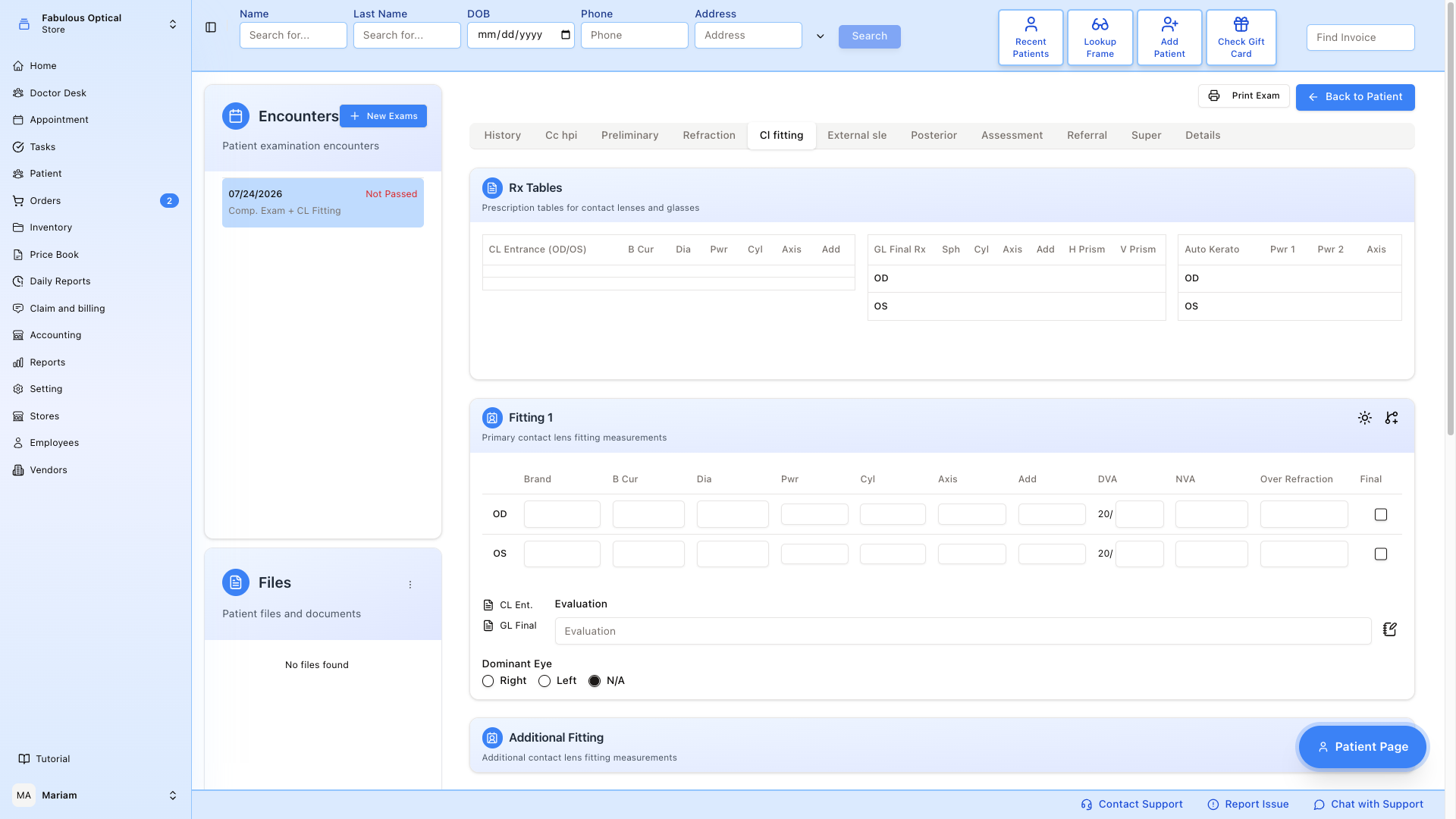
What is on the tab
At the top sits a read-only Rx Tables card, pulled in for reference — you cannot type in it:
- CL Entrance — the contact lenses the patient came in with (brand, B Cur, Dia, Pwr, Cyl, Axis, Add).
- GL Final Rx — despite the label, this is the same glasses Rx the Refraction tab shows as Entrance RX, not the Final you write on Refraction.
- Auto Kerato — the keratometer readings.
Below that, in the order they appear:
- Fitting 1 — the lens on the eye and how it sat. Additional Fitting below it opens Fitting 2 and Fitting 3.
- #1 Trial — the lens you settle on. Additional Trial opens #2 and #3.
- Gas Permeable — collapsed; contains Lab Design and Dr Design for custom-made lenses.
- Note — free text, with the notebook icon for saved phrases.
Fitting 2–3, #2–#3 Trial and Gas Permeable stay hidden until you press + on their section, so a simple refit shows Fitting 1, #1 Trial and the Note.
Each fitting and trial table is OD / OS with Brand, B Cur, Dia, Pwr, Cyl, Axis, Add, DVA and NVA; the fitting tables add Over Refraction and Final. Lab Design and Dr Design have their own columns (material, colour, K readings, centre thickness and so on).
Fitting tables
Under each fitting table:
- CL Ent. fills the table from the patient's entrance contact lenses; GL Final fills Pwr, Cyl and Axis from the glasses Rx in the Rx Tables card. Fitting 2 also has CL Fit1 (copy Fitting 1) and Fitting 3 has Cl Fit2 (copy Fitting 2). These buttons only fill the table — they do not save.
- Evaluation — free text, with saved phrases behind the notebook icon.
- Dominant Eye — Right, Left or N/A.
Ticking Final on a fitting row copies that eye's lens into #1 Trial. Ticking the same eye on another fitting unticks it here.
Trial tables
#1 Trial has a Front Desk Note, an Expire date with 1 Yr / 2 Yr buttons, and four tick boxes: Need to Order, Dispense from Stock, Trial and Final. 1 Yr and 2 Yr fill in the date and also save the whole tab straight away. #2 Trial and #3 Trial have a Final button that copies #1 Trial into them, a Front Desk Note, a Type field and the same four tick boxes.
Copy from an earlier visit
The branch icon in the Fitting 1 header opens Copy from CL Fitting History. Pick one of the patient's other encounters on the left, tick the sections you want (fittings, trials, Gas Perm, Dr. Note — or Select All) and press Copy. Copying replaces what is on the tab with what you picked — sections you leave unticked come out empty — so copy first, then type.
Typical workflow
- Record the lens on the eye and how it sat under Fitting 1 (CL Ent. is a quick start if the patient already wears lenses).
- If it is not right, expand Additional Fitting and go round again (CL Fit1 gives you Fitting 1 as a starting point).
- Tick Final on the fitting row that worked — that eye's lens lands in #1 Trial. Fill in the expiry, the front desk note and whether the lens needs ordering.
- For a custom lens, open Gas Permeable and fill in Lab Design.
- Click the next exam tab (or Back to Patient) when you are done — that is what saves the tab. A message such as ClFitting has been updated confirms it (ClFitting has been created the first time).
There is no Submit button. The tab saves itself when you leave it by another exam tab or Back to Patient (or when you press 1 Yr / 2 Yr on #1 Trial); if the save fails you stay on the tab with an error message and nothing is lost. Clicking another exam in Encounters, or using the main menu, does not save — see How saving works. On a long fitting, the tab row stays pinned to the top of the window, so you can move on without scrolling back up.
On a locked (signed) exam the tab shows Exam is passed — changes are not saved at the bottom and does not save when you leave it.
What ends up in the patient record
Nothing on this tab is the patient's prescription. It is the working record of the fitting (it can be included when you print the exam).
The prescription itself is written on the patient's Rx page, and that is what appears on the patient card's Last Rx and what you pick when you make a lab ticket.