Rx detail — the prescription page
The Rx page is where a prescription lives after the exam. You get here from the Last Rx widget on the patient card — Open Prescription if the patient already has one, Create Rx (or the three-dot menu → Add Rx) if not — or by picking a prescription from the history list on the right of this page.
The address looks like /patient/<patient id>/rx/<rx id>.
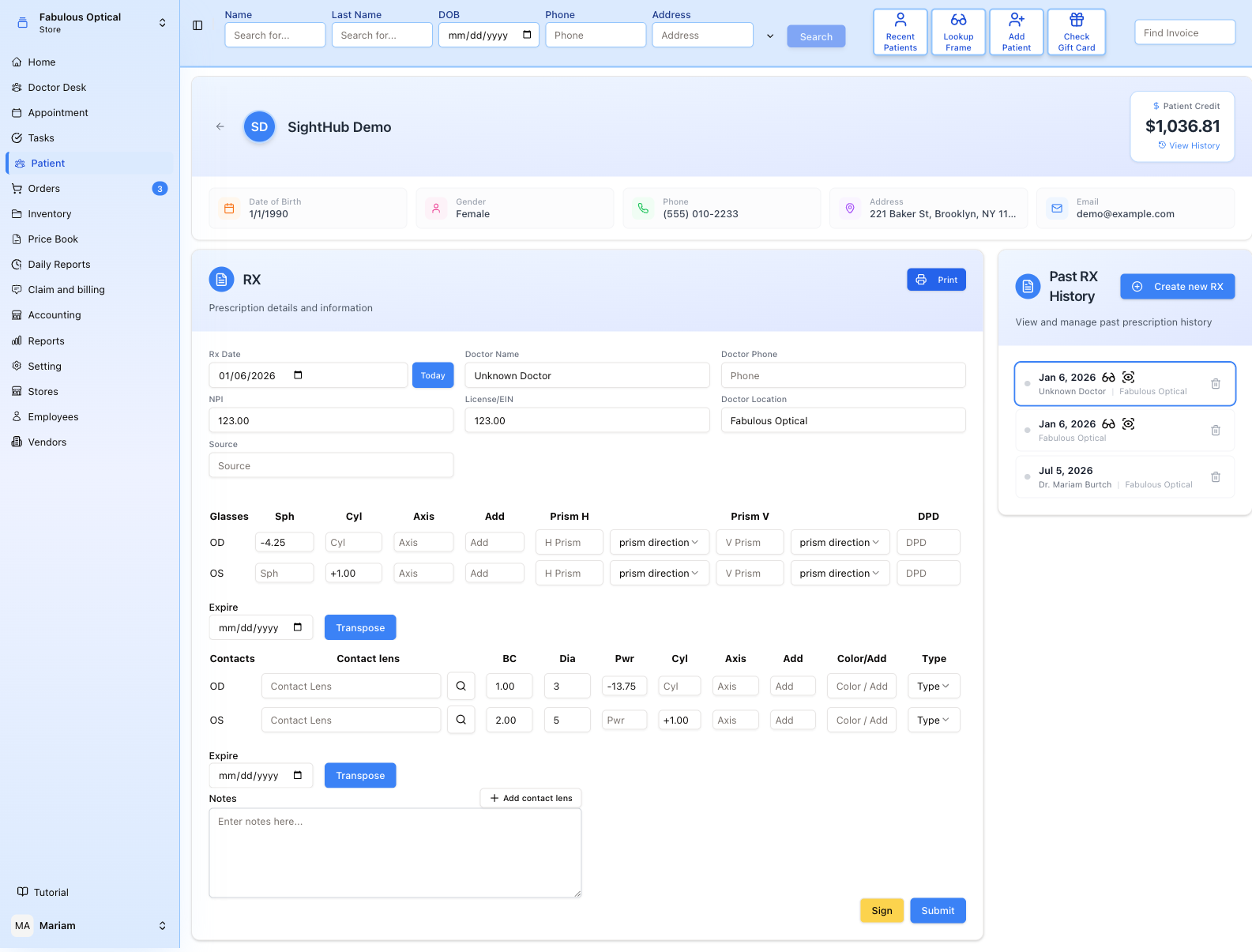
The patient strip
The insurance, Rx, invoice and lab ticket pages start with the same strip: the patient's name, date of birth, gender, phone, address and email, plus the Patient Credit balance on the right. View History opens the credit history. The back arrow returns to the patient card.

Prescription details
The top block records who wrote the prescription and when:
- Rx Date — the date of the prescription. Today fills in today's date in one click.
- Doctor Name, Doctor Phone, NPI, License/EIN, Doctor Location — the prescriber's details, printed on the Rx. On a new prescription they are filled in for you when your own account is set up as a doctor; change them if someone else wrote it.
- Source — a free-text field for where the prescription came from (an outside doctor, a paper Rx the patient brought in).
Glasses
One row per eye — OD (right) and OS (left):
| Field | What it is |
|---|---|
| Sph | Sphere — the main power |
| Cyl | Cylinder — the astigmatism correction |
| Axis | The angle of the cylinder, 0–180° |
| Add | The reading addition |
| Prism H + direction | Horizontal prism, with BI (base-in) or BO (base-out) |
| Prism V + direction | Vertical prism, with BU (base-up) or BD (base-down) |
| DPD | Distance pupillary distance |
Expire sets when the prescription runs out — only dates from tomorrow on can be picked. Transpose rewrites the glasses values into the other cylinder form (plus ↔ minus) — the optical result stays the same, only the notation changes. It applies to both eyes at once.
Contacts
The same idea, for contact lenses: Contact lens (the lens itself — the magnifier button searches the price book), BC (base curve), Dia (diameter), Pwr (power), Cyl, Axis, Add, Color/Add, and Type.
Type is either Patient Rx — the lens the patient actually gets — or Trial — a lens being tested during a fitting.
Contacts have their own Expire date and their own Transpose button, separate from the glasses ones. Be careful with the contacts one: it currently leaves the power untouched and only flips the cylinder and axis, so the result is not the same prescription written differently. Check the numbers after using it. Add contact lens next to Notes does not add a row — the contacts table is fixed at OD and OS. It opens the contact lens price book and drops the lens you pick into the Notes as text.
Notes at the bottom is free text that travels with the prescription.
Sign and submit
Sign appears only once the prescription exists — on a brand-new one, Submit first. It opens a signature pad — draw the signature with the mouse or on a touch screen, Clear wipes it, Done attaches it to this prescription and saves the whole page at the same time. The signature then shows next to Notes and is printed on the Rx.
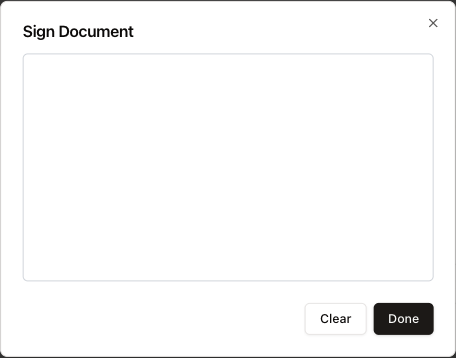
Submit saves everything on the page.
Print is a menu, not a single action. Like Sign, it only appears once the prescription has been saved:
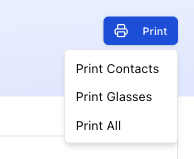
- Print Contacts — only the contact lens prescription.
- Print Glasses — only the glasses prescription.
- Print All — both on one document.
Each one builds a PDF and opens it in a new tab, ready to print — if nothing opens, allow pop-ups for SightHub. If a prescription has a signature attached, it appears on the printout.
Past RX History
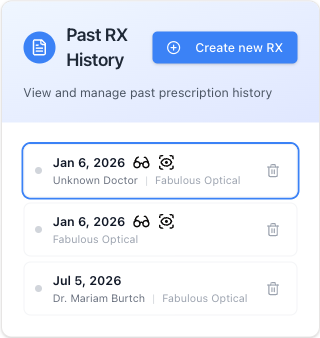
Every prescription this patient has had, each showing the date, the doctor, the location and a colour-coded validity — Valid, Expiring soon (within 60 days) or Expired — with the expiry date beside it. The small icons say what the prescription covers — glasses, contacts, or both. Click any entry to open it; the one you are looking at is outlined in blue.
Create new RX starts a blank prescription for this patient.
The bin icon asks to delete one. A Delete RX window opens and a Reason is required. The prescription is not deleted on the spot: Send for approval passes the request to a manager on the Requests screen. Until the manager decides, the prescription is frozen — it disappears from the list for most staff, and anyone who can still open it sees an amber Pending deletion note: every field is locked, Submit is greyed out and Sign is gone (the Print menu is still there). Managers who can approve see a Pending deletion tag on it in the history.