Patient insurance
The Insurance widget on the patient card shows a summary of the policies on file (provider, type, member/group number, status). For the full view — with card images and the ability to add a new policy — click View Insurance → on the widget (or any row of it). The page opens with the last policy in the list already selected.
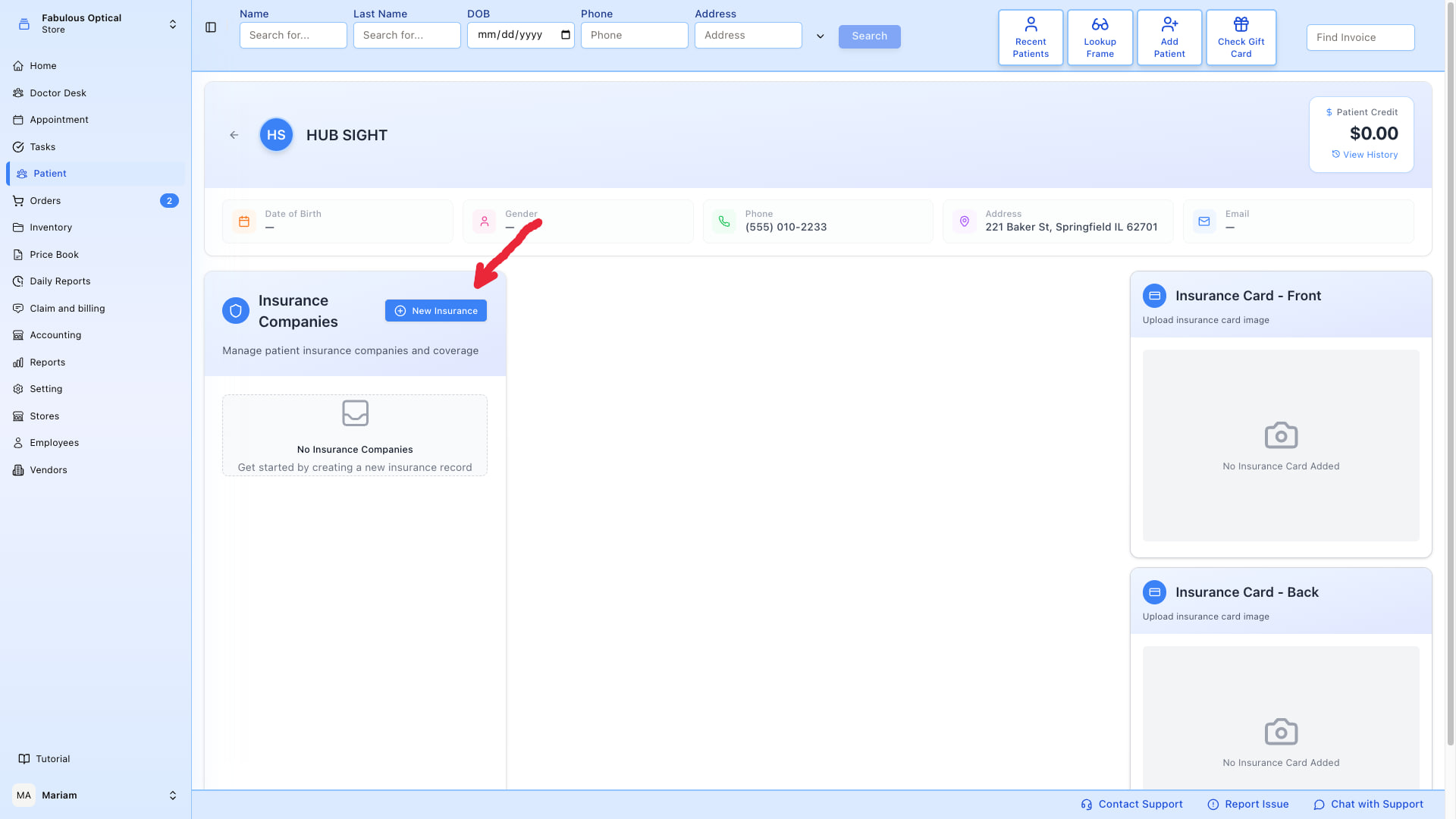
What's on the page
At the top you see the patient's header (name, date of birth, gender, phone, address, email, and the Patient Credit balance) so you know which record you're editing.
Below that:
- Insurance Companies — the list of every insurance policy on file for this patient, each card showing Active / Inactive, the expiry date, plan, group and member numbers, coverage and holder. Click a card to select that policy (it gets a black outline). From here you can create a new insurance record for them (the same form you'd use from the appointment window — see Add insurance during booking).
- Insurance Card - Front — upload a photo of the front of the physical card.
- Insurance Card - Back — upload a photo of the back of the physical card.
Insurance card images
The images belong to the selected policy, and the upload controls only appear while a policy is selected. Each of the Front and Back panels has an Upload menu with two ways in: Upload from device (pictures only — you get a preview before pressing Upload), and Phone Scan for photographing the card with your phone. Card images are useful for:
- Verifying member/group numbers when filing claims.
- Sending to insurance during appeals.
- Reference at the front desk if the patient forgot the physical card.
Editing a policy
The middle of the page is not a read-out — it is the editor for whichever policy you selected on the left.
Insurance Information and Holder Information each have a pencil in their header. Click it and the fields unlock; Save insurance and Save Holder commit the change. The red bin in the Insurance Information header deletes the policy itself — at once, with no "are you sure?", so make sure the right policy is selected first.
Verify coverage, in the Coverage check box at the top of the same panel, asks the payer, live, whether this policy is active right now, and shows the answer — with the copay and deductible when the payer supplies them — right under the button. The last answer is kept with the policy, so opening it tomorrow still shows what was said and when. What the answer means, and why it will sometimes refuse to run, is on Sending claims electronically.
Underneath sits the Holders List — everyone attached to this policy, with their position, member number and relationship. The name opens that person's own insurance page; the red button removes them from the policy straight away, without asking. That is where you look when a family shares one plan and you need to see who else is on it.
Add a new insurance
From the Insurance Companies section, use New Insurance to open the same Insurance Information + Holder Information form used in the appointment flow, then press Submit. See Add insurance during booking for what every field means.
If the patient is covered under someone else's plan, set Holder to that relationship (Father, Wife, Son…). An Add Holder window opens: find the policy owner by name or date of birth, choose which of their insurances to use, and press Attach. The insurance details are filled in from that policy; add the Position and Member ID and press Submit — the patient is added to the existing policy instead of a new one being created.
Once saved, the new policy shows in the list and is available when creating appointments, invoices, or claims.