Tasks — the kanban board
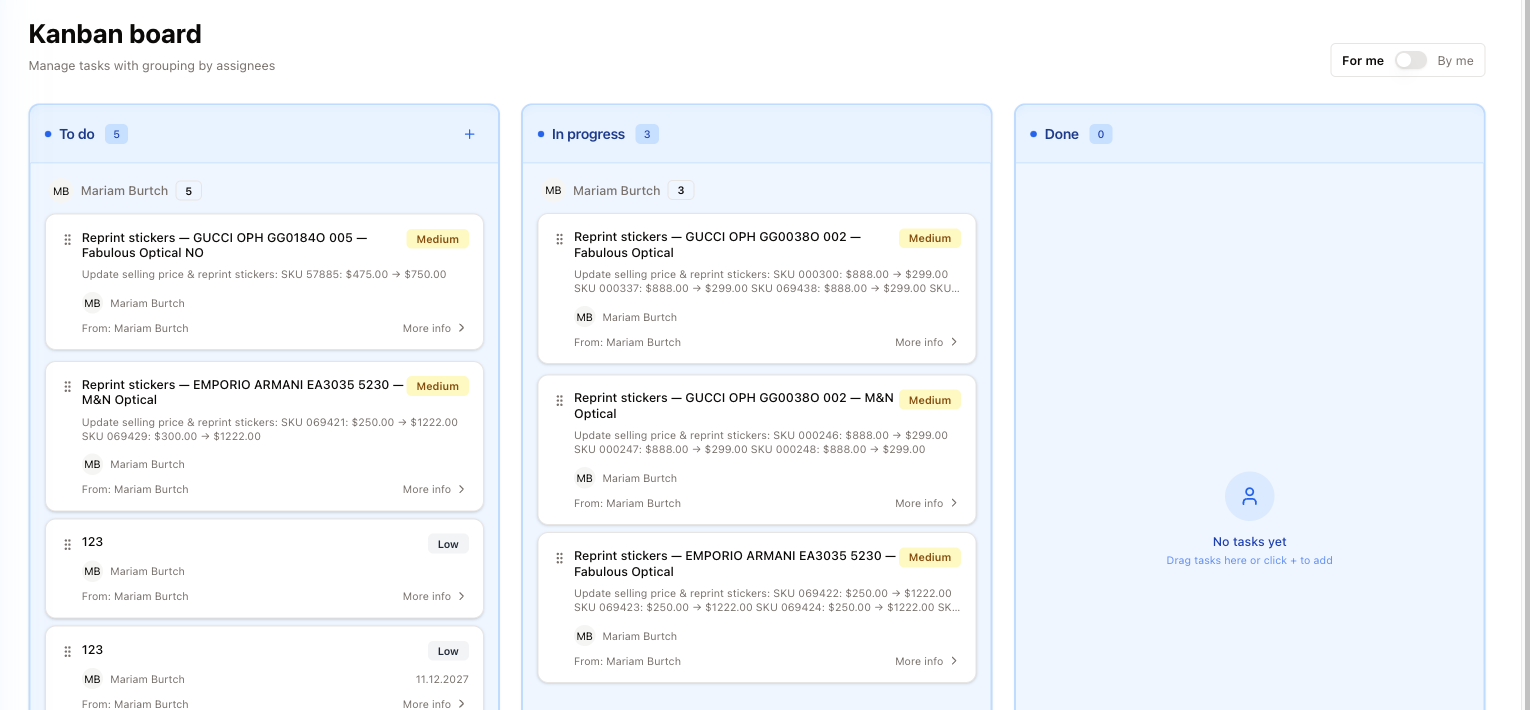
Tasks is a kanban board: three columns — To do, In progress, Done — each with a count, and the cards inside grouped by the person they are assigned to.
The cards
A card carries a title, a priority chip (Low / Medium / High), the detail underneath, who it is assigned to, who it came From, and a due date when one is set. More info opens the whole task.
Some cards are prepared by SightHub rather than typed by hand — after a price change, a window offers to create Reprint stickers tasks listing the SKUs and what the price went from and to, so whoever is at that store knows exactly what to re-label. The person who confirms that window shows as From.
For me / By me
The switch top-right changes whose work you see: For me — assigned to you; By me — tasks you created for other people.
Moving a task
Drag a card to another column by its handle — the dotted grip to the left of the title. You can also change the Status inside More info (see below). There is also a keyboard path (it is announced to screen readers rather than printed on screen): focus the card's drag handle, press Space to pick it up, move with the arrow keys, and press Space again to drop it.
Adding a task
+ adds a task straight into a column — it appears on To do only.
- Press + at the top of To do. The window reads Add task to "To do".
- Fill in Task name (required) and Description.
- Assignee — who should do it. It starts as you; pick someone else to hand it over.
- Due date — optional.
- Priority — Low (the default), Medium or High.
- Resources — attach what the task is about: choose SKU, invoice Number or Link, type the value and press the small + next to it. Add as many as you need; the bin removes one.
- Press Add task.
More info — the whole task
More info on a card opens the task in a large window.
- Task Details — From, Assigned to, Priority, Due date, Status and Resources. Status is a drop-down: pick To do, In progress or Done and it saves straight away. A Link resource opens in a new tab when clicked.
- Description — the full text.
- Comments — type in Add a comment... and press Post. The small menu on your own comments has Edit and Delete.
- History — status changes, reassignments and resource changes, with the time of each.
The gear at the top right of Task Details has:
- Edit — the Edit task window: Task name, Description, Assignee, Due date, Priority, then Update task. Here the description is required.
- Add resource — add or remove SKUs, invoices and links, then Save Resources.
- Delete — only while the task is in To do; in the other columns it is greyed out. Confirm in Confirm Deletion; it cannot be undone.
Due dates
The due date is a plain calendar date — no time of day. On the card it is written day first (for example 06.10.2026 for October 6); More info shows it the usual way.
Who can add tasks
Adding a task needs the Create Task permission at your store. Without it you get:
You don't have the "Create Task" permission. Ask a manager to enable it in Employees → Permissions → Tasks permissions.
The same permission covers the Reprint stickers tasks offered after a price change. A manager turns it on in the Tasks permissions block of your employee permissions.