Price Book and Frame Library
The Price Book is the master list of what everything sells for. Two tabs at the top: Price Book and Frame Library.
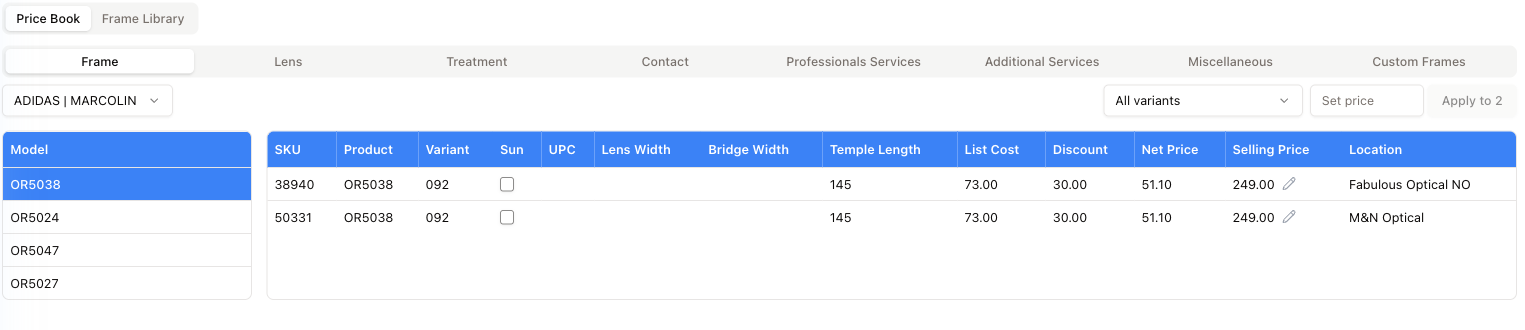
Categories
A row of categories runs across: Frame, Lens, Treatment, Contact, Professionals Services, Additional Services, Miscellaneous, Custom Frames.
Frame works by brand and model: pick a Brand | Vendor from the dropdown — the list shows brands together with the vendor that supplies them. The models for that brand appear in the left-hand Model list. Click a model and its variants fill the table.
The other categories are plain lists, each with its own filters, and all but Treatment with a button to create a new entry (on Lens that sits under Actions, together with Browse VisionWeb Catalog and Browse Zeiss Catalog). Click a row to open and edit it. Custom Frames is a search instead: type a Serial / F# and press Search.
The table
On Frame, per variant: SKU, Product, Variant, a Sun tick, UPC, the frame measurements (Lens Width, Bridge Width, Temple Length), then the money — List Cost, Discount, Net Price, Selling Price — and the Location the price applies to.
The same model usually appears once per location, so one frame can carry a different selling price at each store.
Changing prices
Two ways:
- One at a time — the pencil next to a Selling Price turns that cell into a box you can type in.
- In bulk — the controls above the table: choose the scope (All variants, or one variant), type the figure into Set price, then press Apply to N, where N is how many rows it will touch.
Neither one saves anything by itself. The new prices sit in the table and a Save button appears — Save (N) when more than one row is waiting. Press it, or the work is lost the moment you leave the page.
Changing a price here does not create any task. Reprint stickers tasks come from receiving stock: when an item is received at a selling price different from the one already on the shelf, a Selling Price Changed window offers one task per location, listing the affected SKUs with the old and new prices — see Tasks.
Miscellaneous — the discount items DI and DL
The Miscellaneous category is a plain list — Item Number, Description, Discount, Price — of the small things that go on an invoice. Select Visible switches between visible and invisible items; Create New Miscellaneous adds one. Click a row to open Edit Miscellaneous (Item Number, Description, Sale Book Key, Cost, Price, Can Lookup, Active). The first five are all required. Delete in that window removes the item at once, with no confirmation.
Two items in this list are special: they take money off an invoice instead of adding it. The Discount column marks them; every other row shows —.
- DI — insurance discount. Column: Up to insurance balance. In its edit window: Insurance discount. On an invoice it can't be more than the insurance balance.
- DL — lens discount. Column: Up to N% of lenses. Its edit window has one extra field, Max discount % (of lenses) (0 to 100, required): the most anyone may take off the lenses on an invoice with DL. 0 means none, 100 means any.
The DL percentage is the floor for everyone. If someone's job title allows a bigger lens discount (Settings → Employee → Discounts — see Value lists), the bigger one counts for them. Anything above that has to be approved by a manager in Requests.
On an invoice, the same list opens from the Serial lookup, and there the Discount column turns the limit into dollars for that invoice — Up to $45.00 — see Invoice detail.
Frame Library
The second tab is the practice's own catalogue of frame models and variants, in three columns: Brands (each shown with its vendor), Models and Colors. Pick a brand and Add Model appears; pick a model and Add Color appears. Click a color to open its Frame Details (measurements, materials, UPC and so on) with Save, Cancel and Create Custom. It is where a frame comes from before it exists in your price book.