Claim and billing — working claims
Claim and billing is where insurance claims are worked. One screen: the queue of claims on the left, everything about the selected claim on the right. The line under the heading says what the screen is for — build the 837P, send it to TriZetto, pull the acks and remittances back.
Check responses, next to that heading, goes and fetches the payers' answers out of the TriZetto mailbox. It and the whole electronic-filing route are described on Sending claims electronically.
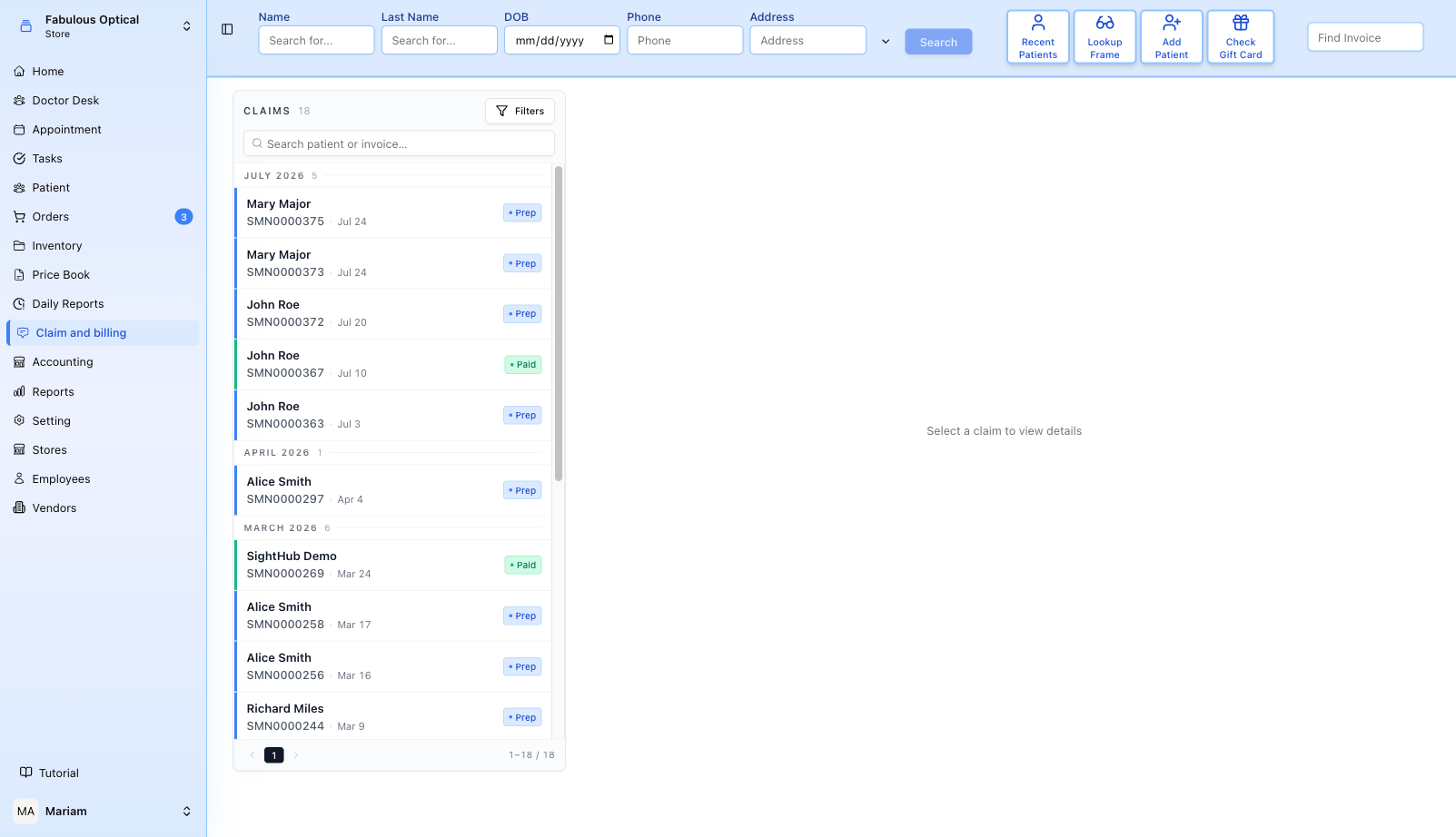
The queue
Claims are grouped by how recent they are — Today, Yesterday, Earlier this week, Earlier this month — and anything older falls into a group per month. Each group carries a count, and the queue is paginated, so check the page footer before concluding a claim is missing. Every row shows the patient, the invoice number, the date, and the claim's state as a coloured pill — Prep, Accept, Billed, Pending, Paid or Canceled. The counter at the top says how many claims are in the current view. The search box above the list (Search patient or invoice…) finds claims by patient name; to find one by invoice number, use Invoice Number under Filters.
Filters
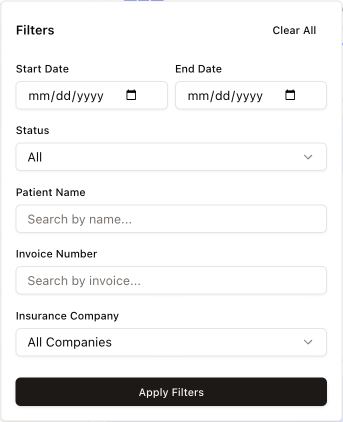
Filters narrows the queue by Start Date / End Date, Status, Patient Name, Invoice Number and Insurance Company. Apply Filters runs it, Clear All resets everything.
Status is a row of toggles — Preparing, Accepted, Billed, Pending, Paid, Canceled — and you can switch on several at once (for example Billed + Pending = everything out with the payer). Nothing selected means every status. A claim with a payment recorded can show as Paid in the list while its stored status is something else; the filter matches the stored one.
The claim panel
Click a claim and it opens on the right.
Across the top is the claim's header: the patient's name (click it to open the patient), the status pill, the invoice number (a link to the invoice), the invoice date, the exam date and the doctor.
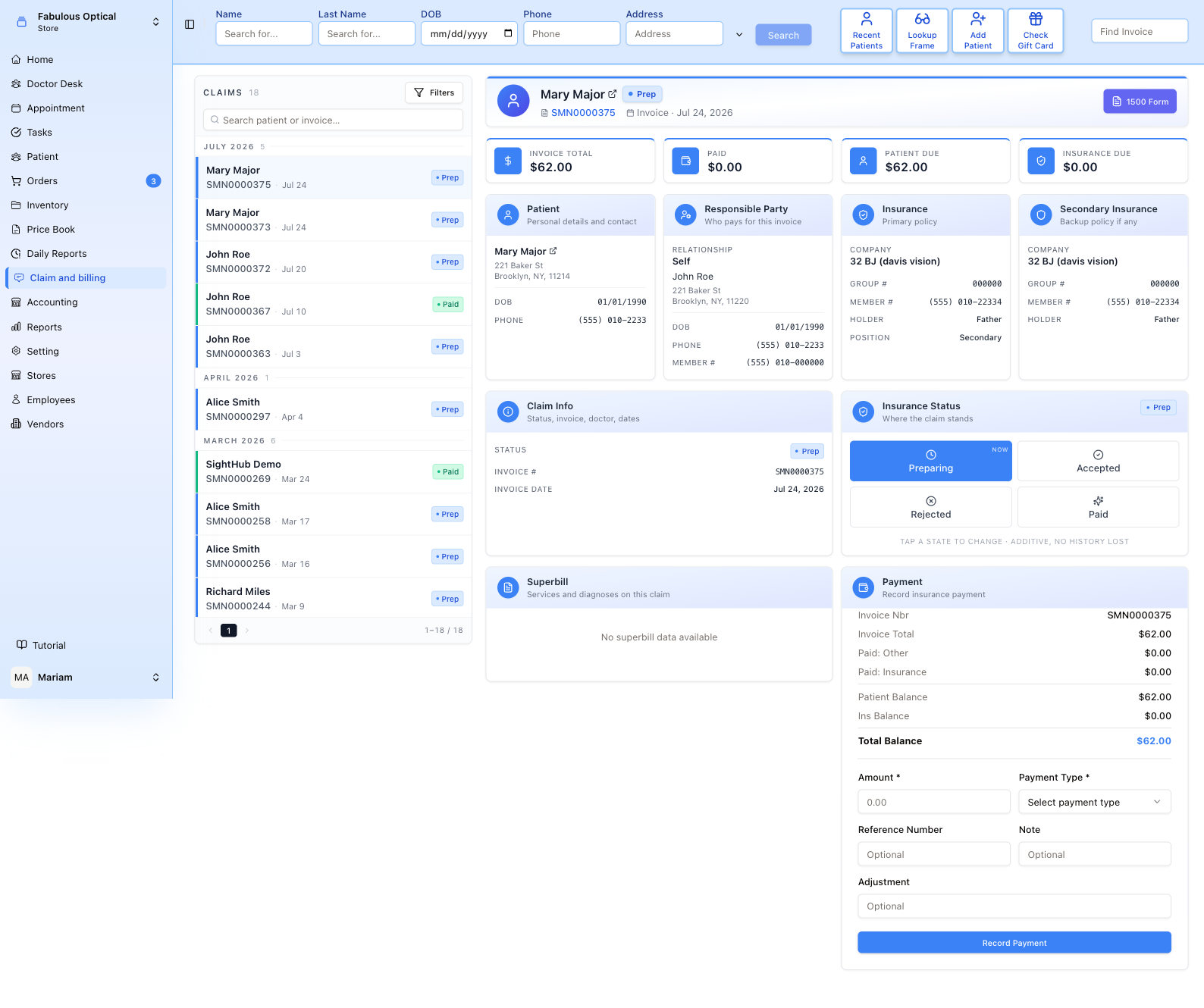
Four figures across the top tell you the money story at a glance: Invoice Total, Paid, Patient Due and Insurance Due.
Below them, four cards hold the data the claim is built from:
- Patient — name, address, DOB, gender, phone. The arrow next to the name jumps to the patient's record.
- Responsible Party — who actually pays. Relationship says how they relate to the patient (Self, Spouse, Child, Other), and their own details follow.
- Insurance — the primary policy: company, group #, member #, holder and position. Verify coverage on this card asks the payer, live, whether the member is covered right now — see the eligibility check.
- Secondary Insurance — the backup policy, when there is one.
Claim Info repeats the status, the invoice number (as a link), the invoice and exam dates, and the doctor.
Two buttons at the right of the header decide how the claim goes out: 837P Claim for the electronic file (the normal route), 1500 Form for the printed CMS-1500 (for payers that cannot take an electronic claim). Use one or the other — doing both files the claim twice.
Moving the claim along
Insurance Status is where the claim stands, as four buttons: Preparing, Accepted, Canceled, Paid. The current one is highlighted and marked NOW. Tap another to move the claim there.
Two states are not buttons: Billed (the 837P has been sent) and Pending (the payer is deciding) are set by the system. While a claim is in one of them the card says … — set by the system, the four buttons are locked (Locked while the claim is with the payer), and the status is meant to come from TriZetto through Check responses. Change manually anyway unlocks the buttons — for a send that never really landed, or a claim being written off; whatever you set can be overwritten by the next payer response. Lock again locks them back.
The note under the buttons — tap a state to change · additive, no history lost — matters: changing state adds to the claim's history rather than overwriting it, so the trail of where the claim has been stays intact.
At the bottom of the same card sits the line that says how the claim left, or that it has not. Not submitted electronically (with Use the 837P Claim button above to build and send it.) means nothing has gone to a clearing house. Once it has, the line reads Submitted as 837P, and the responses pulled back from TriZetto move the status on their own.
Superbill
The services and diagnoses this claim bills for, pulled from the exam, with a Total. When the exam has no superbill, it says No superbill data available.
Click a service or a diagnosis to leave it off the claim: the window shows whether it is Included or Excluded, with Exclude / Include to switch. Excluded lines are struck through. A diagnosis cannot be included while its service is excluded — include the service first.
Recording an insurance payment
The Payment card at the bottom right restates the numbers — invoice total, paid by other, paid by insurance, patient balance, insurance balance, total balance. While something is still owed it also gives you the form (on a fully settled claim there is no form to fill): Amount *, Payment Type *, Reference Number, Note, Adjustment (amount and type are required). Record Payment posts it against the invoice.
The CMS-1500 form
1500 Form in the panel header opens the claim form in Work Mode.
If the invoice was already sent electronically as an 837P, an amber warning across the top says so: printing and mailing the CMS-1500 as well files the same claim twice — only do it if the payer asked for paper.
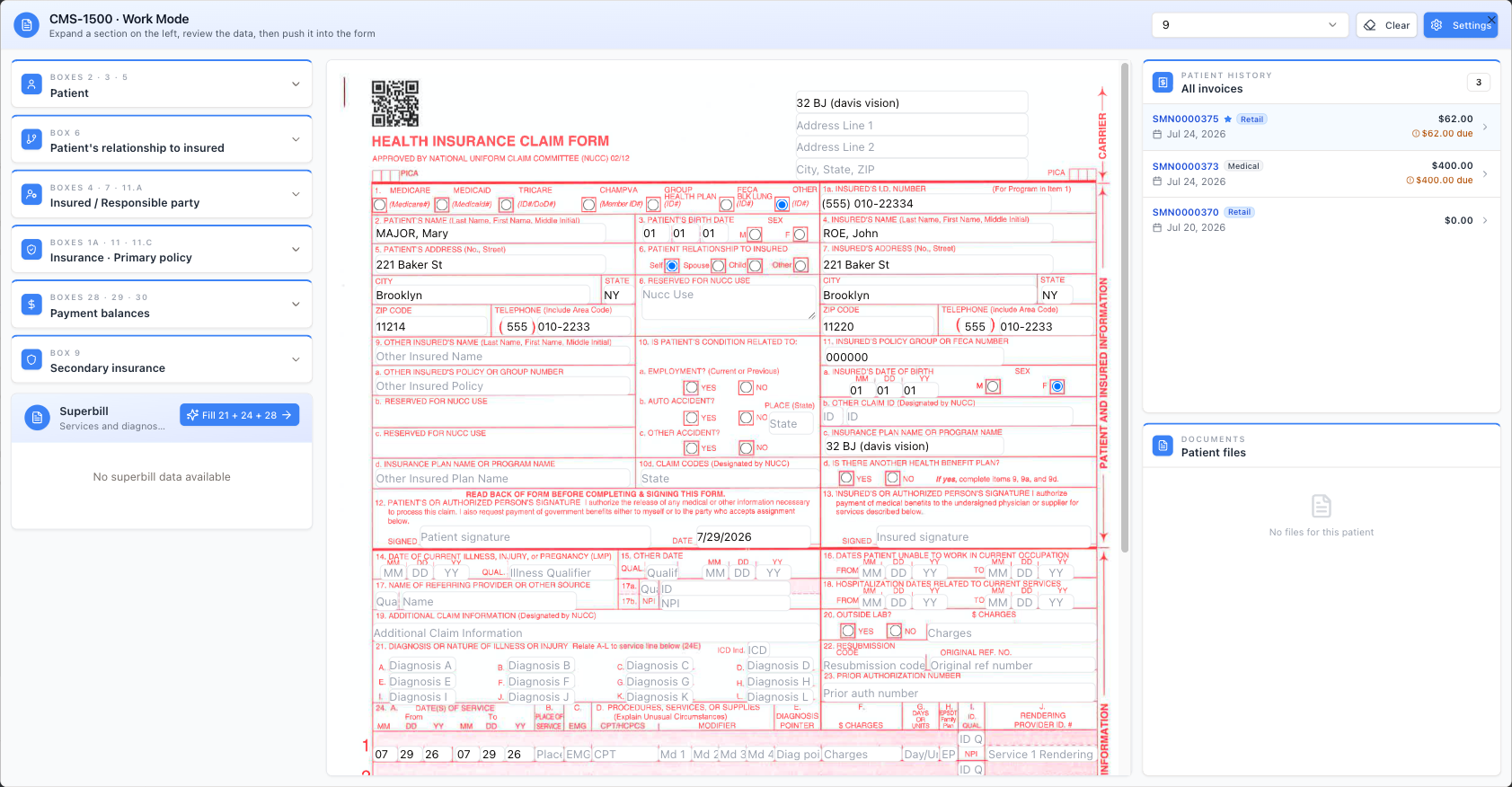
The idea is stated at the top: expand a section on the left, review the data, then push it into the form. You do not have to type the form in by hand — you check each block of data first, then send it in. Any box can still be corrected by typing in it afterwards.
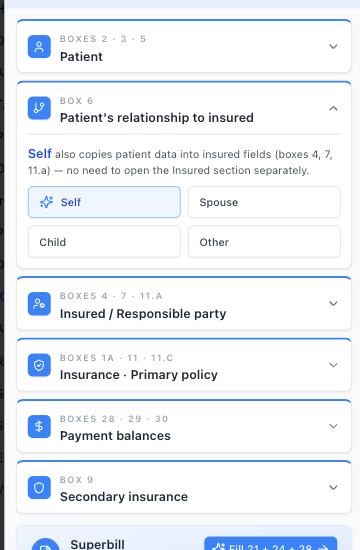
Each section on the left says which boxes of the form it fills, and has a Fill … button (for example Fill boxes 2, 3, 5) that pushes its data in. The relationship section is the exception: it has four buttons — Self, Spouse, Child, Other — and pressing one fills box 6 straight away.
| Section | Boxes |
|---|---|
| Patient | 2 · 3 · 5 |
| Patient's relationship to insured | 6 |
| Insured / Responsible party | 4 · 7 · 11.A |
| Insurance · Primary policy | 1A · 11 · 11.C |
| Payment balances | 28 · 29 · 30 |
| Secondary insurance | 9 |
| Superbill (the card under the sections — Fill 21 + 24 + 28) | 21 · 24 · 28 |
Some sections do more than one thing — picking Self under Patient's relationship to insured also copies the patient's data into the insured fields, so you do not have to open that section separately.
The form itself fills the middle of the screen and you can scroll through it. The header carries a template picker listing your saved CMS-1500 templates; the first is chosen for you when the window opens, Clear empties the form (and the template choice), and Settings opens CMS-1500 Settings, where the saved templates are managed. Below the form: Black / Red choose the colour variant of the generated PDF file, Save stores the form for this invoice — the next time you open it, the saved version loads. Print produces the printable claim; it needs a template chosen. The badge next to it tells you whether what you see is Saved or has Unsaved changes — Print does not stop you printing unsaved changes, so press Save first if you want the stored form to match the paper.
On the right, Patient history lists all the patient's invoices — this claim's invoice first, marked with a star — with their type, date, amount and what is still due. Clicking one does not switch claims — it opens that invoice's item list in the same panel, with a Back button. From there Fill v-codes · Box 24 + 28 (shown when the items carry v-codes) pushes those items into the form you are working on. Documents shows the patient's files.