Orders — tracking what the lab and the patient are waiting for
Orders answers the daily question: what is outstanding, and what is running late. The counter next to the title says how many rows the current list holds, and Export CSV downloads it.
Four tabs, each a different way of looking at unfinished work. Column headers you can click (Ticket # / Invoice #, Date, Late, Status, Patient, Rep) sort the list; more rows load as you scroll down.
Lab Ticket Status
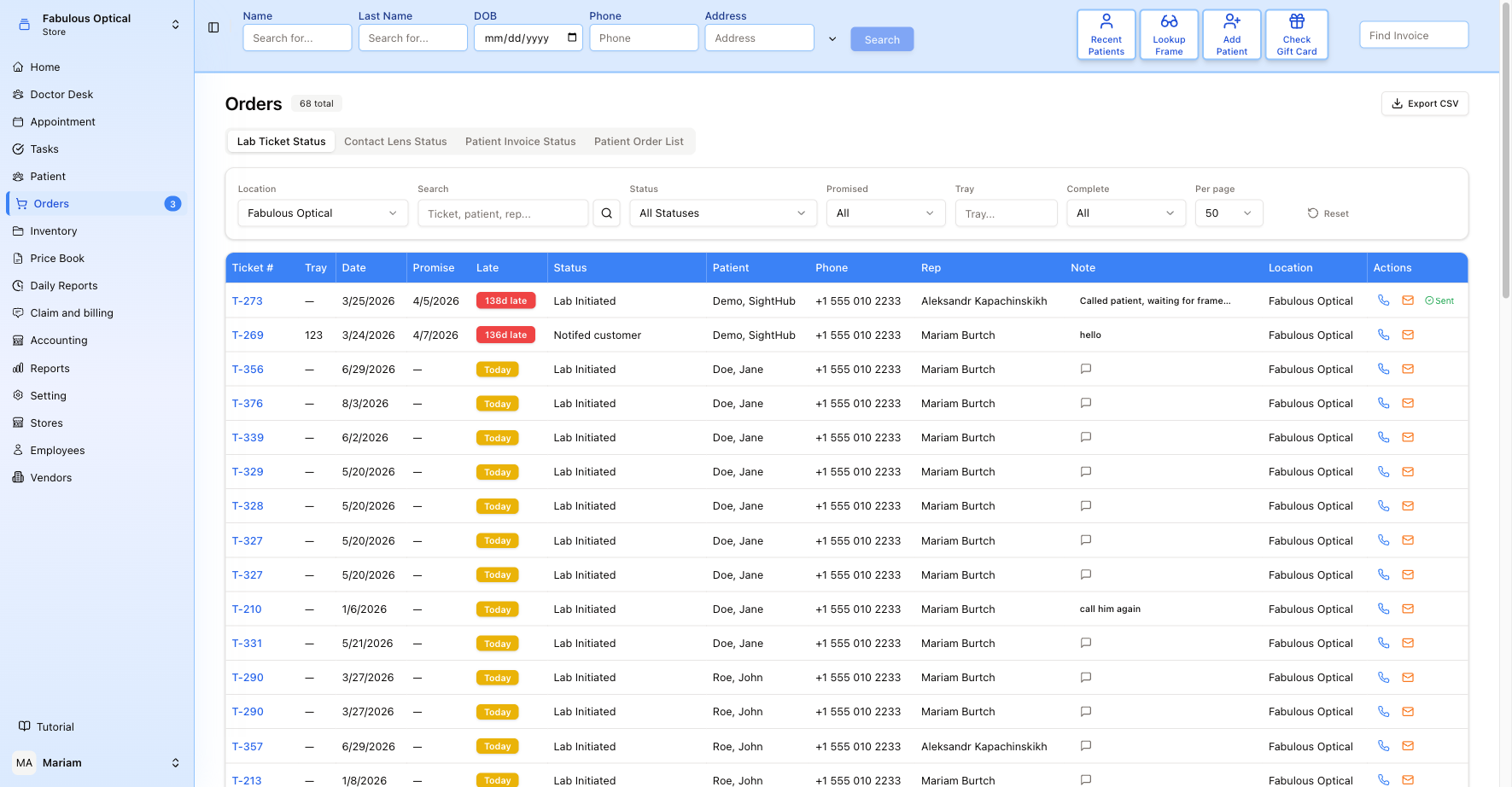
Every lab ticket, one row each:
- Ticket # — opens the ticket.
- Tray — the tray number in the lab, when the job has one.
- Date and Promise — the invoice date, and when the job was promised to the patient.
- Late — the important column. A grey 12d left means the promise date is still ahead; Today in yellow means due now; a red 138d late means the promise date passed 138 days ago. Nothing at all means no promise date was set.
- Status — where the job is: Lab Initiated, Notified customer, and so on.
- Patient, Phone, Rep — who it is for, how to reach them, and who is handling it.
- Note — the free-text note; rows with one show the text, the rest show an empty speech bubble. Click it to add or change the note, then Save (Clear empties the box).
- Location — which store the job belongs to.
- Actions — the phone icon opens Send SMS (it does not dial), the envelope opens Send Email Notification. In both, pick a Template or type the Message yourself, then Send SMS / Send Email. In the email window, when the row's status already has a patient message set up, that template is fixed and its text is filled in for you to check or edit. In Send SMS, a template sent as it is gets the patient's details filled in for you; if you edit its text it goes as plain custom text and the placeholders are not filled. With no number on file the phone icon is greyed out and says No phone on file. Once a message has gone out the row is marked Sent.
Filters
The filter bar sits above every tab: Location (starts on your own store; All Locations shows every store), a Search box (ticket, patient or rep — press Enter or the magnifier to run it), Status, Promised (All, Today, Tomorrow, Overdue), Tray, Complete (All, In Progress, Completed), and Per page. Reset clears them. Switching tabs clears the tab-specific filters and the sort.
On the Patient Order List tab only Location and Search actually do anything — the rest are shown but ignored there, and that tab has no pagination.
Contact Lens Status
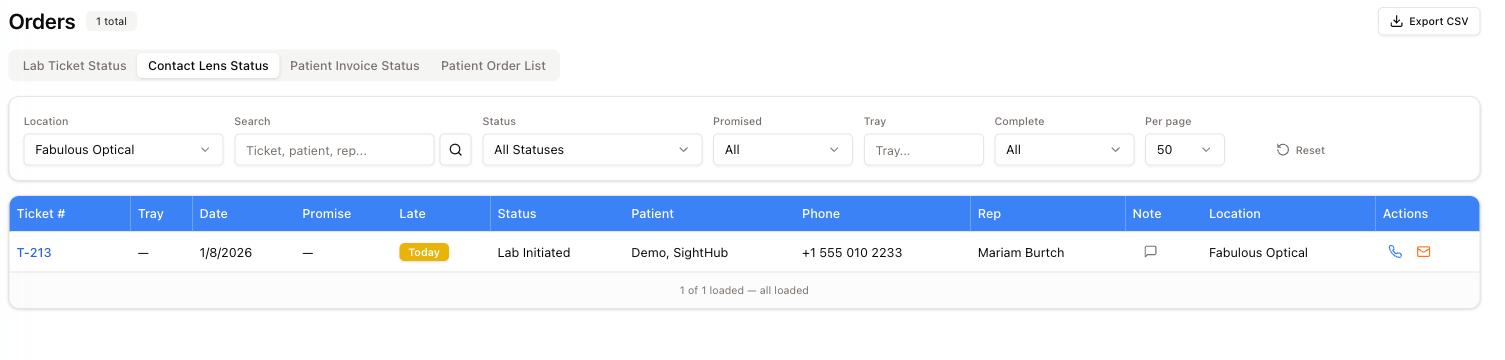
The same table, narrowed to contact lens orders — so the box of trials a patient is waiting on does not get lost among the glasses jobs.
Patient Invoice Status
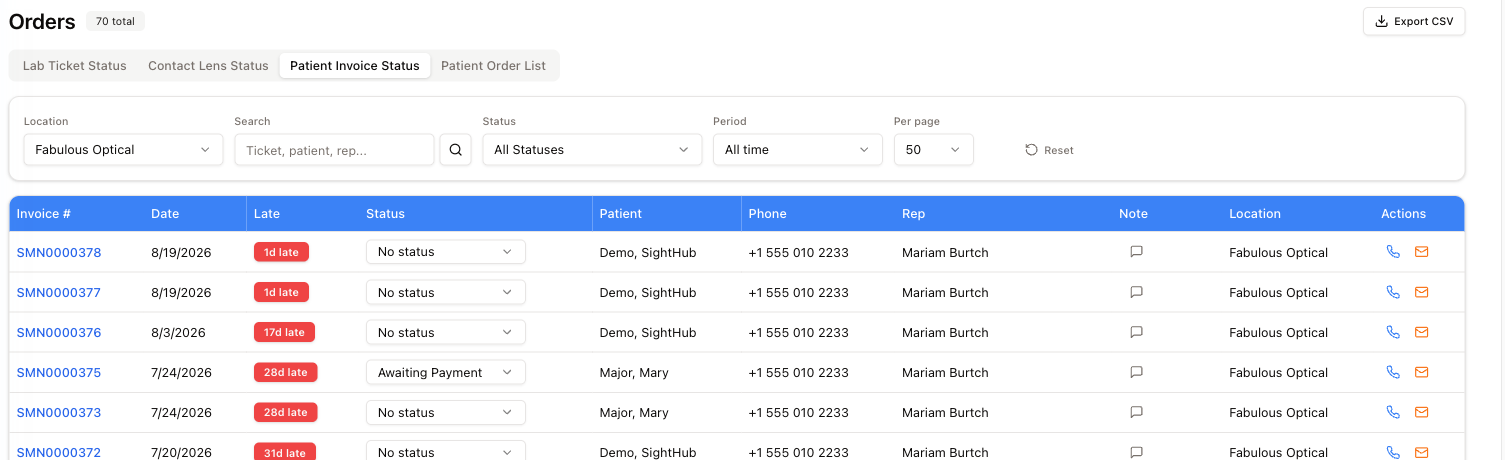
Here the rows are invoices rather than lab tickets, and the Status column is a dropdown you set yourself — No status, Awaiting Payment, and the rest. It is the same Invoice Status as on the invoice page. Use it to track what is owed and how far past due it is: the Late column counts days from the invoice date. Note and the SMS / email Actions work the same as on the lab tickets tab.
If the status you pick has a patient message set up for it that is not sent automatically, Send Email Notification opens straight away so you can send it.
The filter bar swaps Promised / Tray / Complete for a single Period (All time, or the last 6 to 60 months).
Patient Order List
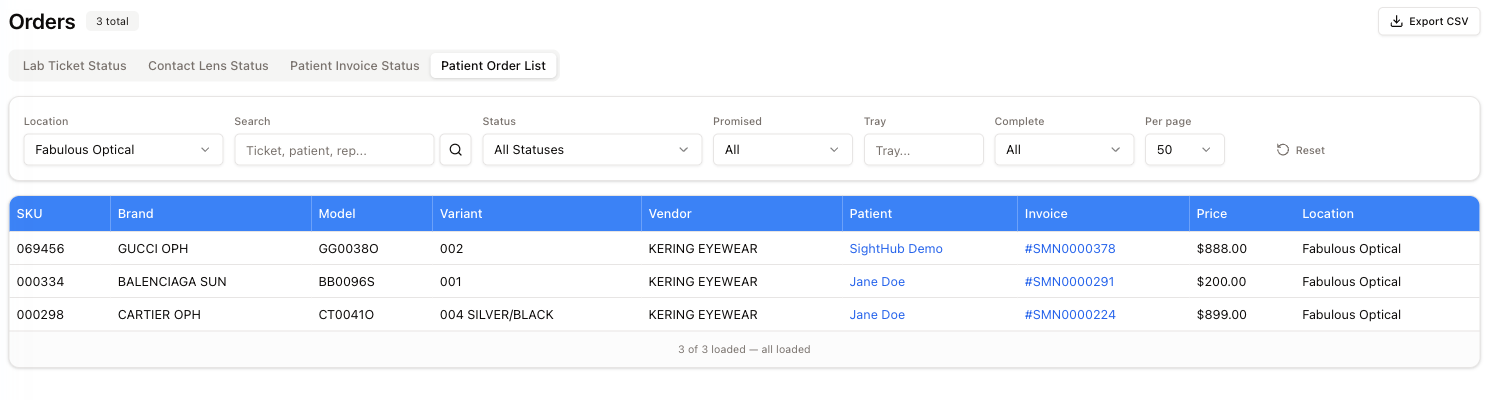
What was actually ordered from vendors, product by product: SKU, Brand, Model, Variant, Vendor, the Patient it is for, the Invoice it belongs to, the Price and the Location. Patient and invoice are both links, so you can jump from a frame on order straight to the sale it came from.
A store's orders are shared by its showcase and its warehouses. With a location picked, the list holds what is on order anywhere in that store — a frame ordered at the showcase shows at the warehouse too, and the other way round — and Location says where it was ordered. (All Locations gives your own store's orders here, not every store's.) Whichever of them receives the delivery books the frame in, and it leaves this list; one received at the warehouse for the showcase goes straight on to the showcase, which receives it under Receipts → From stores — see Receipts, transfers and returns.
The SKU is the frame's serial number and it is a link too: clicking it opens the same frame lookup as the Lookup Frame button in the top bar, already filled in. Use it when someone asks where a particular frame has got to — you do not have to copy the number out and retype it.