Value lists — Optical, Frames, Insurance, Services, Job Titles, Discounts
Most of Settings → Modules is not settings in the usual sense. It is a set of plain lists, and each list is a dropdown somewhere else in the system. Learn one page and you can use all of them.
The pattern
Pick a module, pick a section from the menu on the left, and its values fill the table on the right.
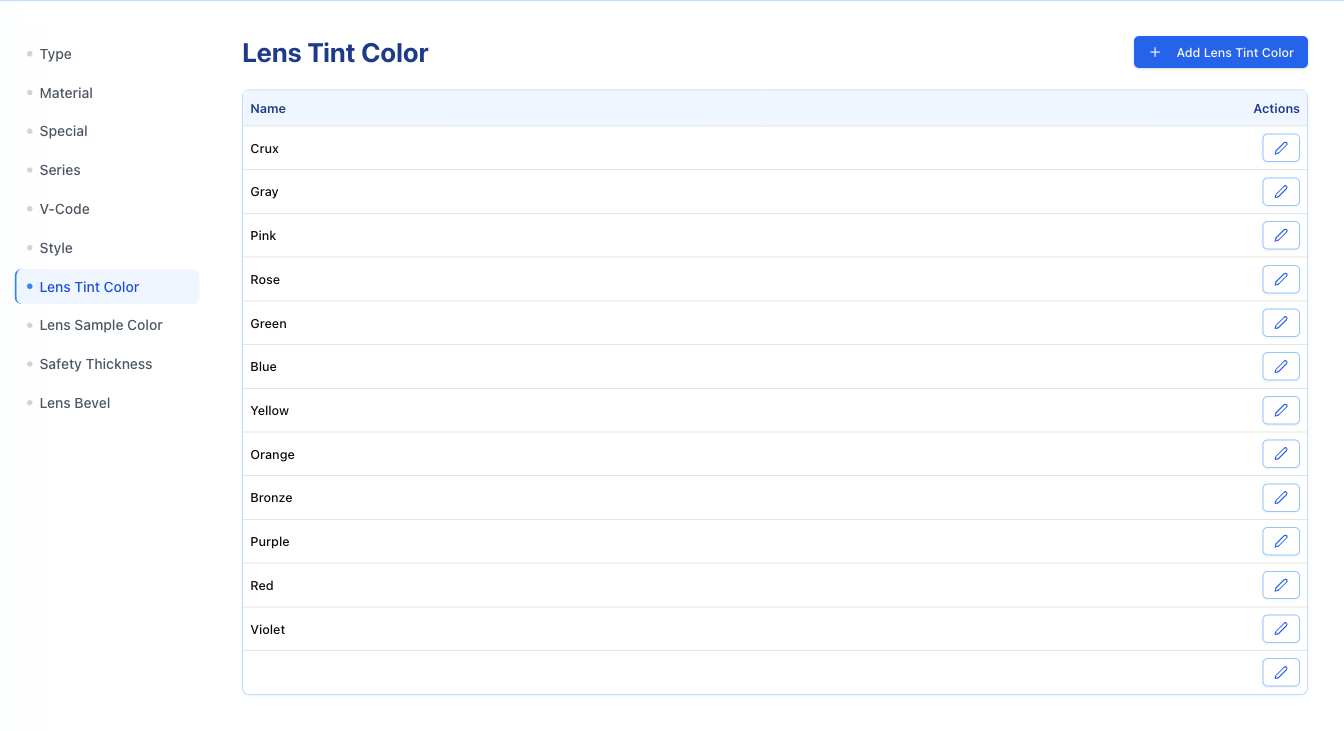
Above the table sits a single button named after what it adds — Add Lens Tint Color, Add Job Title, Add Insurance Company. It opens a small form.
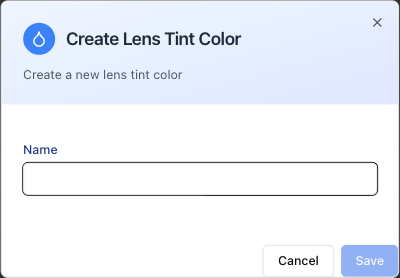
Most lists have one field, Name, and that is the whole value. Save and it appears in the table, and in the dropdown it feeds, straight away.
To change a value, open it: in the Optical lists press the pencil at the row's right end, in the other modules click the row itself. The same window opens with the value filled in, plus a red Delete button at the bottom left. Two lists have no edit at all: Optical → Type and Optical → Material are add-only. Once a lens type or material is in the list, the only way to change it is to ask SightHub support.
Delete with care. Delete acts at once — there is no "are you sure?" step — and takes the option away from every screen that offered it, and any job in progress that was relying on it.
That is the pattern. What follows is what each list actually controls.
Optical — the lens vocabulary
Ten lists, and between them they describe every lens the practice sells:
Type · Material · Special · Series · V-Code · Style · Lens Tint Color · Lens Sample Color · Safety Thickness · Lens Bevel
Type is the one you meet most: Progressive, Single Vision SV, Bifocal FT-28, Cataract, Plano. It is the same list staff choose the lens type from on a lab ticket — the ticket and this page are two ends of one list.
Lens Tint Color holds the tints (Gray, Pink, Rose, Green, Blue, Yellow, Orange, Bronze, Purple, Red, Violet) and Lens Sample Color the sample swatches shown to the patient.
V-Code is the exception to the one-field rule: each code carries a Category, the Code itself, a Description, Billing Notes and a Price. It is a small price list, not a name list.
Frames
Two lists: Frame Shape, and Frame Type Material (Titanium, Zylonite / Acetate, Metal/Zyl, Carbon Fiber, Horn, Wood, Semi-Rimless, Rimless).
They fill the shape and material dropdowns (frame material and temple material) on a frame in the Frame Library, on the frame part of a lab ticket, and when frames are booked in on a vendor receipt. A material missing here cannot be recorded against a frame.
Insurance
Three lists.
Companies — every insurer the practice bills.
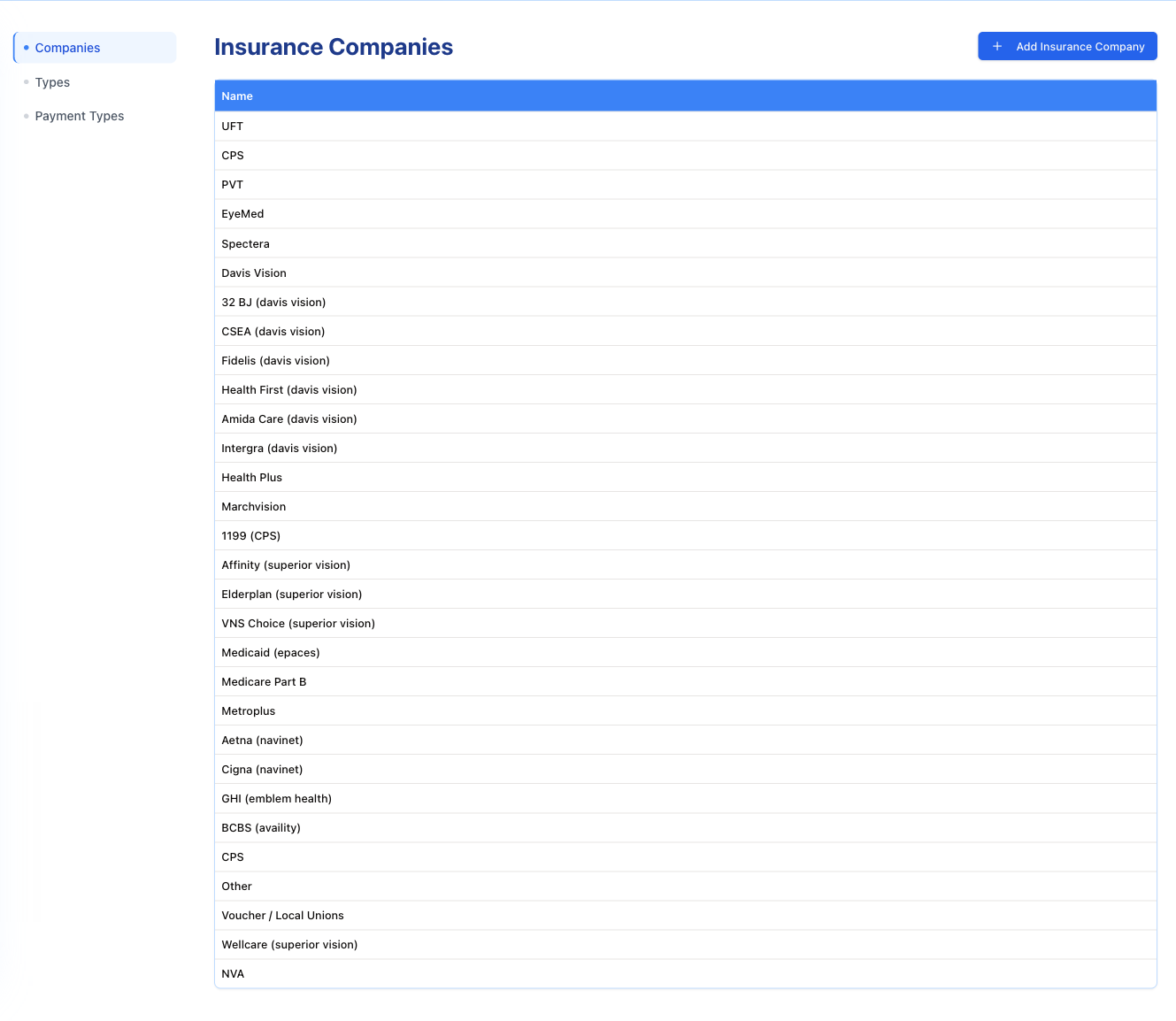
This is the list behind the Insurance Company dropdown on the patient's insurance tab and in patient search: UFT, CPS, PVT, EyeMed, Spectera, Davis Vision, Medicaid (epaces), Medicare Part B, Aetna (navinet), BCBS (availity) and the rest. Notice how the names carry the clearing route in brackets — (davis vision), (superior vision), (navinet) — that convention is worth keeping when you add one, because it tells staff where the claim will go.
Types — the coverage types (Vision, Medical, Dental).
Payment Types — how an insurer settles: Check, EFT, Adjustment, Write-off, Denial, Recoup. Each carries a description and an Active flag. These fill the Payment type dropdown when you post an insurance payment on a patient's invoice; a type with Active switched off is not offered there. Adjustment is the exception: it is not in that dropdown but goes through the separate Adjustment box on the same form, which looks for a type named exactly Adjustment — so do not rename it. The difference between Write-off and Denial is what makes the receivables reports readable, so keep them distinct.
Prof Service and Additional Services
Prof Service is the short list of professional-service categories — Vision Only, Self Pay. It feeds the Scope dropdown of a professional service in the Price Book.
Additional Services is the list of extras: Power, Repair, Tint, Material, Filter, Other. It feeds the Service Type dropdown of an additional-service item in the Price Book — the items added to an invoice for work that is neither a frame nor a lens.
Employee — Job Titles
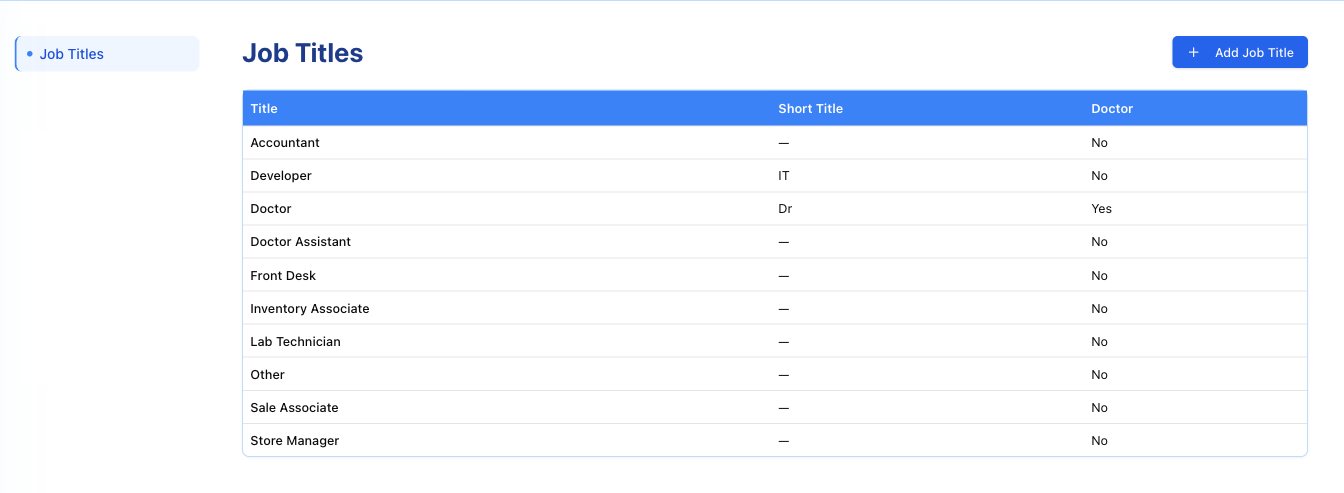
Every role in the practice, each with a Title, an optional Short Title, and a Doctor flag.
The Doctor flag is not cosmetic. A title marked Yes makes anyone holding it a provider: they appear in the doctor column on the schedule, they can be chosen as the doctor of a visit, and their name goes on the prescription. Accountant, Front Desk, Lab Technician and the rest are marked No and stay off that list.
If a new optometrist does not show up on the schedule, this flag is the first place to look.
To set it, click the job title's row (or Add Job Title for a new one). The Edit Job Title / Create Job Title window has Title, Short Title (up to three letters) and a Doctor tick — Employees with this job title are doctors — they can be assigned to exams. Tick it and press Save. The same flag puts the blue Doctor badge next to these people on the employee list, and is what the list's Doctors / Non-doctors filter uses.
A job title marked as a doctor cannot be deleted — the Delete button only appears on the others.
Employee — Discounts
The second section under Employee is Discounts: the biggest discount someone may give on an invoice, decided by their job title.
The table has one row per job title and one column per type of item. Each cell is a percentage:
- — means no discount at all (0%, also what an unset cell means);
- Any means no limit (100%);
- anything else, e.g. 10%, is the most that job title may take off that type of item.
The limit is the same in every store.
To change a job title's limits:
- Click its row. A window opens, titled with the job title followed by — discount limits.
- Type a percent from 0 to 100 for each type of item you want to change.
- Press Save. It stays greyed out until you have changed something and every box holds a valid number.
What happens on the invoice: when someone gives a discount above their limit, the invoice does not save it and opens Discount over your limit, where you type a Reason and press Ask a manager — the request goes to Requests and the discount is applied only if a manager approves. People with the Approve Discount permission, and admins, have no limit.
The lens discount item DL in the Price Book has its own percentage limit. When a job title's limit for lenses is higher, the higher one counts — see Price Book.