Inventory reports — where the stock went
Six reports under Reports → Inventory. They answer one question between them: the stock that was here is not the stock that is here — what happened in between?
Before you start: the store filter
Two of these — Vendor Receipts and Internal Transfers — open on the first location in their list, which is often not the one you are working in. That is why they so often say No data on a period you know had activity.
Set Store to All locations (or your own store), then Submit. The rest of this page assumes you have.
The other four open on your own store. Nothing runs until you press Submit — the only shortcut is the quick date buttons on Inventory Work Flow (below).
Inventory Analysis — the movement equation
The one to open first, and the only one that adds up. Filters: Start date and End date (both open on today — widen them), and Store (your own, All locations, or another).
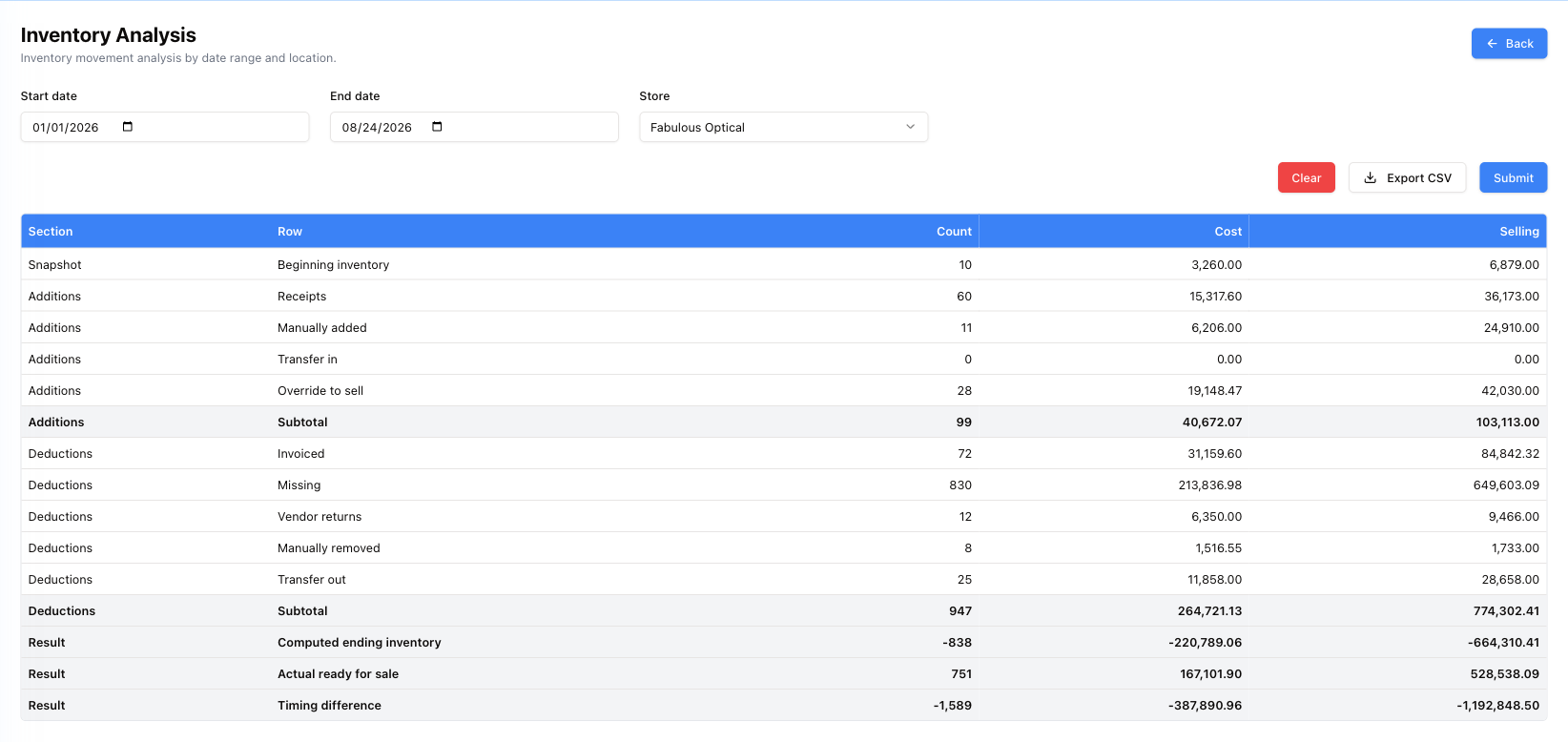
The rows are an equation, read top to bottom:
Snapshot — Beginning inventory: what was on hand when the period opened.
Additions — everything that came in: Receipts from vendors, Manually added items, Transfer in from another location, Override to sell (items pushed into sellable stock by hand), then a Subtotal.
Deductions — everything that left: Invoiced (sold), Missing, Vendor returns, Manually removed, Transfer out, then a Subtotal.
Result — three lines, and this is the interesting part:
| Line | Meaning |
|---|---|
| Computed ending inventory | Beginning + Additions − Deductions. What the arithmetic says should be there. |
| Actual ready for sale | What is actually sitting there, sellable, right now. |
| Timing difference | The gap between the two. |
Each is given three ways: Count (pieces), Cost (what the practice paid), Selling (what it would fetch).
A large Timing difference is not necessarily theft. It usually means movements were recorded outside the period, or that Missing has been accumulating from count sheets without anyone resolving it. But it is the number that tells you the stock records and the shelves have drifted apart, and by how much money.
Export CSV takes the lot once the report has run.
Inventory Work Flow — the history of every frame
Where Inventory Analysis gives totals, this gives events.
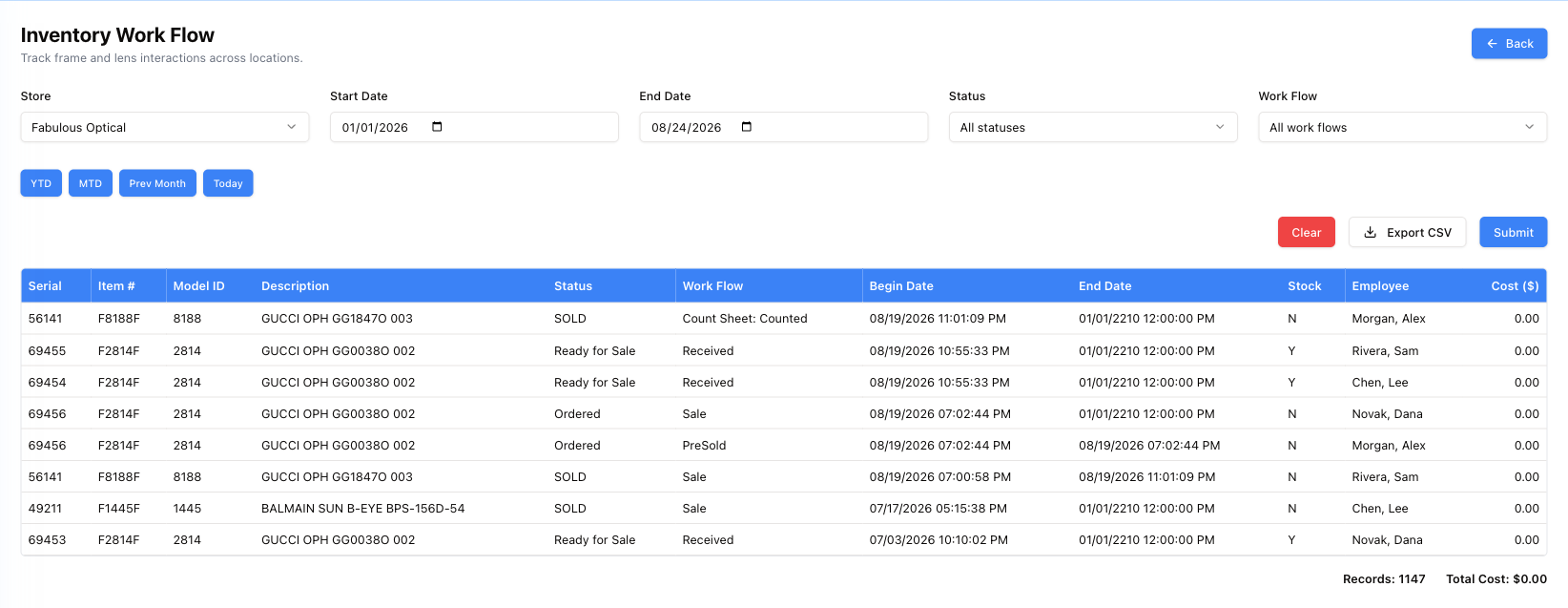
One row per thing that happened to one item: its Serial, Item # and Model ID, the Description, its Status at the time, the Work Flow event, when it began and ended, whether it is still in Stock, who did it, and the Cost.
Filters: Store (your own to start with), Start Date and End Date (empty — fill them, or press YTD, MTD, Prev Month or Today, which fill them and run the report at once), and two more that make it usable:
Status — Defective, Deleted, ICT (sent and not received), ICT (to receive), Missing, On Return, Ordered, Ready for Sale, Removed, SOLD.
Work Flow — the event itself: Received, Sale, PreSold, Internal Transfer and Transfer (sent), Received from location, Transfer Refused and Transfer Cancelled (sent back), Return, Return Denied, ReturnToVendor, UndoReturnToVendor, Returned to Stock, Removal, Removed from Invoice, Deleted from Receipt, Order Cancelled, Status Change, the Count Sheet steps, and a few migration ones.
A count sheet writes each of its steps in the history of every frame it holds: Count Sheet: Open, Count Sheet: Exception, Count Sheet: Counted, Count Sheet: Uncounted, and at the end Count Sheet: Closed — Counted, Closed — Missing or Closed — Exception — or Count Sheet: Deleted if the sheet is deleted. Older counts read Count Sheet: Removed (now Uncounted), Marked as Missing (now Closed — Missing) and DELETED COUNTSHEET (now Deleted).
An End Date of 01/01/2210 is not a date. It is the system's way of saying this is still the current state — the row has not ended.
Use it when one specific frame's story is in dispute. There is no serial filter, so run a wide enough period, then find the serial on the page (Ctrl+F) or in the CSV — every row for that item is its life story, with names against each step.
The footer counts the records (Records) and totals the cost (Total Cost). Export CSV downloads with the filters on the screen and does not need Submit first.
Missing Frames — what the count sheets could not find
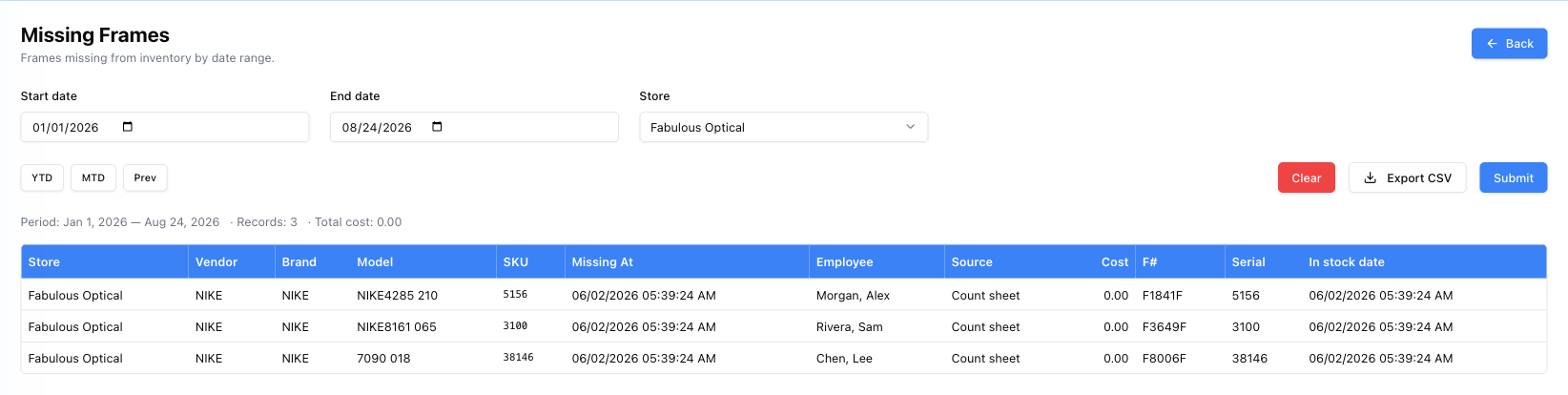
One row per frame that has been marked missing: which Store and Vendor and Brand, the Model and SKU, when it was Missing At, which Employee was counting, the Source that flagged it (normally Count sheet), the Cost, the frame number F# and Serial, and the In stock date it originally arrived.
Read the gap between In stock date and Missing At. A frame that arrived last week and vanished this week is a different problem from one that has been on the books for two years.
This report is the detail behind the Missing line in Inventory Analysis.
Filters: Start date and End date (first of this month to today to start with) and Store (your own, Default (from token) — also your own — or All locations). The YTD, MTD and Prev buttons here only fill the dates; press Submit after them. The line above the table gives the period, the number of records and the Total cost, and Export CSV works once the report has run.
Receipt by Brand — what came in, summarised
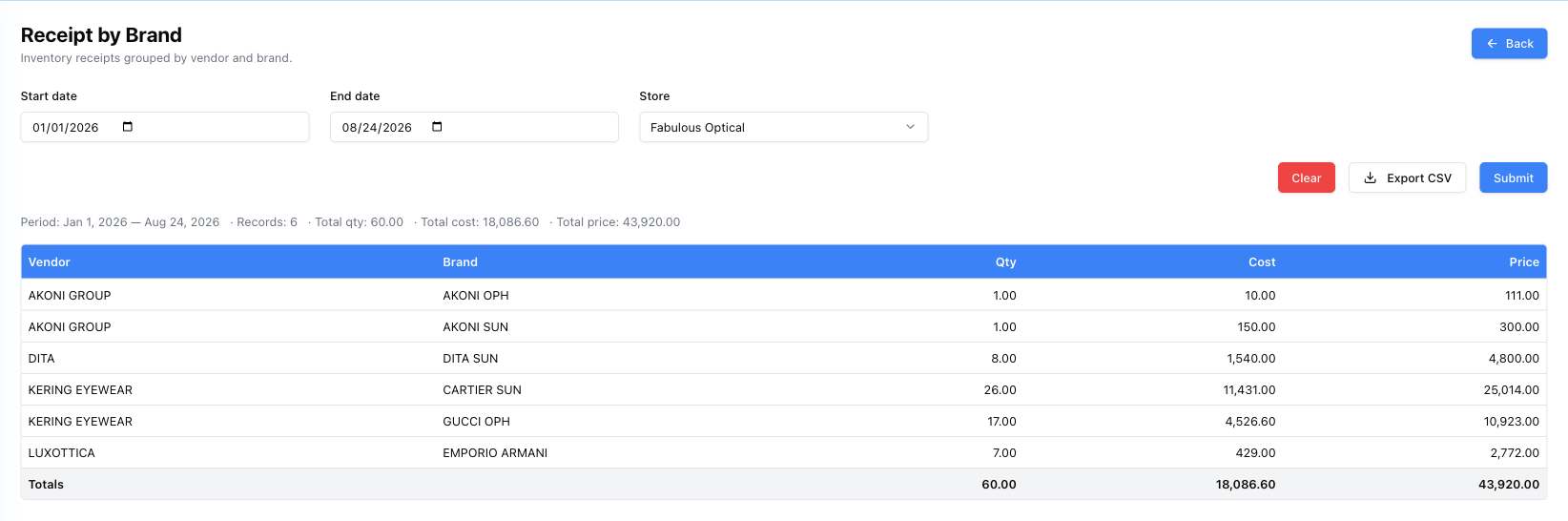
The simplest of the six: Vendor, Brand, Qty, Cost, Price, for the period chosen (first of this month to today to start with, on your own store), with a totals row and a line above the table giving the record count and total quantity, cost and price. Export CSV once it has run.
Use it to see where the buying money went — which labels the practice actually stocked up on this quarter, and what that stock is worth at retail.
A store whose warehouse receives for it has its new deliveries on the warehouse's receipts. Choose that store and they count together with the ones it took in before, as in Vendor Receipts below.
Vendor Receipts — the delivery paperwork, listed
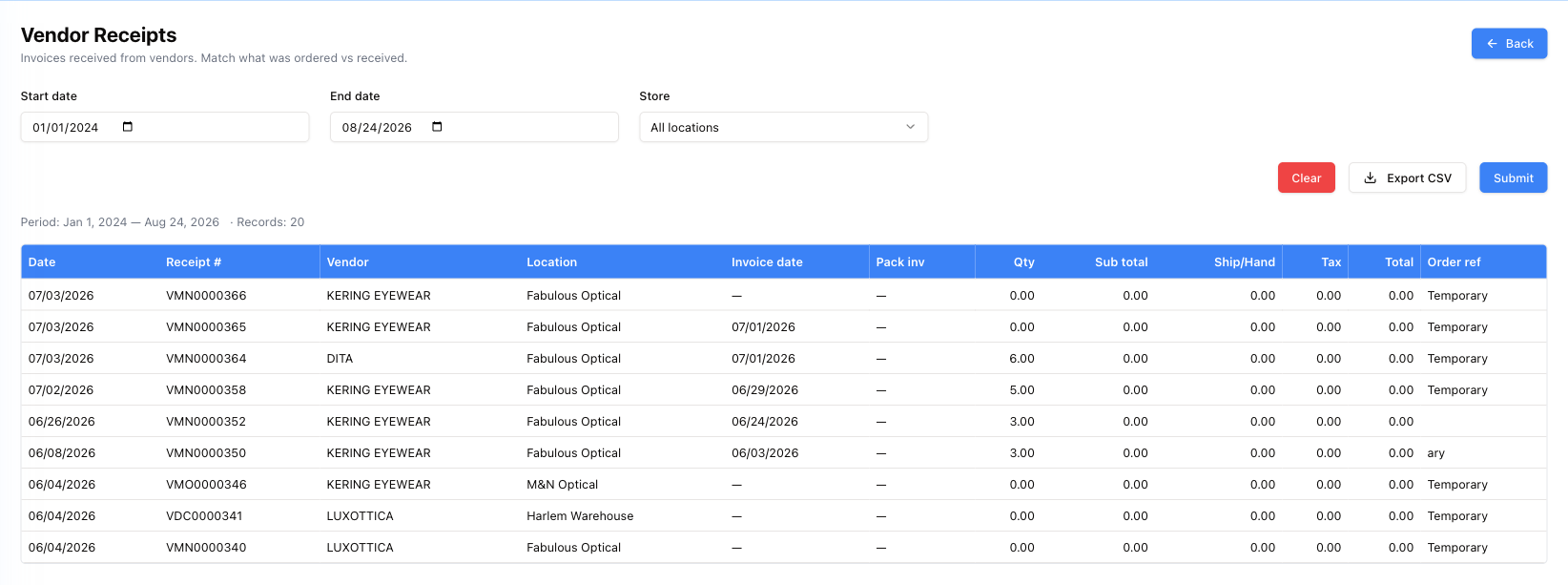
One row per vendor invoice received: Date, Receipt #, Vendor, Location, the vendor's own Invoice date and invoice number (Pack inv), Qty, and the money — Sub total, Ship/Hand, Tax, Total — plus your Order ref.
A store whose warehouse receives for it takes no deliveries itself (see Stores). Choose that store in Store and you get the receipts it took in before, together with its warehouse's. The Store list holds the locations that receive deliveries, and those with receipts from before.
A receipt showing Temporary as its order reference and zeros in the money columns is one that was created but never filled in. Those are the ones to go back and complete on the receipt itself, because until they are, they cannot be matched against what the vendor bills.
Internal Transfers — stock moving between locations
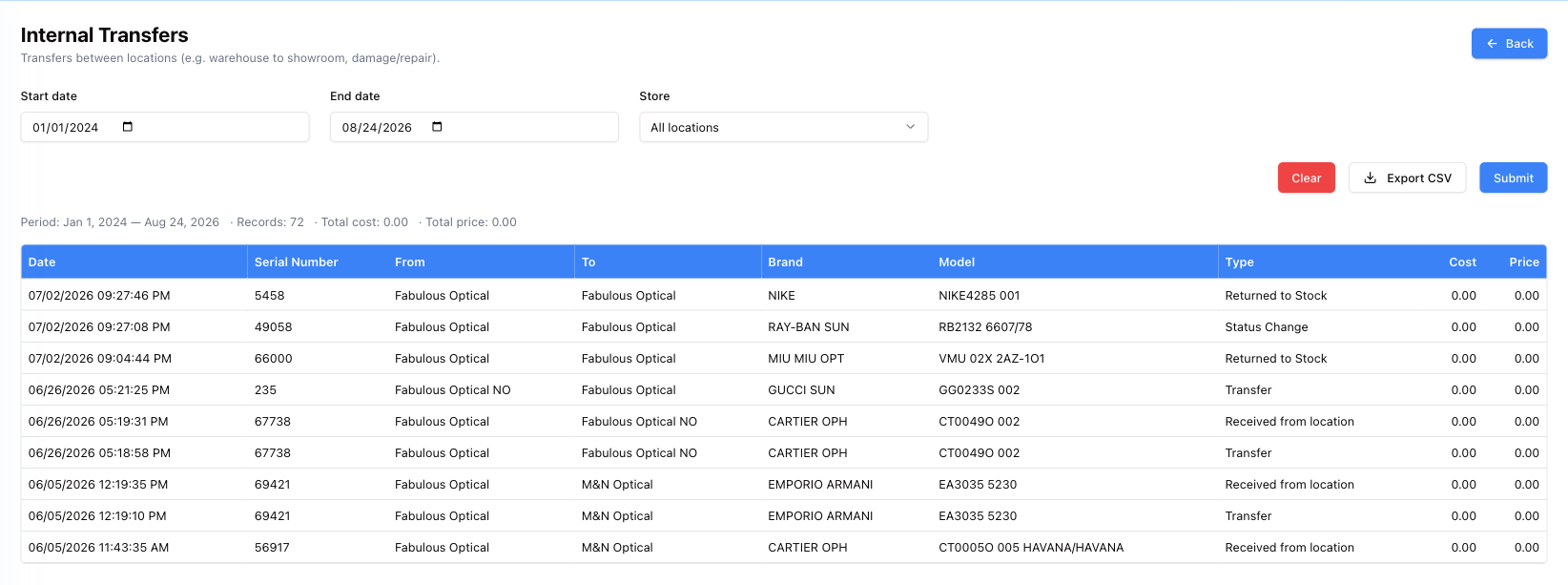
Every movement between the practice's own locations: Date, Serial Number, From, To, Brand, Model, the Type of movement (Internal Transfer or Transfer when a frame is sent, Received from location when it arrives, Transfer Refused or Transfer Cancelled when it goes back, Returned to Stock, Status Change), and the Cost and Price carried with it.
The line above the table gives the period, the record count and the totals.
A frame sent with no matching Received from location — and no Transfer Refused or Transfer Cancelled bringing it back — is stock that left one shop and has not been received at the other. Those are what to look for.
Related
- Inventory — the working screens
- Receipts, transfers and returns
- All reports