Reports — which report answers which question
Reports holds thirty-four reports, grouped into seven categories down the left under All Reports. This page is the map: what each report answers, so you can go straight to the right one.
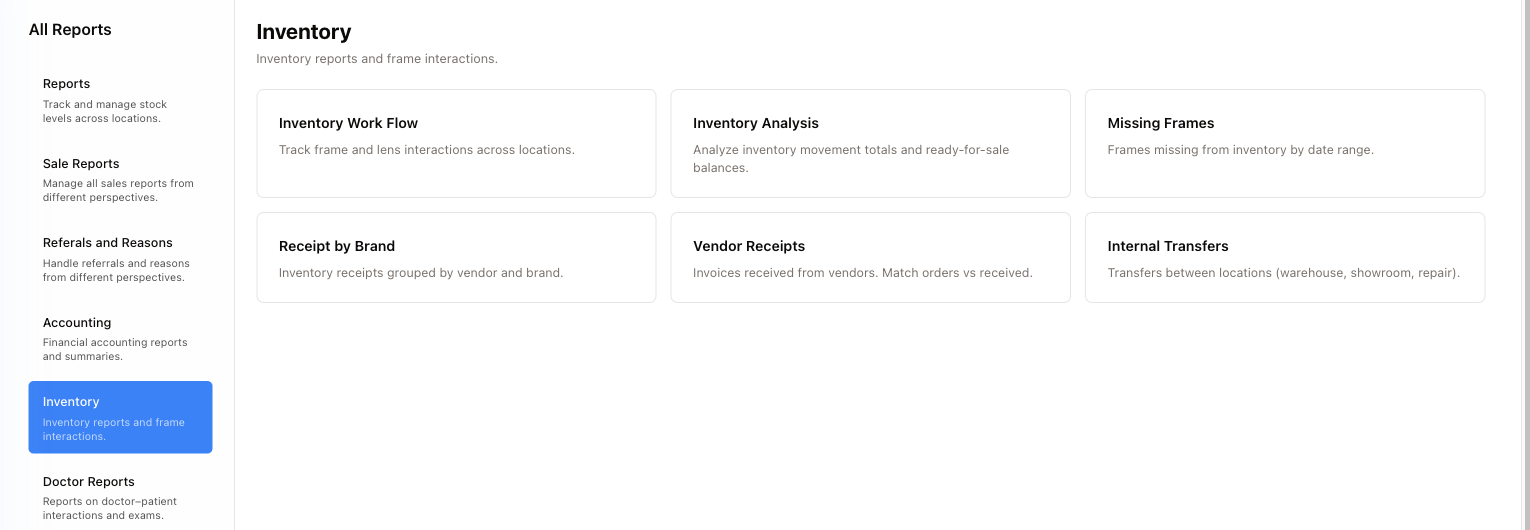
Click a category on the left, then click a report card on the right. Each card has a short description of what is inside.
How every report works
They are all built the same way, so learning one teaches you the rest.
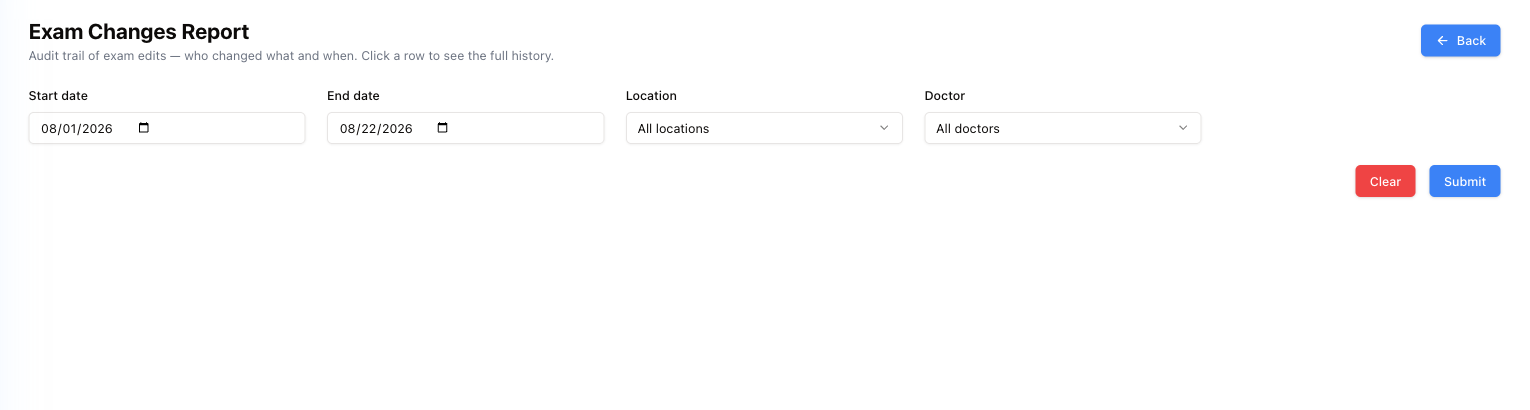
A row of filters at the top — typically Start date and End date, plus Location or Store and whatever else the report is about (doctor, vendor, employee, brand). Submit runs it, Clear resets the filters, Back returns to the list.
A few habits worth having.
Set the dates yourself. The defaults are not consistent between reports — some open on the current month, some on today, Sale by Type on yesterday to today, Doctor Productivity on the last 30 days, several with the date fields empty, and the yearly ones (Brand, Representative) ask for years instead. Fill them in rather than trusting what is already there.
Press Submit. Nothing runs until you do — an empty screen is not an empty result. The quick date buttons are the exception — YTD, MTD, Prev Month and Today on the sales reports and on Inventory Work Flow, This Year / Last Year on Brand and Representative, the pay-period buttons on Commission: they fill in the dates and run the report in one click. (On Missing Frames, YTD, MTD and Prev only fill the dates.) Ar Reports and Credits have no Submit button at all and reload themselves whenever you change a filter.
Pick people, don't type numbers. Where a report filters by one patient or one employee (File Trail, PHI Access), the filter is a search box. Type at least two letters of the name, pick the person from the list, and the cross on the right clears them again. You never need to know anyone's ID number.
Export CSV is on many of these — Sale, Sale by Type (where the button just says CSV), Accounting Report, Receipts Due By Month, every Inventory report, Exams Report and all seven Admin reports. On most it wakes up once the report has run; on Sale, Sale by Type and Inventory Work Flow it works straight away and uses whatever filters are on the screen. If a report is a step on the way to a spreadsheet, look for it before copying anything by hand.
Some reports are restricted
Most reports are open to anyone who can reach Reports. Three things work differently:
- Invoices (the referral and visit-reason charts) shows only the stores where you hold the Marketing Reports permission. If you hold it nowhere, the page tells you so instead of showing the form. See Sales reports for details.
- Doctor Productivity is for managers only. Anyone else gets a Managers only notice when they press Submit.
- Sale can only be run for the stores you are allowed to report on — the Store list shows just those.
If a report you need is missing or refuses you, ask a manager to check your permissions on the Employees page.
The reports in detail
Each group has its own page, showing what every report contains and how to read it.
| Group | Page |
|---|---|
| Accounting, plus patient debt | Accounting reports |
| Sale Reports and referrals | Sales reports |
| Inventory | Inventory reports |
| Doctor and Admin | Doctor and admin reports |
Reports
Unpaid balances and credits on patient invoices.
- Ar Reports — invoices that still have money due, grouped by the employee who raised them, with the age of each debt.
- Credits — invoices with a credit (overpaid) balance for a store, grouped by employee.
For the credit a single patient holds, use Patient Credit instead.
Sale Reports
Sales from different angles — items, brands, staff, insurance, referrals.
- Sale — what one store sold over a period, one row per invoice or per item line. Click a row to open the invoice.
- Representative — frames sold by each employee, month by month, this year against last.
- Brand — sales of each brand month by month, this year against last.
- Prof Code — professional services sold, by service code.
- Insurance — invoices billed to insurance and what insurance still owes.
- Commission — what each seller earned in a pay period.
- Referral — new patients by how they heard about you and why they came.
- Category Sales — each invoice split into frames, Rx, sun, lenses, professional fees, contacts and other.
- Sale by Type — invoices split by item type: optical against sun, Rx against plano.
Referals and Reasons
Where new patients come from and why they visit. (The category name is spelled Referals in the menu.)
One report: Invoices — which, despite the name, is the referral sources and visit reasons drawn as charts. It is the restricted one: you see only the stores your Marketing Reports permission allows.
Accounting
Payments, receivables and money owed to vendors.
- Accounting Report — one row per day of the month, with payments by type and the balance difference. Open any day for its breakdown.
- Payment Summary — payments taken on one day, by store and payment type.
- Payment Details — every payment in a date range, with the invoice and the remaining balances.
- Payment Categories — payments split into the insurance part and the patient part.
- Insurance AR Report — what each insurance company still owes, by age of the debt.
- Receipts Due By Month — open vendor bills, spread by the month they fall due.
Inventory
Frame movement, stock balance, receipts and transfers.
- Inventory Work Flow — what happened to each frame, step by step.
- Inventory Analysis — stock reconciliation: beginning stock, what came in and went out, computed against actual.
- Missing Frames — frames marked missing in a date range, with their cost.
- Receipt by Brand — frames received, grouped by vendor and brand.
- Vendor Receipts — vendor shipments received in a date range.
- Internal Transfers — frames moved between warehouse, showroom and repair.
Missing Frames is the one to run after a stock-take: it is the shortfall the count sheets turned up.
Doctor Reports
Exams, changes to exams and what doctors billed.
- Exams Report — eye exams for a period and location, with the doctor.
- Exam Changes — the audit trail of every edit made to an exam: who, when, and what it was before and after.
- Doctor Productivity — which procedure codes each doctor billed on super bills, how many exams used each, and the diagnoses paired with them. Managers only.
Admin Reports
Audit and security: deletions, files, logins and who saw patient data.
- Login Audit — every sign-in attempt, successful or failed.
- Deleted Exams — cancelled Dr. Desk exams, with who asked, why, and who approved.
- Deleted Files — patient documents removed in a date range, with a Restore button.
- File Trail — every hidden, deleted or replaced file of any kind, with where it is kept on the storage.
- Deleted Invoices — invoices removed in a date range, with who asked, why, who approved, and the invoice's audit trail.
- Deleted Invoice Lines — single lines and payments removed from invoices, with the reason.
- PHI Access — who viewed, printed, exported or changed patient data.
These seven exist to answer "who did that, and when". Deleting an invoice, a line or a patient file does not erase the fact that it happened — the record stays here with the name attached. And the files themselves are never wiped from storage: File Trail tells you where to find them.