Pricing formulas — how retail prices are worked out
Settings → Modules → Inventory holds one thing, and it is a big one: the rules that turn what the practice paid for a frame into what the practice charges for it.
Set them once per brand and every new item priced afterwards follows the rule, instead of someone doing the arithmetic by hand at receiving time.
Finding the rules for a brand
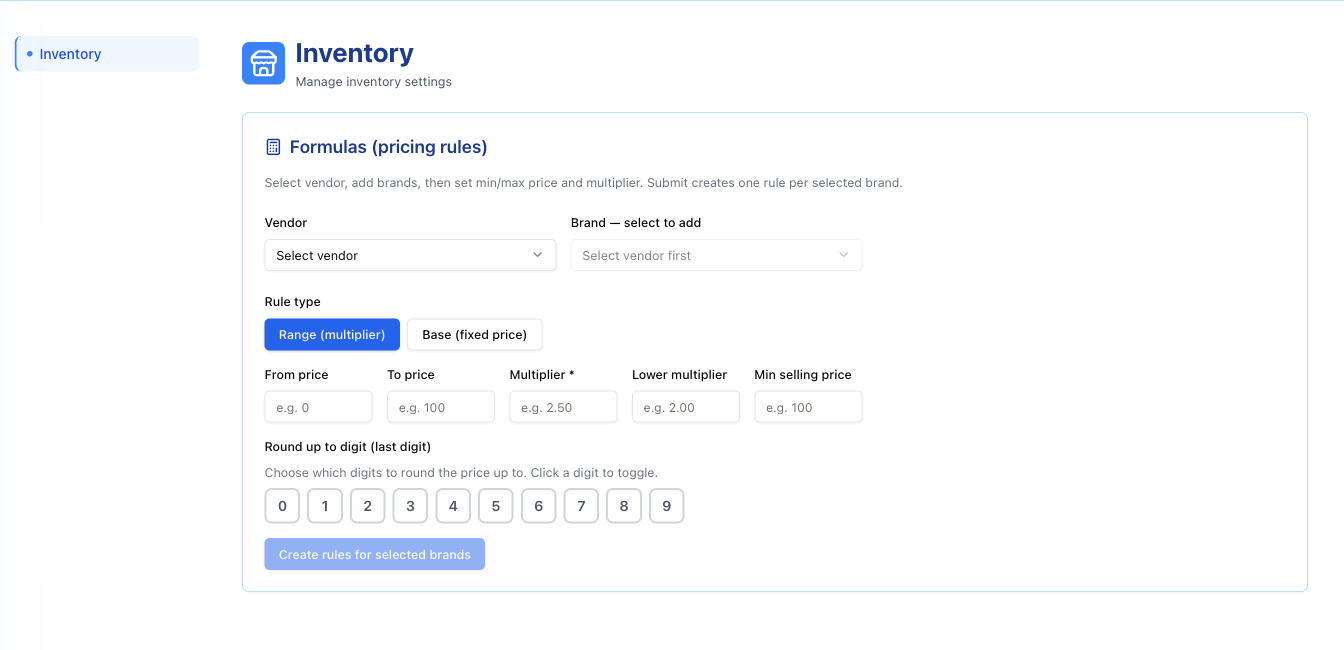
Pick a Vendor, then pick a brand from the second dropdown (Brand — select to add, greyed out until a vendor is chosen). The brand is added as a chip, and its existing rules appear in the table below. The × on a chip takes the brand off the list again.
The same rules can also be reached from the vendor's card: open a brand in Vendors and the edit window shows its Pricing Rules next to the brand details.
A brand can hold several rules at once, each covering a different cost band — that is how cheap frames get a bigger markup than expensive ones is expressed.
The two kinds of rule
Range (multiplier)
Cost is multiplied by a number.
| Field | Meaning |
|---|---|
| From price / To price | The cost band the rule applies to. A frame costing $250 falls into the 200–400 rule. |
| Multiplier (required) | What cost is multiplied by. 2.50 on a $200 frame gives $500. |
| Lower multiplier | The floor for discounting. With 2.00, staff can come down to $400 but no further. |
| Min selling price | An absolute floor in currency, whatever the multiplier says. |
Base (fixed price)
The same frame always sells for the same money, whatever it cost.
| Field | Meaning |
|---|---|
| From price / To price | The cost band the rule applies to. |
| Selling price (required) | The shelf price. |
| Min selling price (required) | The lowest price staff may discount to. |
Use Range where cost varies within a brand, Base where the practice has settled on one price point.
Switch between them with the Range (multiplier) and Base (fixed price) buttons. Switching clears every number already typed in the form, so pick the type first.
Rounding
Round up to digit (last digit) decides how the calculated number is tidied. Click digits to switch them on; picking 0, 5, 9 means a price is rounded up to the next number ending in 0, 5 or 9 — so 487 becomes 489, and 491 becomes 495.
This is what keeps the shelf full of $199 and $249 instead of $198.40 and $247.75. Pick nothing and the raw number is used.
Reading the rules table
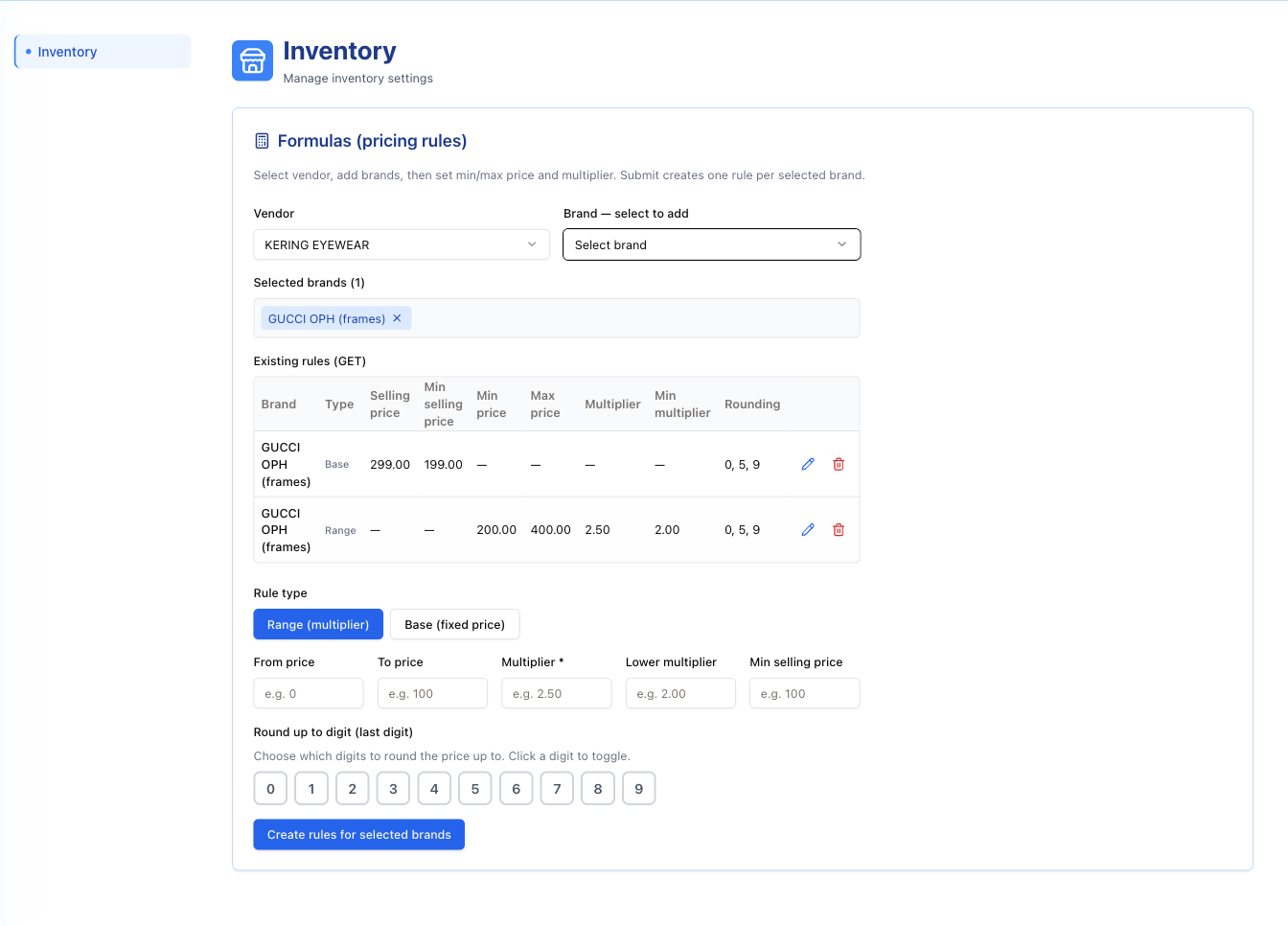
Each row is one rule: the Brand, the Type (Base or Range), then the numbers that apply to that type — the rest show as dashes. Rounding shows the digits chosen.
The table uses different words from the form above it. Min price and Max price in the table are From price and To price in the form, and Min multiplier is Lower multiplier. Same figures, different labels.
The pencil turns a row into editable fields; the tick saves, the round cross cancels. On a Base row only the two selling prices and the rounding can be edited — its cost band cannot be changed here. On a Range row it is the other way round: the cost band, both multipliers and the rounding can be edited, but not its Min selling price.
The bin removes the rule straight away — there is no "are you sure?" step. Removing a rule does not re-price anything already in stock — it only stops applying to items priced from then on.
Editing cannot clear a value. A box left empty is simply not saved, so the old figure stays; the same goes for rounding — switching every digit off and saving leaves the rule's existing rounding in place. To drop a value, delete the rule and create it again.
Creating rules
Set the fields, then press Create rules for selected brands. If several brands are in the chip row, one rule is created for each of them with the same numbers — which is the quick way to price a whole vendor the same way.
The button stays disabled until at least one brand is chosen. After a successful create, the chip row and the form are cleared — pick the brand again to see the new rule in the table.
Where the prices show up
The rules are used when frames are booked in. On a vendor receipt, once a brand is chosen and you leave the frame's List Cost box, Selling Price is filled in from the brand's rule; staff can still type over it.
That selling price is what you see on the item in Inventory and in the Price Book, and what is offered when the frame is added to a patient's invoice. Min selling price and Lower multiplier are saved with the rule as the practice's floor for discounts.