The appointment schedule
The schedule is the main screen of the Appointment section: one day at a time, a column per doctor.
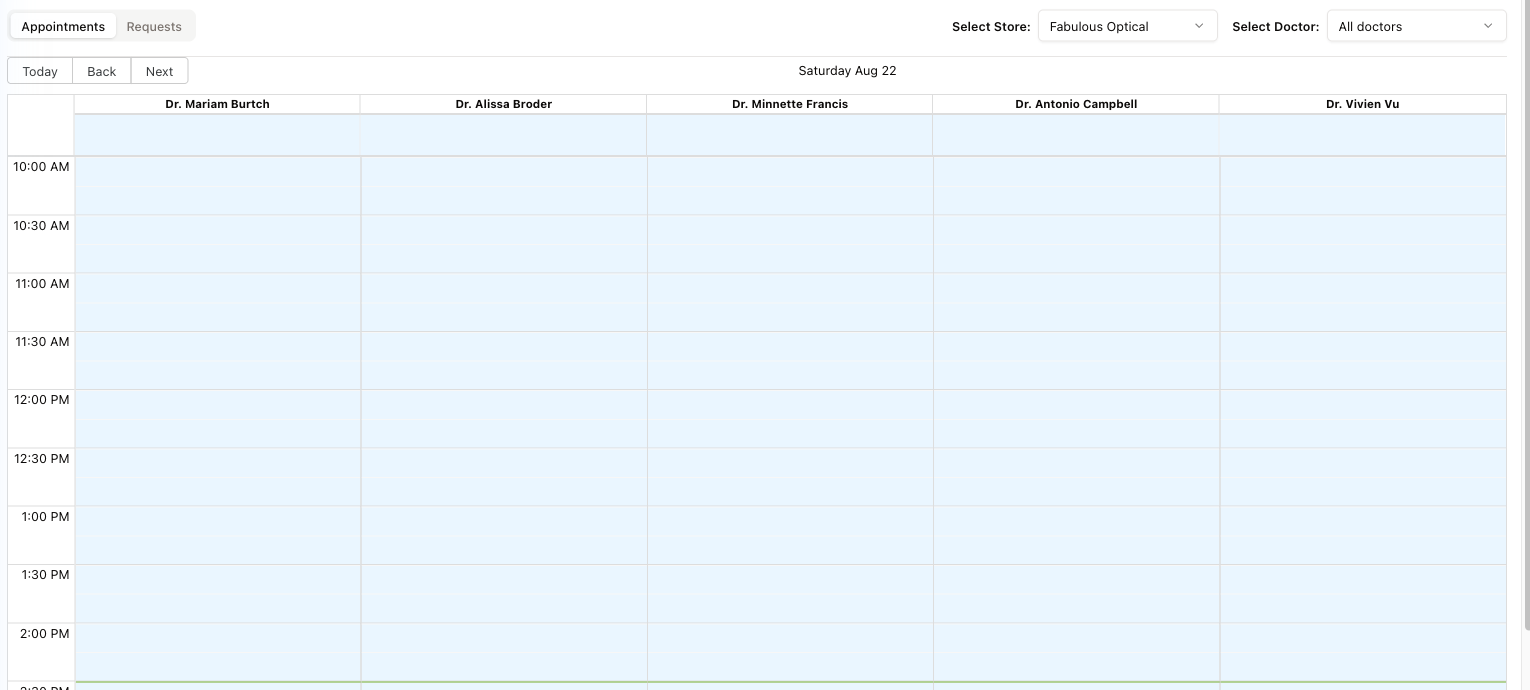
Reading the grid
- A column per doctor — every doctor at the selected store gets one, whether or not they are working that day.
- Time rows down the left, covering the working day. How fine they are follows the slot length set under Appointment settings: a 15-minute slot gives half-hour labels, a 30-minute slot gives hourly ones.
- A green line across the grid marks the current time, so you can see at a glance what is next.
- Booked slots appear as blocks in the doctor's column. Click an empty slot to start a booking; click a booked one to open it.
Moving around
- Today / Back / Next step through the days; the date sits in the middle.
- Select Store — which location's schedule you are looking at.
- Select Doctor — narrow to one doctor, or All doctors to see everyone side by side. With one doctor picked, Day and Week buttons appear on the right above the grid, so you can see that doctor's whole week.
The two tabs
Appointments is this grid. Requests is the queue of booking requests waiting to be accepted — see Appointment requests.